Insights Analysts can leverage the Donor Team fields in an Insights Explore to monitor and visualize their program's performance efforts across all teams. This allows them to track the progress of each team's goals, such as comparing the actual volunteer hours to the annual target.
- NOTE: It is important to acknowledge that Donor Team fields can be used on any Explore with access to donor information.
The following steps will guide you through adding Donor Team Fields while using the Volunteer Hours Insights Explore.
Step 1: Access Insights
Log into CyberGrants and navigate to the Insights platform.

Step 2: Select the Volunteer Hours Explore
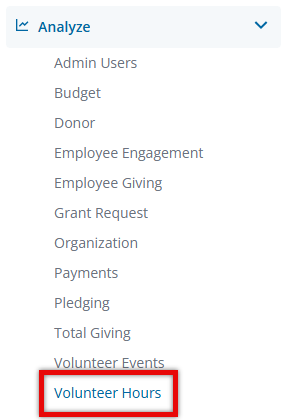
Navigate to the "Analyze" tab and click the "Volunteer Hours" hyperlink to open the Volunteer Hours Explore.
Step 3: Add Donor Team Fields
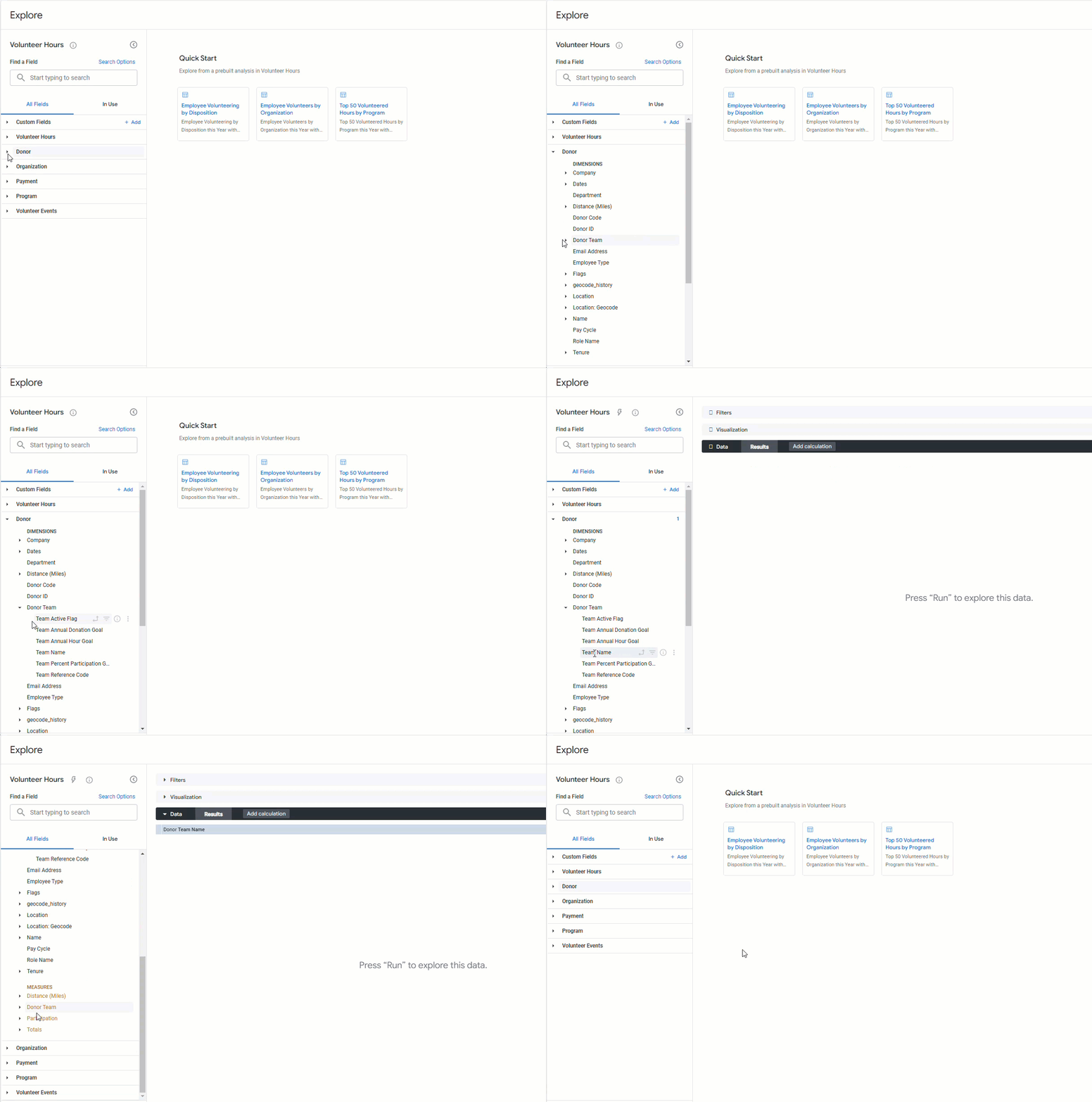
Under the "All Fields" tab in the Explore panel, locate the Donor Team field names under both the "Dimensions" and "Measures." Then, select the appropriate fields to add the criteria to your data table.
- Repeat this step to include additional Donor Team fields as needed.
Step 4: Apply Filters and Customize Visualization
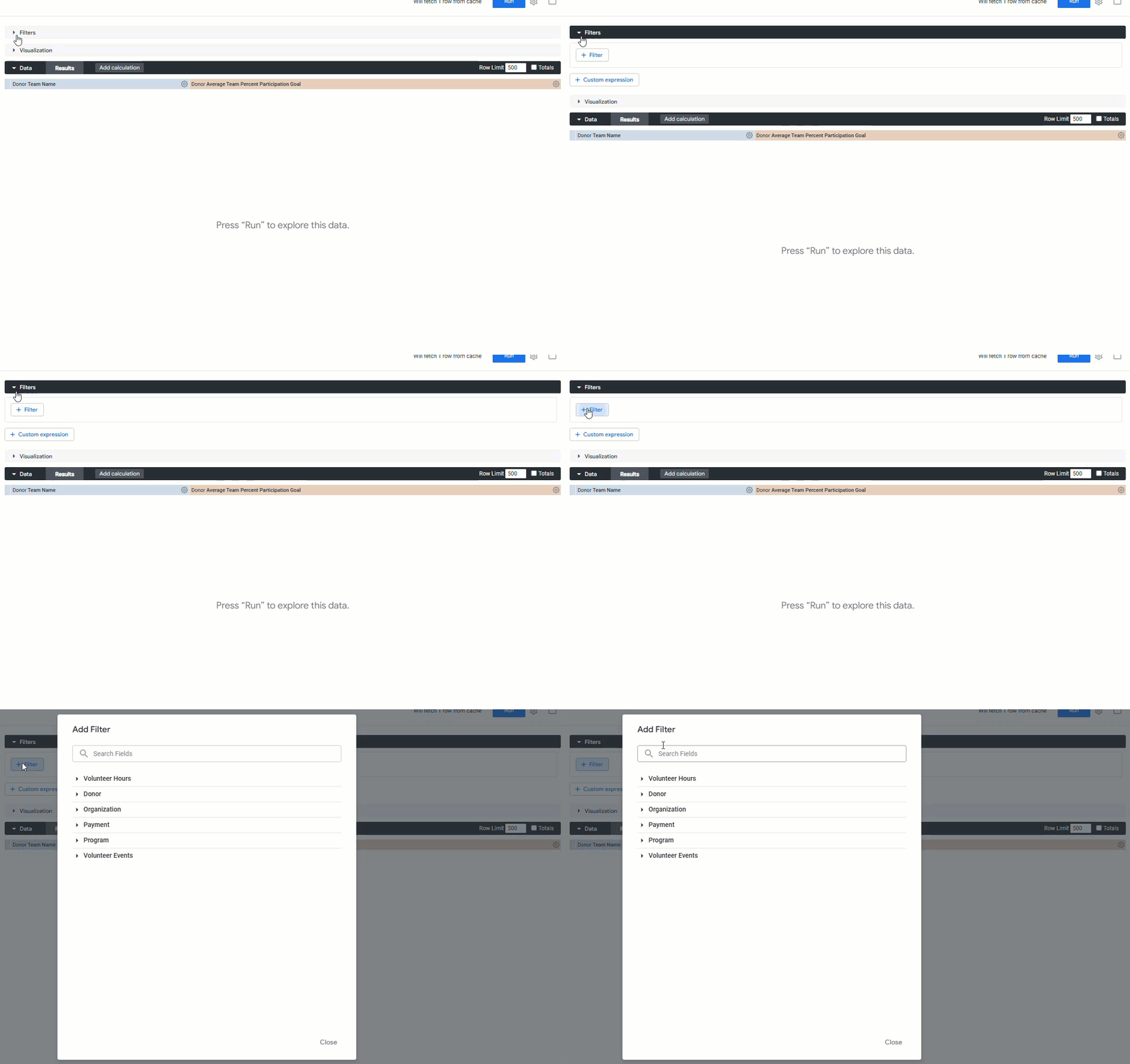
Add any additional fields or applicable filters to refine your report.
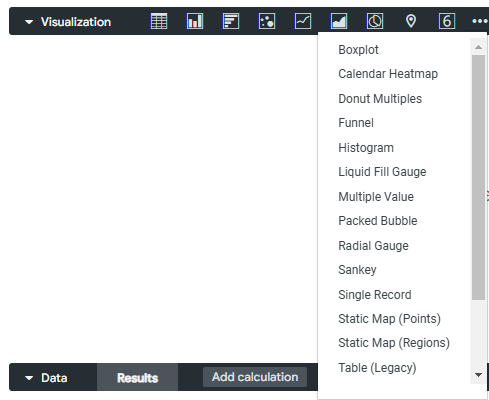
Expand the Visualizations menu and select the visualization type that best represents your data, such as a bar graph or column chart.
Step 5: Run the Report
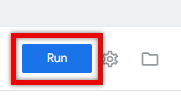
In the top-right corner, click the "Run" button to generate the report with the requested Donor Team data.
Step 6: Repeat the Process as Needed
If you require additional data, repeat the steps in this set when using any Insights Explore to generate new reports that include different Donor Team fields or visualizations.
What else do you need help with?
Not what you're looking for? Navigate to Understanding Insights Donor Team Fields


