The Insights platform provides administrators with permission to manage Insights users including the ability to remove Insights user access.
This feature is designed to accommodate scenarios where users may need to have their access temporarily suspended, such as during a leave of absence or team reassignment, allowing their license to be reallocated to better serve the organization's needs.
- The platform automatically removes users who have been marked as "inactive" in CG admin.
When a user is removed, their personal content will no longer be accessible, but any group content they have created will remain accessible within the group folder. If the removed user is later added back to the system, their personal content will be reinstated.
To remove an Insights user’s access, proceed as follows.
Step 1: Access the Insights tab
Navigate to the Insights tab.
Step 2: Locate the Users Section
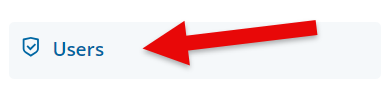
Click on the Users link located in the left-side panel.
Step 3: Locate the User Account
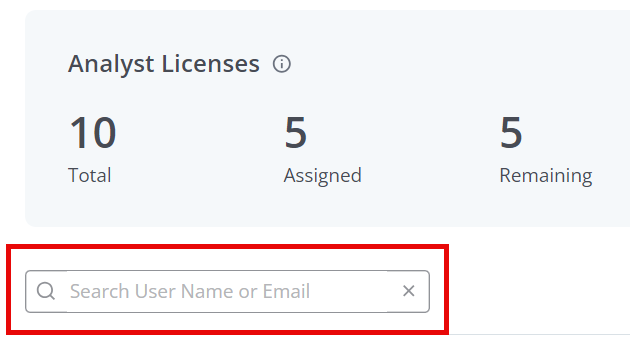
Administrators can use the search field to find the user they wish to remove, by entering the user's name or email address.
Step 4: Remove User
Once the user is identified, administrators can click the ‘Trash’ icon under the Options column to remove the user's access to Insights.
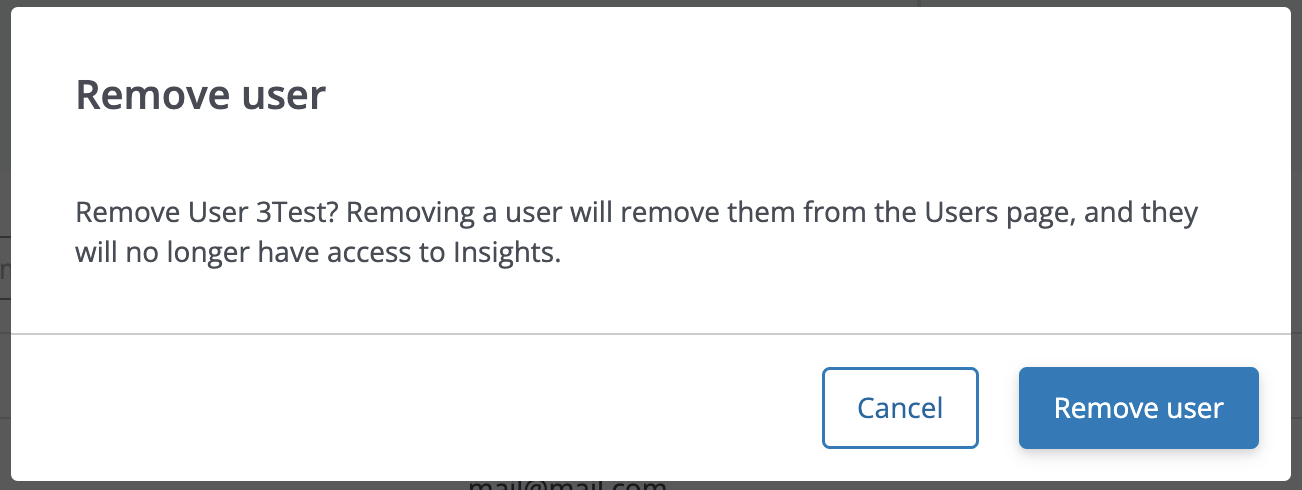
A confirmation prompt will appear. Click "Remove user" to finalize the user's removal from the Insights platform.
What else do you need help with?
Not what you're looking for? Navigate to Understanding the Insights Self-Service User Management Portal


