Administrators have the ability to edit existing Insights user accounts, including adjusting a user's access level.
To update an Insights user’s permissions, Insights administrators with the ability to manage Insights users can proceed through the following steps.
Step 1: Access the Insights tab
Navigate to the Insights tab.
Step 2: Locate the Users Section
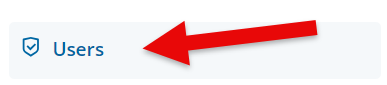
Click on the Users link located in the left-side panel.
Step 3: Locate the User Account
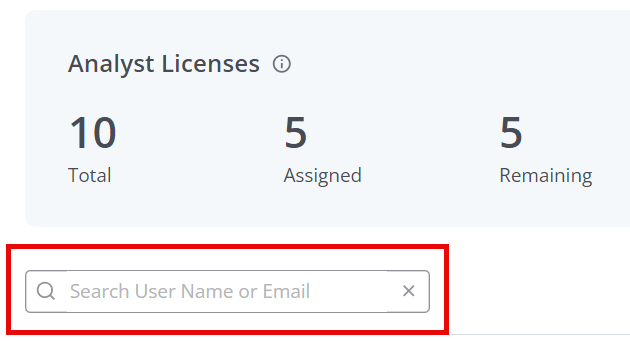
Use the search field to find the user you need to update, by entering their User Name or Email address.
Step 4: Update Access Level
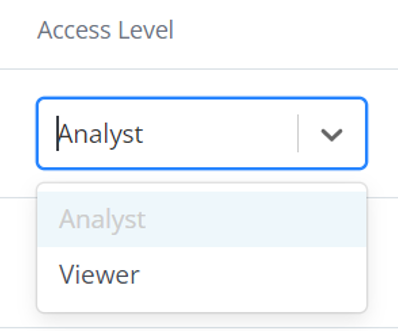
Next to the user’s email address in the search results, utilize the dropdown menu to change the user's access level between Analyst (higher-level permissions) or Viewer (basic permissions). Once the selection is made, click the "Save changes" button in the top right corner of the screen to apply the update.
What else do you need help with?
Not what you're looking for? Navigate to Understanding the Insights Self-Service User Management Portal


