The Grantmaker Primary Information profile in CyberGrants includes key details that are, initially, established by the CyberGrants Implementation Consultant during account setup.
- We recommend that account administrators review the Grantmaker Primary Information regularly to ensure that all the details remain accurate.
To access and manage your company's Primary Information, follow the below steps.
Step 1: Access the Grantmaker Primary Information Profile
Log in to your CyberGrants account and navigate to the Admin tab. Locate the "Primary Info" link and click on it to access your company's Primary Information.
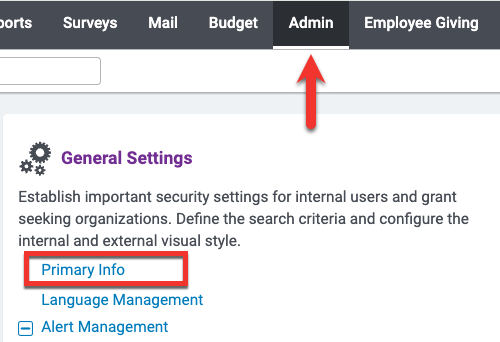
Step 2: Review and Edit the Grantmaker Profile
Carefully review your company's name, address, contact details, and other relevant details. Ensure that all the information is accurate.
- NOTE: If your account was recently set up by the Implementation Consultant, please review the profile prior to your go-live date.
If you need to update any of the information at a later time, such as a change of address or other primary details, you can do so directly on the form.
- Changes must be made in Sandbox. The system will prompt you to "Edit in Sandbox" if you are, currently, in the production environment.
- After making any changes, be sure to click "Save" and, then, "Publish" the updates.
If you require any assistance, please contact the CyberGrants client support team.
Step 3: Manage User Security Settings in the Grantmaker Profile
As an Administrator, you can determine the default security level for internal users when they are created.
Administrators can also set the Auto Login Timeout Limit for internal users, which will log them out of CyberGrants after a configured amount of time if there is no activity in their account.
- For security, this value cannot be set to 0 minutes or exceed 1440 minutes (24 hours).
What else do you need help with?
Not what you're looking for? Navigate to Understanding Application Configuration


