Multi-Factor Authentication (MFA) adds an additional layer of security to Apply Online grantseeker accounts by requiring a second form of verification beyond a username and password.
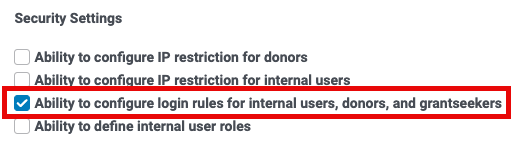
If you have the appropriate permissions, you can configure how MFA is enforced for grantseekers accessing your Apply Online portal.
Step 1: Navigate to the Multi-Factor Authentication settings
- Go to the Admin tab in Production.
- Select User Management.
- Select Multi-Factor Authentication.
- Choose Grantseeker.
This page allows you to control how MFA is enforced for grantseekers using standard login credentials.
Note: The setting you select applies to all grantseekers accessing your Apply Online portal. It cannot be configured by proposal type or individual user.
Step 2: Select your preferred MFA enforcement option
You will see three configuration options. Select the option that aligns with your organization’s security requirements.
Disable MFA
Grantseekers will not be prompted to set up or provide a second authentication factor when logging in.
Require MFA with an Authenticator App
Grantseekers must set up and use an authenticator application (such as Google Authenticator or Microsoft Authenticator).
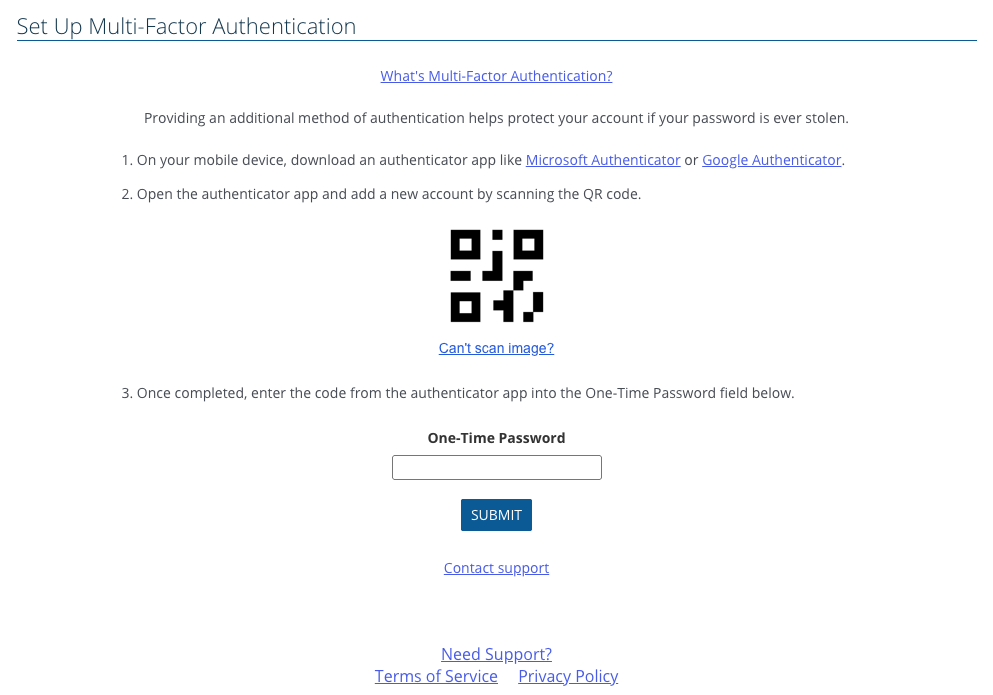
- Users who have not yet configured MFA will be prompted to set it up at login.
- Users who have already set up an authenticator app will continue using it.
- A time-based one-time password (TOTP) must be entered each time they log in.
Authenticator app codes typically refresh every 60 seconds.
Require MFA with a choice between an Authenticator App or Email
Grantseekers must use MFA, but may choose between:
- An authenticator app, or
- A one-time code is delivered to their email address.
- New users will choose their preferred method during setup.
- Existing users will continue using their previously selected method.
- Email-based one-time codes expire after a limited period of time.
Authenticator apps generally provide stronger protection because they generate device-based, time-limited tokens that are not dependent on email access.
Step 3: Save your changes
After selecting your preferred option, save your configuration.
The new setting will apply to all grantseekers logging in through your Apply Online portal.
Additional considerations
You can update the MFA configuration at any time.
- If you turn MFA off, grantseekers will no longer be prompted for a second factor.
- If you turn MFA back on, users who previously completed setup will resume using their previously selected method.
- If you change from “Authenticator App or Email” to “Authenticator App Only,” existing users who previously selected email will continue using email unless their MFA configuration is reset.
For security reasons, administrators cannot directly reset a grantseeker’s MFA configuration. If a grantseeker loses access to their authenticator device or email account, they must contact Support. The Support team will verify identity before resetting MFA settings.
To request assistance, open the Resource Center (question mark icon in the bottom right corner of the screen) and select Contact Support.
Providing guidance to grantseekers
To review and publish them:
- Navigate to Admin → Application Configuration → Support Areas.
- Review the preloaded MFA entries.
- Publish them to Production.


