To enhance the security of grantseeker accounts, reduce the risk of financial fraud, and align with industry-standard security practices, CyberGrants uses Multi-Factor Authentication (MFA) for Apply Online (AOL) applications.
CyberGrants' Apply Online (funder-specific NPO sites) empowers grantseekers to monitor their status, confirm donations and volunteer hours, and provide payment details.
- Multi-factor authentication is an additional security layer that requires grantseekers to provide a second form of verification in addition to their email address and password. This helps prevent unauthorized access to accounts, even if login credentials are compromised.
- Administrators can configure whether and how MFA is enforced for Apply Online grantseekers, including requiring an authenticator application or allowing the option to receive one-time codes via email in addition to using an authenticator app.
- The MFA interface is available in multiple languages, allowing grantseekers to navigate the authentication steps in their preferred language.
- The MFA requirement applies only to grantseekers accessing an Apply Online portal and is not applicable to those using our FrontDoor or Nonprofit Hub solutions. MFA for those experiences will be introduced in the future.
See below to learn more about the MFA user login process for Apply Online grantseekers.
Grantseeker Multi-factor Authentication Setup
Verify email address
Users must verify their email address when setting up multi-factor authentication (MFA) for the first time in the Apply Online portal.
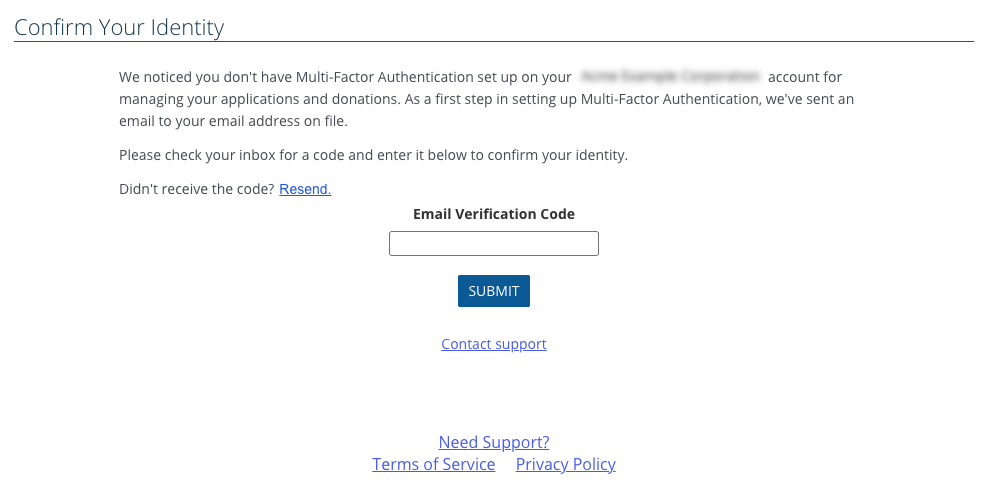
Email verification code
Users are prompted to check their inbox for a code to enter when logging in.
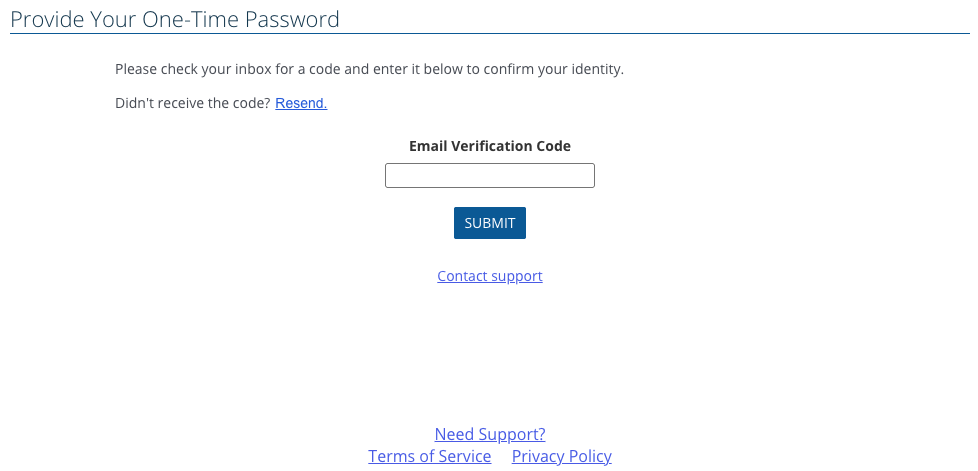
Set Up MFA Authentication Method
Depending on how MFA is configured when enabled, users may be required to use an authenticator application or may be given the choice between an authenticator application and receiving a one-time code via email.
Authenticator App
When enabled, users can connect their CyberGrants/Apply Online account to a third-party authenticator app, such as Microsoft Authenticator or Google Authenticator, to generate the required MFA code.
The image below illustrates the user’s experience when the Authenticator App is required and is the only authentication method accepted:
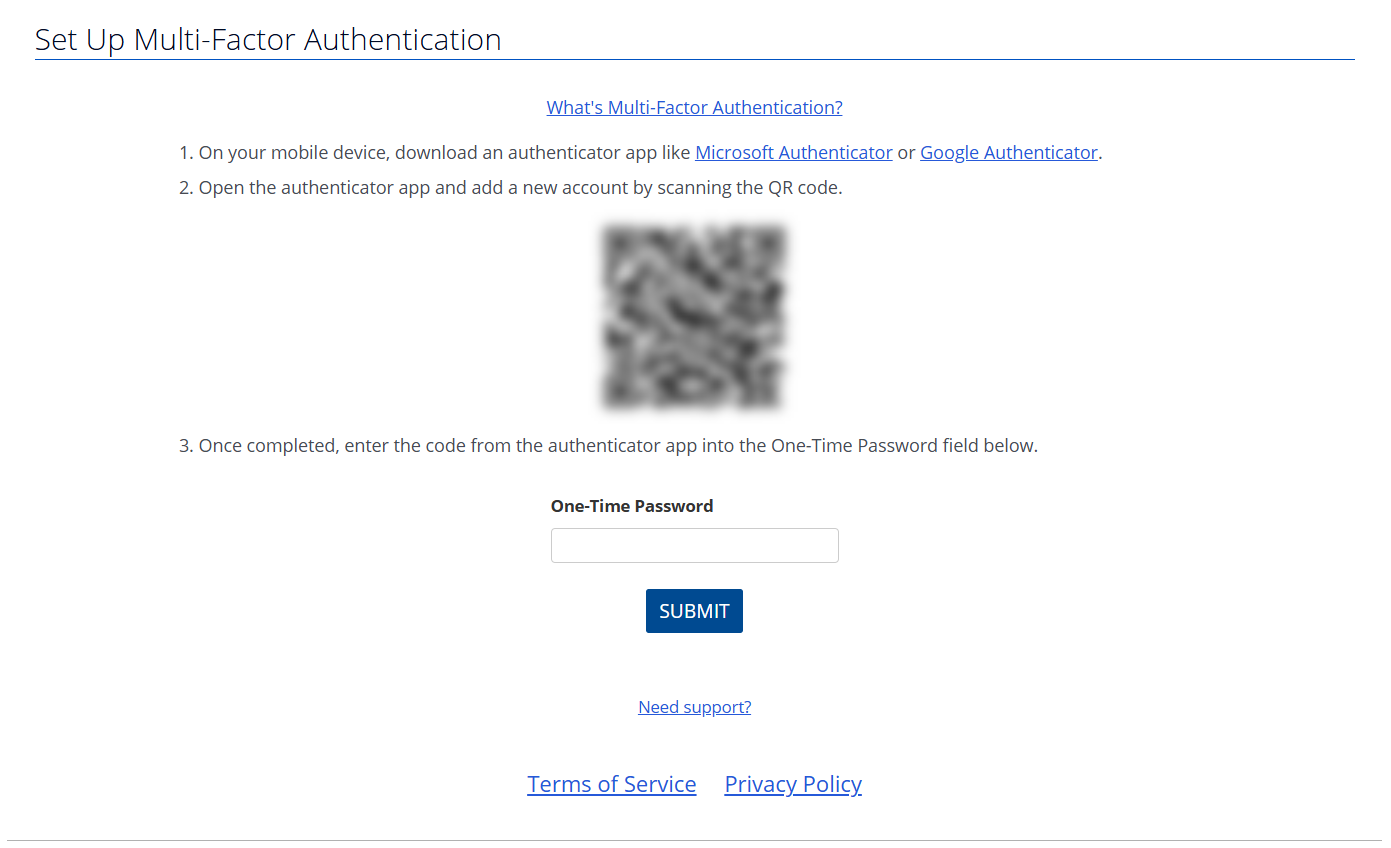
Users must scan the QR code using their authenticator app. This step establishes the connection between the account and the authenticator application.
Upon each subsequent login, users will be required to enter the MFA code displayed on their authenticator app. Authenticator app codes typically refresh every 60 seconds.
Authenticator App and Email
When both MFA options are enabled, both authentication methods will be displayed during setup:
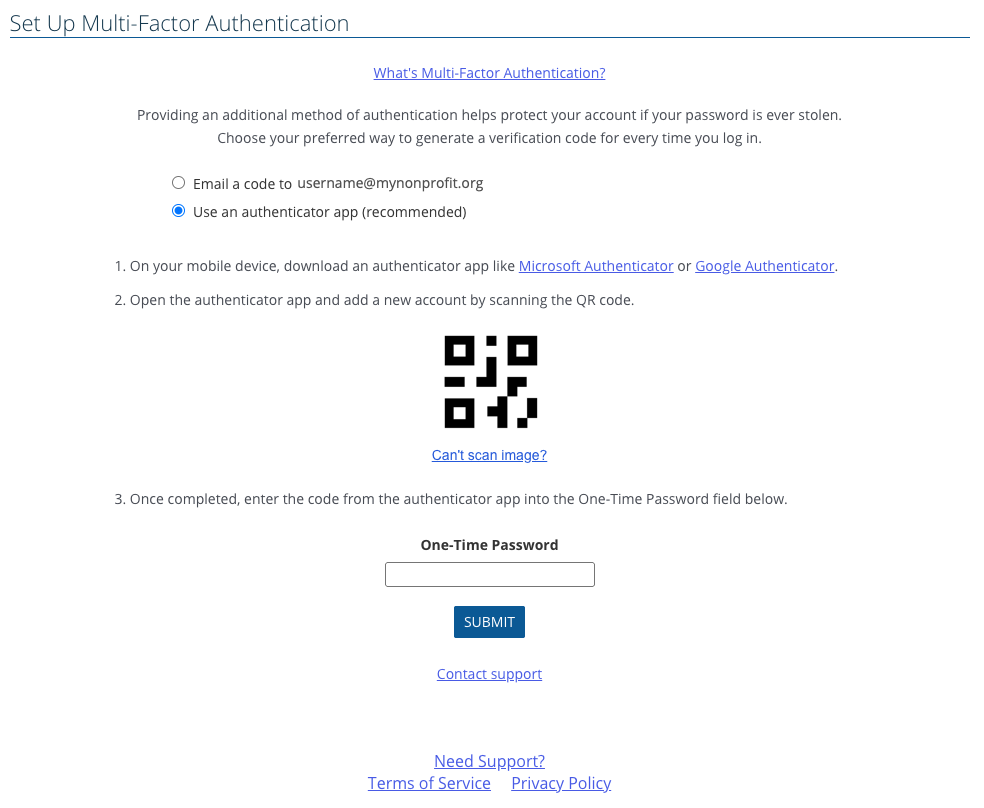
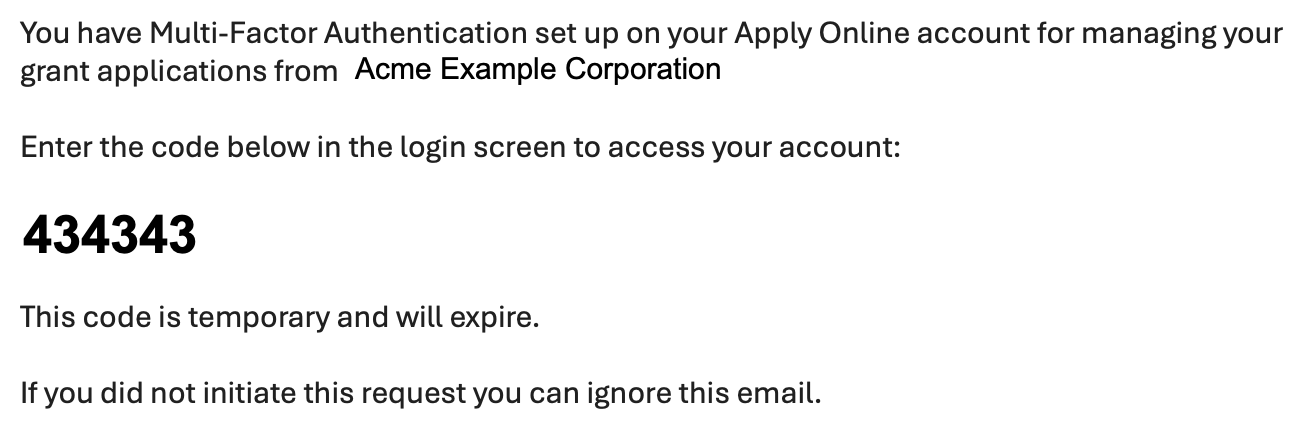
Upon a user’s return to the website, if email was selected as their preferred authentication method, the user will receive a one-time code at their registered email address each time they log in.
As with the authenticator app login method, the email-based one-time code is required for each subsequent login and will expire after a limited period of time (15 minutes).
Save One-Time Recovery Codes
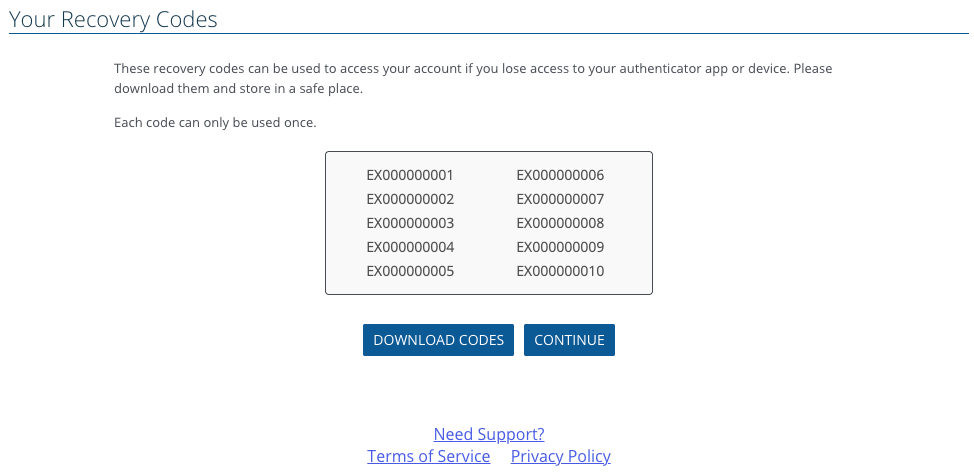
As the final step of the MFA setup process when using an authenticator app, the user will be provided with a set of one-time-use recovery codes. These codes can be used to access the account if the authenticator app is unavailable.
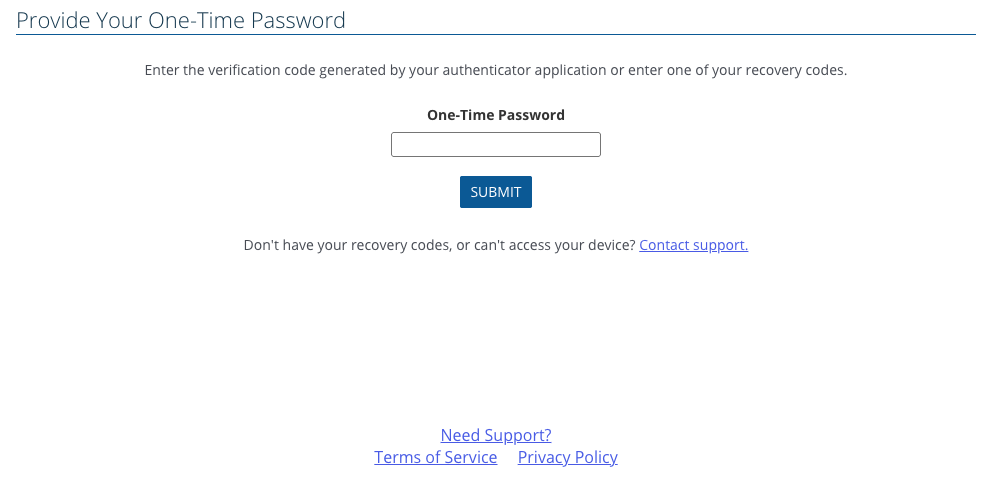
Users would then need to input it into the login screen as their One-Time Password and click Submit.
CyberGrants' Bonterra Contact Center will be available to assist grantseekers, ensuring users have the support they need.
Learn tips on communicating this feature to your grantseeker partners!
This secure login process helps to ensure that CyberGrants' Apply Online program administrators meet their due diligence requirements and reduces the risk of fraud.


