Want to create custom measures through the custom fields section of an Insights Explore? Watch the video below to learn how.
Insights Analysts can use the Custom Fields section to define a specific format or filter for their custom measures. By expanding the Custom Fields section in the field picker and clicking "Add" to select a Custom Measure, analysts can tailor their analysis to their unique needs.
Proceed as follows to leverage the Custom Fields section in an Explore.
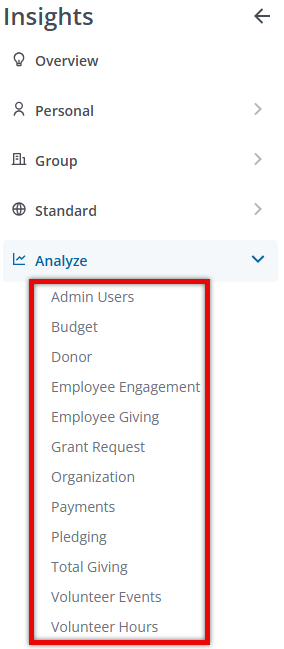
Step 1: Access Insights and Choose an Explore
Log into CyberGrants and navigate to the Insights platform.

Then, select the desired Explore to begin your analysis.
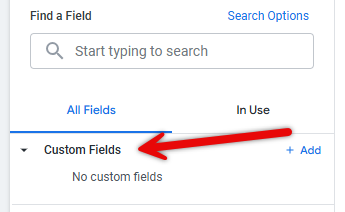
Step 2: Expand the Custom Fields Section
Locate the Custom Fields section in the field picker and expand it to reveal the available options.
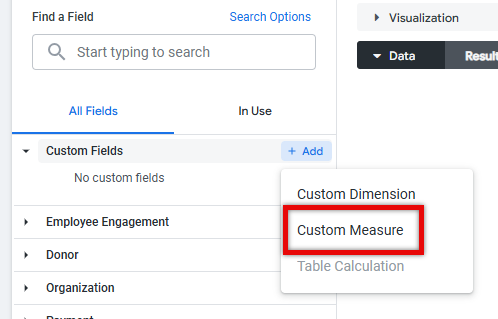
Step 3: Add a Custom Measure
Click the "Add" button within the Custom Fields section and select "Custom Measure" from the dropdown menu.
Step 4: Define the Custom Measure
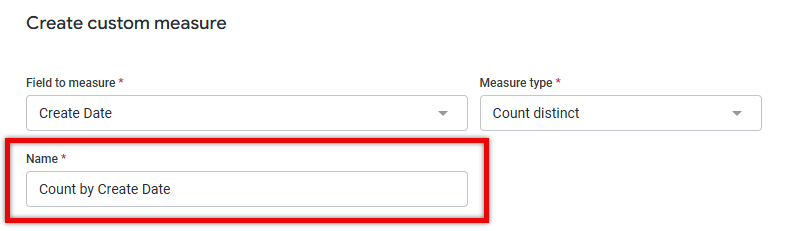
Select the field you wish to measure from the available options. Choose the appropriate measure type, such as sum, average, or count.
- NOTE: If you select count, a count distinct is executed in the generated SQL.
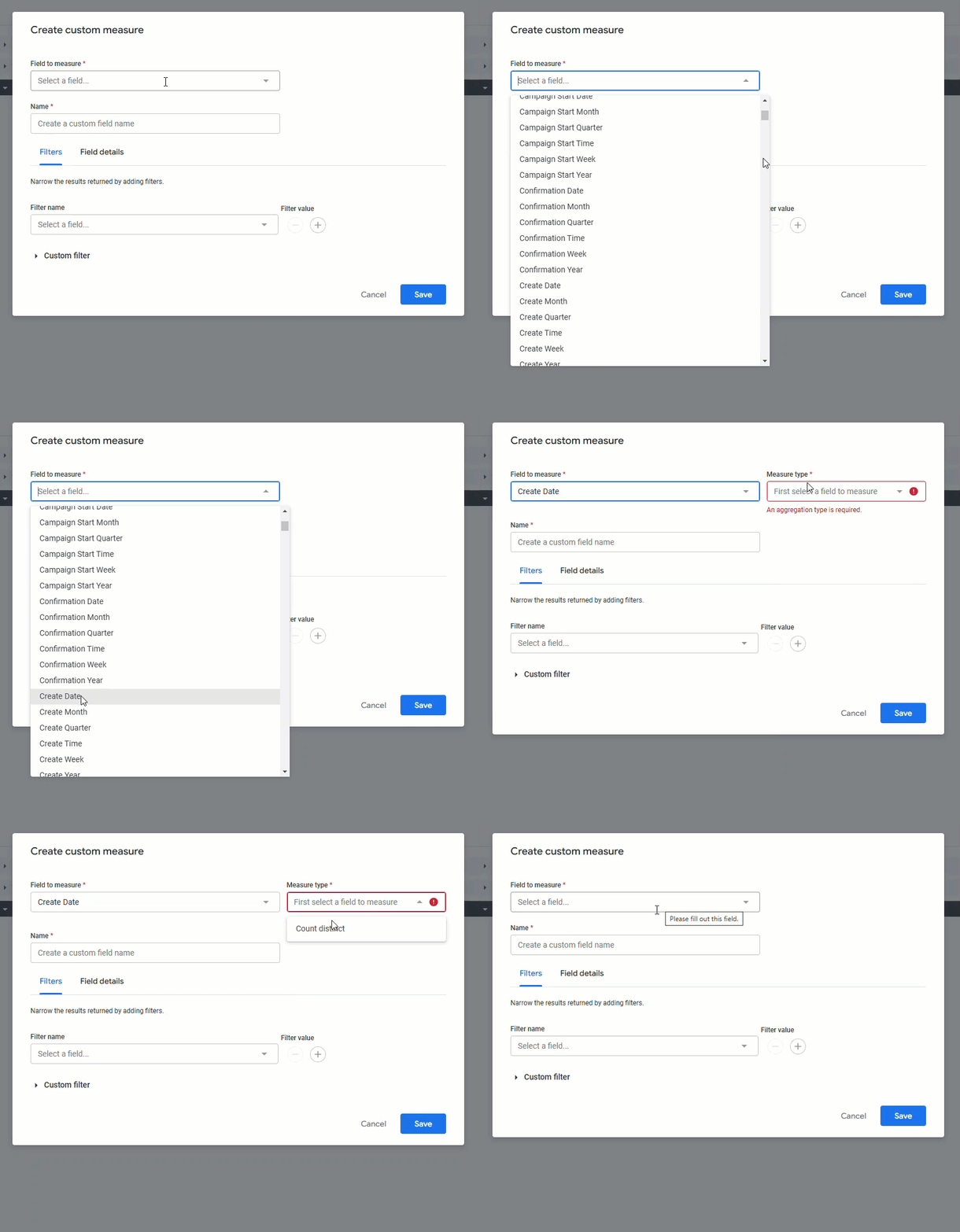
Specify a descriptive field name for your custom measure.
Step 5: Consider Adding a Filter
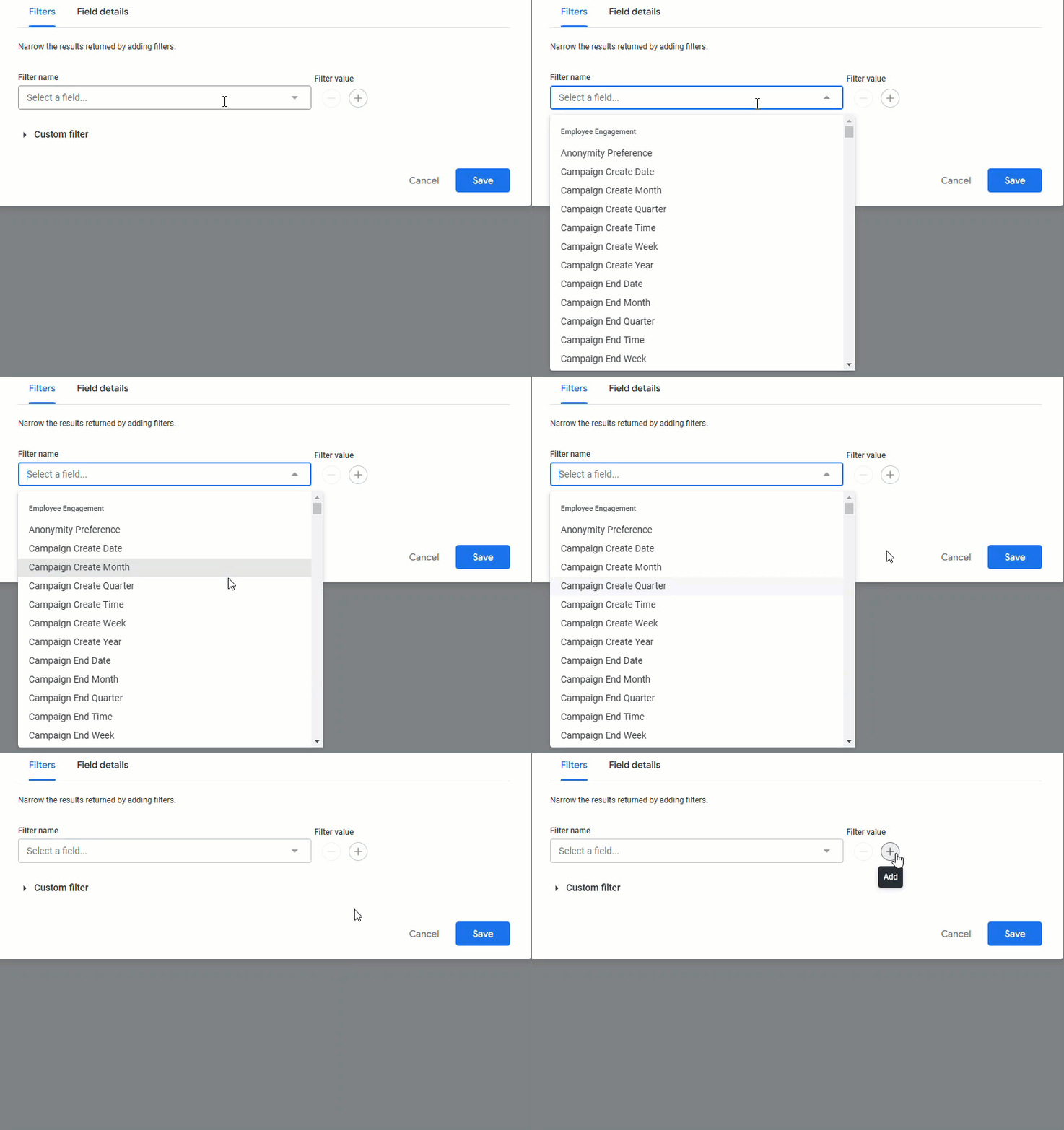
If desired, you can add one or more filter conditions to your custom measure by selecting a field from the dropdown on the Filters tab. To learn more about adding filters to a custom measure, visit How do I add a Filter to a Custom Measure in an Insights Explore?
Step 6: Utilize the Custom Measure
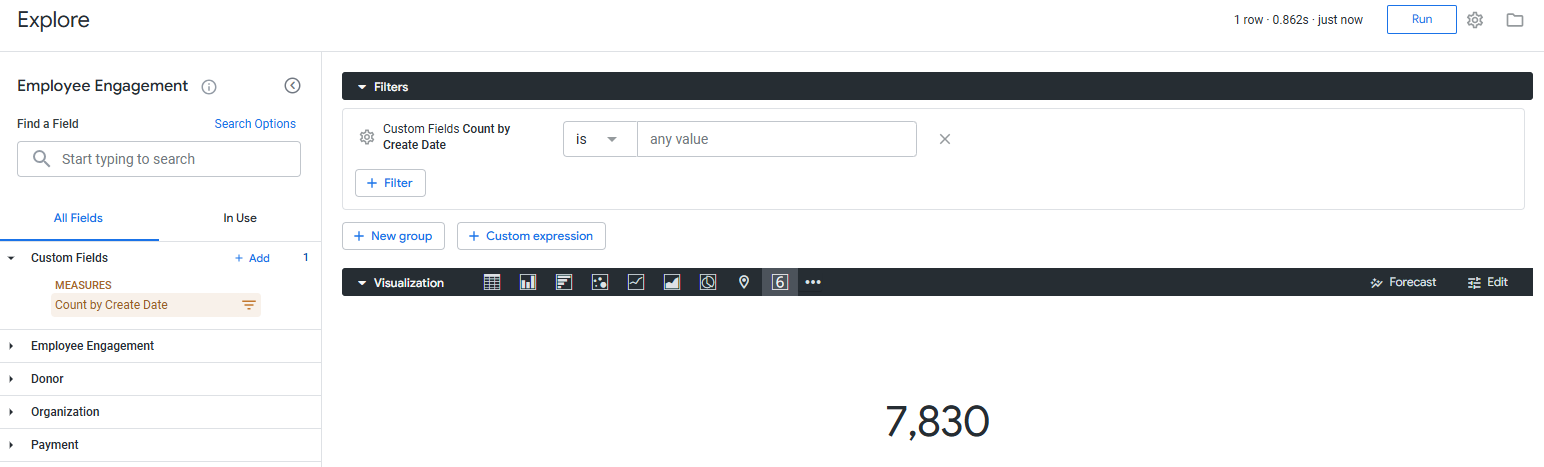
Click "Save". The field picker will now display your new custom measure in the Custom Fields section. Then, click "Run" to populate data into the report.

- As with other standard fields, you can click the custom field's name to add or remove it from your data table.
- You can, also, incorporate the custom field as a Filter or include it in a visualization as needed.
- NOTE: It is important to remember that custom fields cannot be used to create dashboard filters.
What else do you need help with?
Not what you're looking for? Navigate to Understanding how to create Custom Measures from Dimensions in Insights


