CyberGrants allows administrators to reorder the List Values within various Checkbox, Multi-Select, Single-Select, and Percentage Lists data field types.
Follow the instructions below to access the existing list values for a field and rearrange their order.
Step 1: Access the Data Field
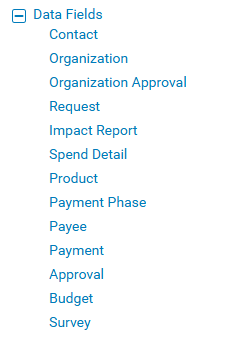
Navigate to the Admin tab in the Sandbox environment and access Data Fields under Application Configuration. Select the appropriate data type (Contact, Organization, Request, Payment, etc.) to view the field you are updating.
Step 2: Navigate to Values
Click "Edit" next to the appropriate field and scroll to the bottom of the page. Then, select the "Edit List Values" button.

Step 3: Reorder the List Values
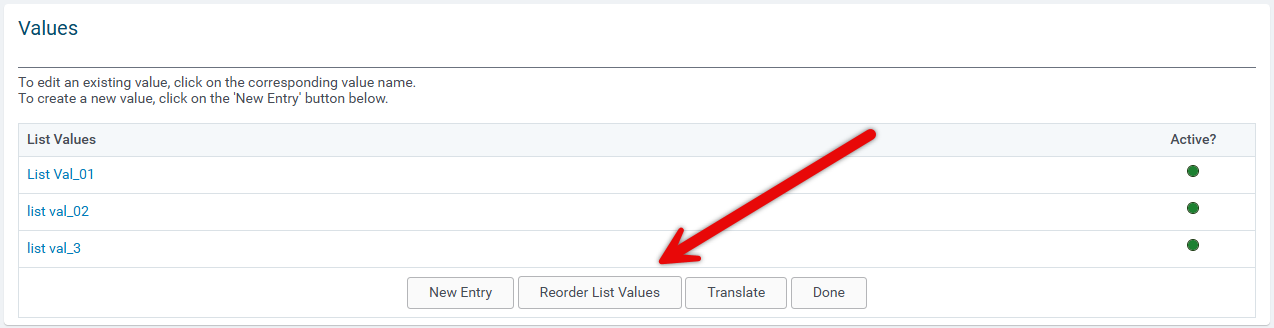
Click the “Reorder List Values” button on the Edit List Values screen.
Step 4: Select the Values to Move
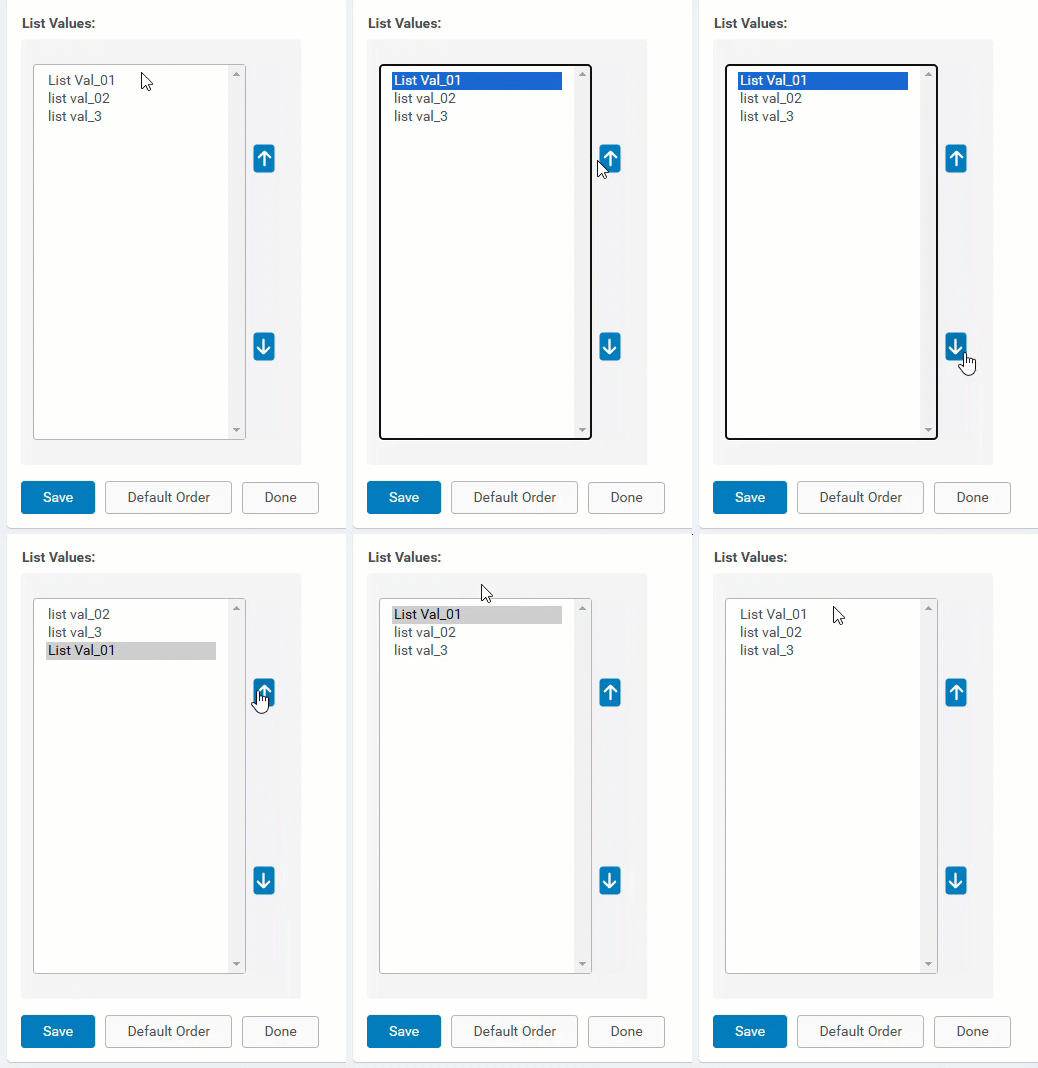
Highlight the value(s) that you want to rearrange. You can select multiple values by pressing the "Ctrl" or "Apple" key while clicking on the desired values.
Step 5: Adjust the Order
Either click the up or down arrow on the right to move the value(s).
Step 6: Save the Changes
Once you have completed arranging the order of the list values, click "Save" to apply the changes.
What else do you need help with?
Not what you're looking for? Navigate to Create and Edit Fields Overview or visit Understanding Field Configuration


