CyberGrants offers administrators the ability to configure and manage List Values, which are required for Checkbox, Multi-Select, Single-Select, or Percentage List data fields. This feature enables Administrators to customize the available fields presented to users.
To learn more about creating list values for a field, proceed through the following steps.
Step 1: Access the Data Field
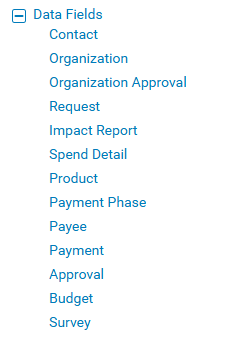
Navigate to the Admin tab in the Sandbox environment and access Data Fields under Application Configuration. Select the appropriate data type (Contact, Organization, Request, Payment, etc.) to view the field you are updating.
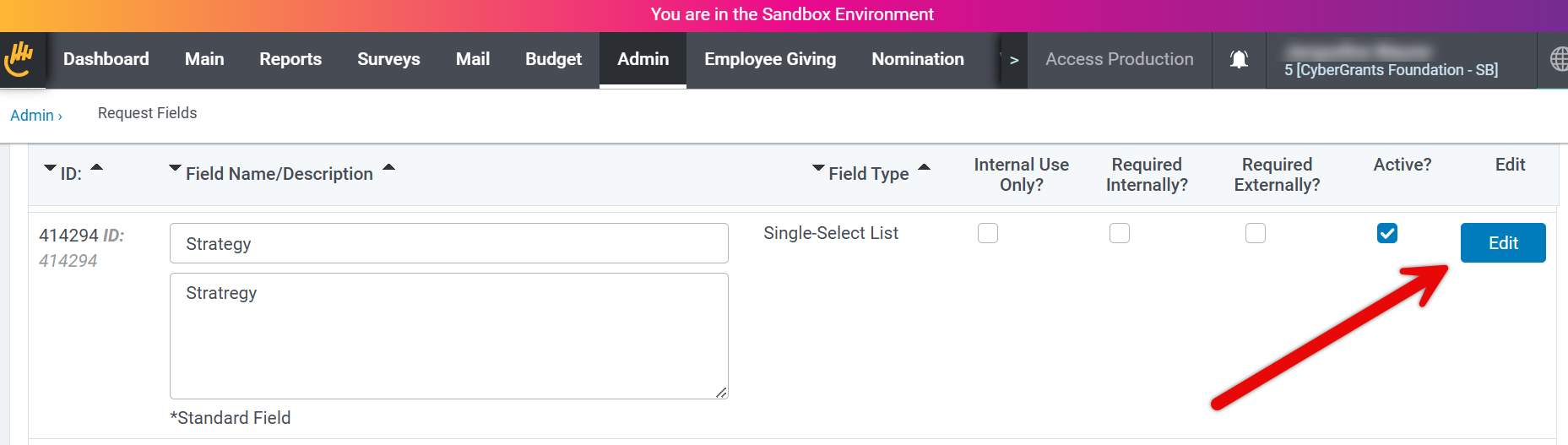
Then, click "Edit" next to the appropriate field name. NOTE: A standard, Single-Select field (Contact Type, Organization Type, and Request Type) and its values are editable by an Administrator.
Step 2: View List Values
To add a new value, edit, or inactivate an existing value, scroll to the bottom of the page and select the "Edit List Values" button.

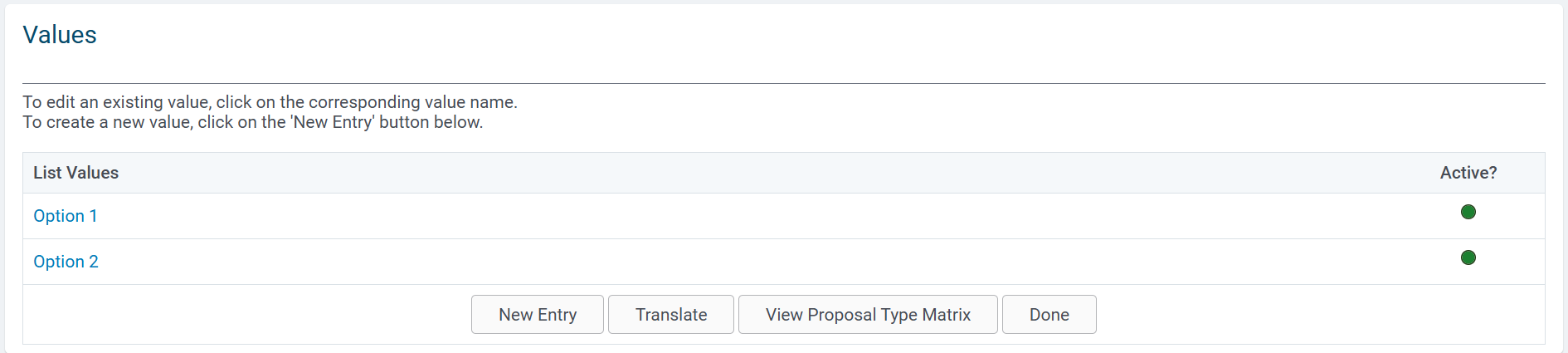
On the List Values configuration page, administrators can select an existing List Value to adjust its settings or deactivate the value.
- Active/Inactive dots appear under the "Active?" column indicating if an existing list value is enabled or disabled.
NOTE: The list values display in the order they appear on the screen. For most fields, the order of the list values can be rearranged. Exceptions include “Contact Type”, “Organization Type”, “Request Type”, and “Payment Type”. Click here to learn about reordering list values in a field.
Step 3: Create a New List Value
To create a new value, proceed as follows:
- Click the "New Entry" button on the Values page.
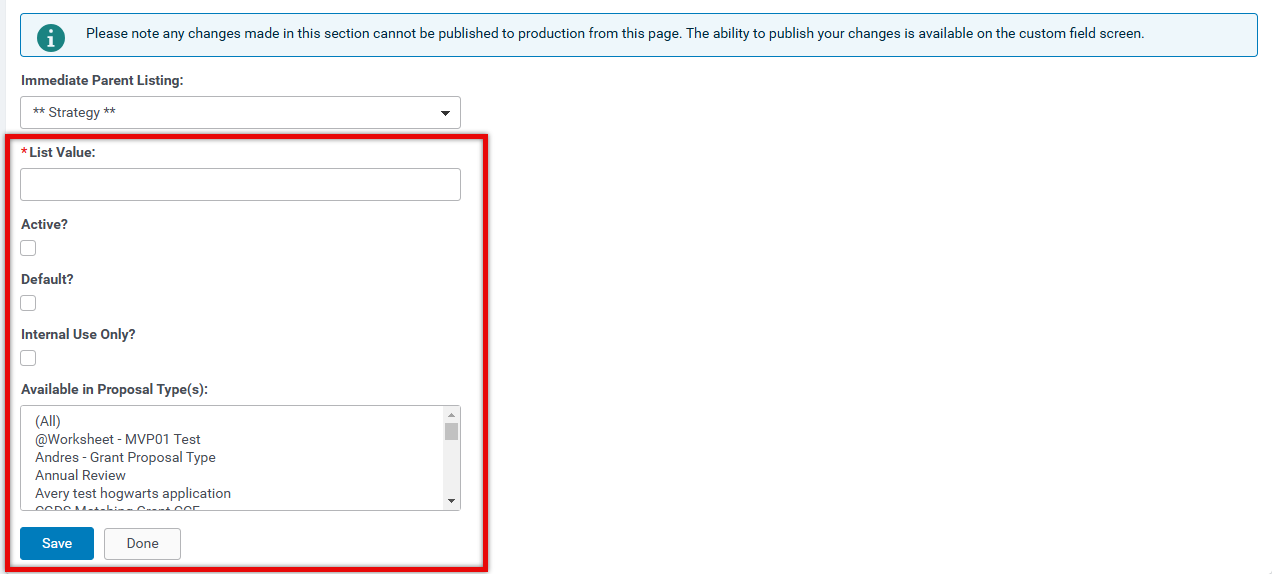
- Enter the title of the "List Value" in the available text box.
- Select the "Active?" checkbox to ensure the value is available for use.
- Administrators can also configure the value to be the default, applicable for internal use only, and available in select proposal types.
- Click "Save" when done.
Step 4: Create a Hierarchy
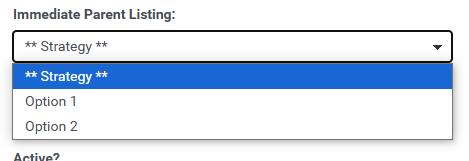
When configuring multi-select and single-select field types list values, administrators can create a hierarchy by highlighting a value other than "** (name of field) **" from the "Immediate Parent Listing" list box and, then, proceed with adding the List Value name, activating the value, and saving the update.
 Key Configuration Notes
- It is important to inactivate any list value(s) in the Contact Type, Organization Type, or Request Type field that are not used in any proposal type.
- The "Funding Principle" standard field in the Request Data Field section is configurable and can be edited in the process, similar to the Contact, Organization, and Request Type fields.
As a reminder, make sure to click the "Save" button to save any data field changes and, when prepared, publish the change on the custom field screen.
What else do you need help with?
Not what you're looking for? Navigate to Create and Edit Fields Overview or visit Understanding Field Configuration


