The eSignature feature grants access to standard tools for request owners, administrators, and all other users (with editor linking permissions) to understand a document’s current status and indicate when grant requests are ready for an eSignature with a document from a stored template.
When enabled, the feature also grants admin users with editor linking, as well as the ability to provide signer names and contact information as required acknowledgment from Non-Profit Organizations (NPOs) for the processing of grant applications.
The following user role permissions control who can take which actions within the template configuration:
User Permission
|
Description
|
| View eSignature settings: | Users can see the Admin navigation for eSignature configuration, can access the template list, and can view the template settings page. |
| Manage eSignature connection: | Users can create a new connection or edit an existing one. NOTE: Administrator users with active eSignature templates in either sandbox or production are granted this permission by default. |
| Manage eSignature templates: | Users can edit template settings and replace templates. |
| Upload eSignature templates: | Users can upload eSignature templates. |
Admin users with no roles assigned are granted full permissions by default. The default settings will be for Admin (security level A) to have all permissions enabled, with View permissions available to Basic, Budget, and Viewer (security levels F, B, and V).
- Security level A can be given any of the 4 permissions in a role. If they do not have a role assigned, they will default to having all 4 permissions, meaning a role can restrict them more than the default.
- Security level F can be given View E-signature settings or Manage E-signature templates permissions in a role, and will have no permissions if they do not have a role assigned.
- Security levels B, V, S, and SV can only ever be given View E-signature settings permissions in a role, and will have no permissions if they do not have a role.
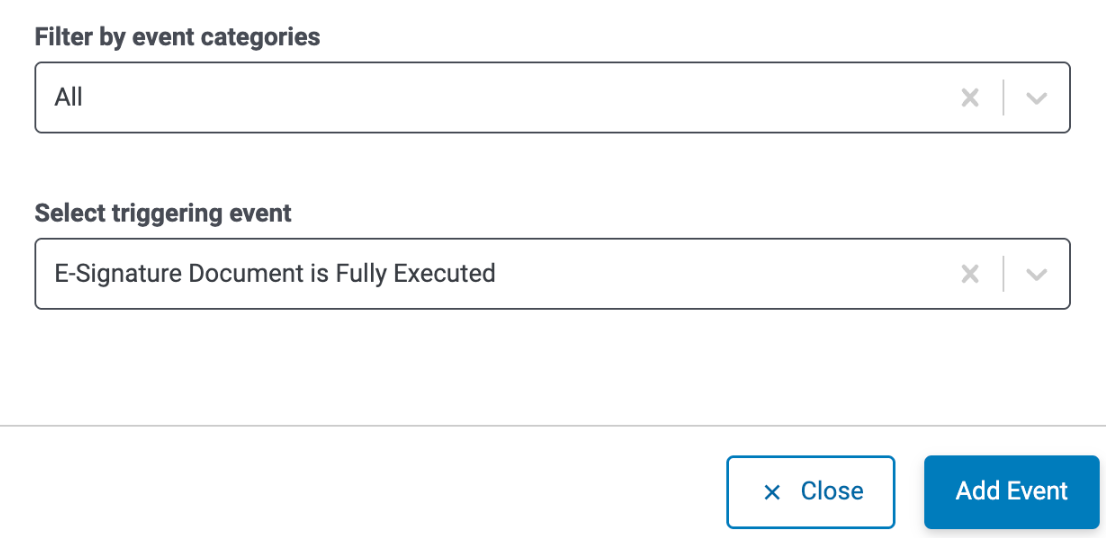
NOTE: Admins with access to configure Workflow Status Triggers can set automation based on the event “e-Signature Document is fully executed,” enabling downstream workflow visibility. Visit Understanding eSignature for Grant Programs to learn more.
What else do you need help with?
Not what you're looking for? Navigate to Understanding eSignature for Grant Programs
Looking for training?
Explore this feature at your own pace - access training video content or watch a recorded webinar by clicking the link below.


