To employ the eSignature feature for a grant program, administrators must have an existing license with either of our eSignature providers, AdobeSign or DocuSign.
NOTE: Administrators with the "Manage E-signature Connection" permission assigned to their user role will receive a notification email if the e-signature provider connection becomes invalid, informing them of the need to re-establish the connection with their E-signature provider. Please see the email content below:
- Email template ID: 700
- Subject line: Action Required - Reset E-Signature Connection
- Content: "An issue has occurred while re-authenticating with the existing eSignature provider. Please reset the connection to avoid any interruptions of service. Thank you."
Check out this video that guides you through the steps to connect to an eSignature service provider.
Proceed as follows to connect to an eSignature provider.
Step 1: Acquire eSignature provider credentials
Please work with your Client Manager to acquire the appropriate licensing. The following items must be obtained from the provider to establish a connection through CyberGrants:
- eSignature provider login
- eSignature provider password
If your program has eSignature configured, v3 of the E-signature API is the most recent version of the API utilized by CyberGrants to send eSignature documents and is required to implement this feature.
Step 2: Connect to the eSignature provider through CyberGrants
After establishing the provider relationship, program administrators will need to connect the provider through CyberGrants for eSignature capability. Using their provider credentials, administrators can initiate the connection through the product configuration.
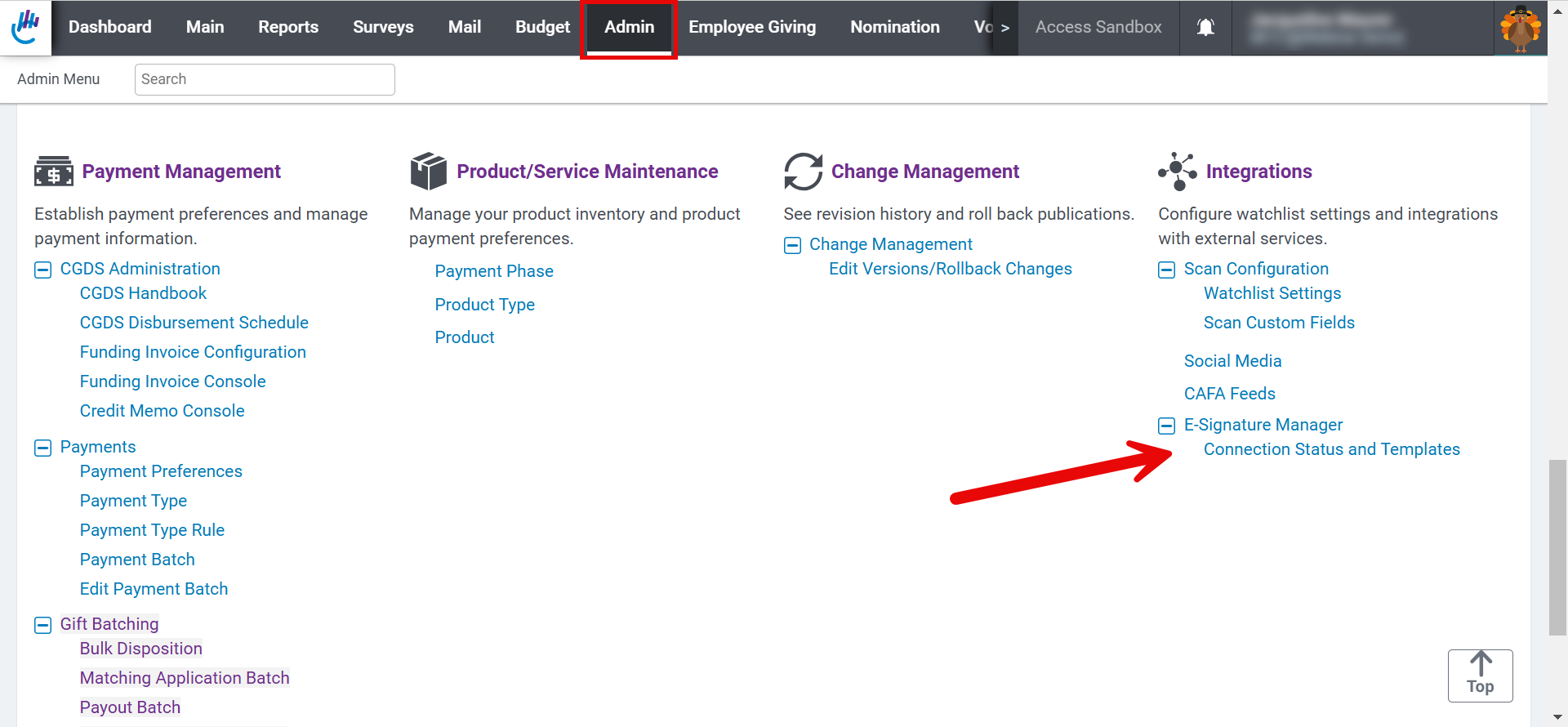
Program administrators will be prompted to select their provider from the 'Available eSignature Providers’ dropdown field.
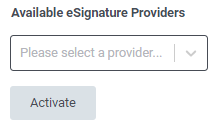
Once access to the provider is established, connection to the eSignature feature will be made available for all applicable grant programs.
NOTE: The provider connection must be activated in both the Sandbox testing environment and production.
If you have confirmed with the eSignature provider that your credentials are correct but are struggling to connect through CyberGrants after completing the above steps, please review the guidance below before opening a support ticket.
DocuSign Sandbox (Demo) Environment Troubleshooting
In some cases, users connecting to the DocuSign demo (sandbox) environment (account-d.docusign.com) may receive a “username/password invalid” error when using their standard DocuSign credentials.
If this occurs, the user must create a free DocuSign developer account at https://account-d.docusign.com/ and use those credentials to connect to the CyberGrants sandbox environment.
- This requirement applies to sandbox connections only.
- When connecting to production, users should continue using their standard DocuSign credentials.
If you continue to experience connection issues after reviewing the above guidance, please open a support ticket for assistance.
What else do you need help with?
Not what you're looking for? Navigate to Understanding eSignature for Grant Program
Looking for training?
Explore this feature at your own pace - access training video content or watch a recorded webinar by clicking the link below.


