Grants program administrators can use variable eSignature fields to create flexible, dynamic approval documents. This approach allows proposal requests to include any number of signers, starting from just one, while your template adapts to display only the fields that are populated.
Note: An email is sent to the Request Owner two times (this must be enabled by development). First, they will be cc’d on the email when the first signer views the document. Then, once all signers have completed the document, the Request Owner receives an email containing a PDF of the fully signed document.
Follow the steps below to learn more.
Step 1: Prepare your template with signature labels
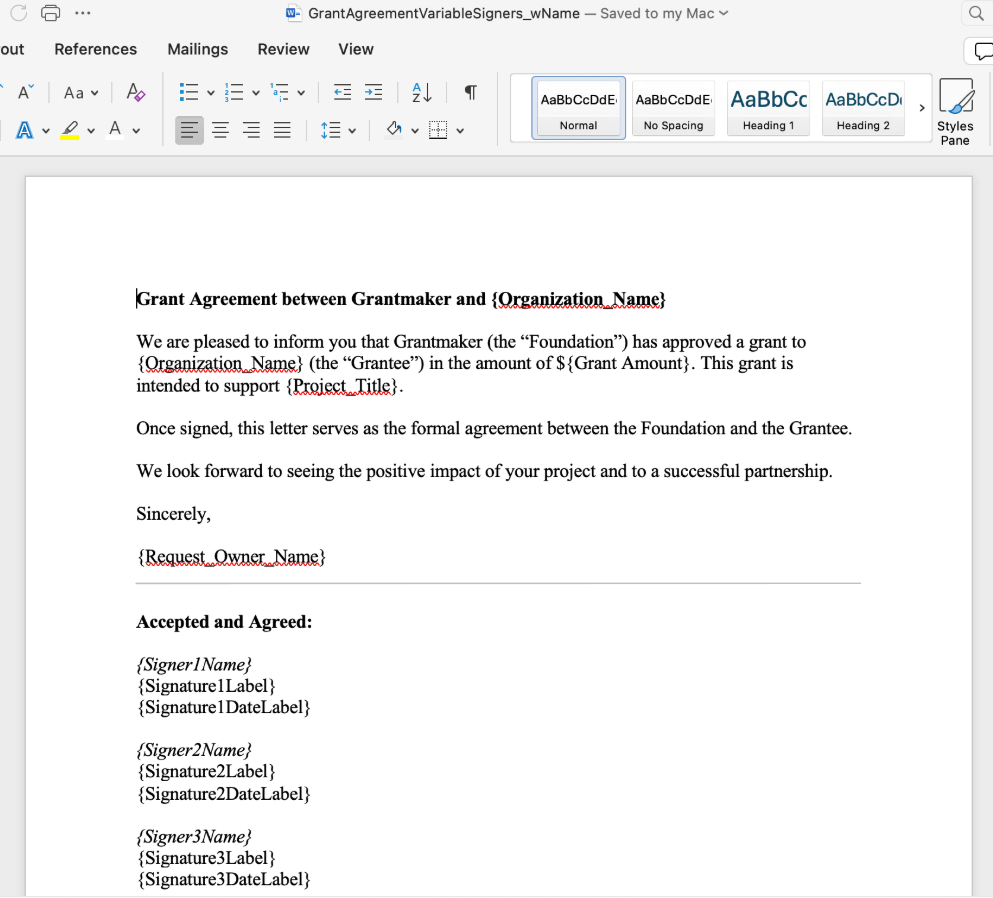
Add merge fields to your document template to designate where signatures and dates should appear.
- Use the following merge field formats:
-
DocuSign (.docx):
/Signer1Signature/, /Signer2Signature/, etc.
/Signer1DateSigned/, /Signer2DateSigned/, etc.
-
AdobeSign (.pdf or .docx):
{{Sig_es_:signer1:signature}}, {{Sig_es_:signer2:signature}}, etc.
{{Dte_es_:signer1:date}}, {{Dte_es_:signer2:date}}, etc.
- Assign plain-text values to each merge field, such as:
- “Sign Here”
- “Signature 1:”
- “Date Here”
- “Signature 1 Date:”
Merge fields without corresponding signer data will be ignored when the document is generated.
There is no limit to how many label merge fields you can include.
Step 2: Upload your template to the E-Signature Manager
Integrate your customized document template into the system.
- Upload your document template that includes the signature and date label merge fields.
- When prompted, enter the plain-text values for each merge field.
Step 3: Configure proposal types to match template capacity
Ensure proposal type settings are compatible with your template.
For example, if your template includes up to eight signature fields, each proposal type using that template should allow up to eight signatures.
Step 4: Populate signers per request
Each proposal request can include a variable number of signers.
- At least one signer must be provided per request.
- You may include additional signers as needed, up to the limit configured in the proposal type.
Step 5: Preview the final rendered document
The template will adjust automatically to show only the signers included in the request.
- Signature labels and date fields will appear only for populated signature slots.
- Unused merge fields will not display in the final document.
This flexible setup ensures your documents remain clean, professional, and tailored to each approval scenario.
What else do you need help with?


