To adopt this feature, program administrators must have an existing license with either of our provider partners (AdobeSign or DocuSign) to use the eSignature functionality for their grant program. CyberGrants uses version 3 of the eSignature API to send documents. This version is required for all implementations.
Available eSignature Providers:
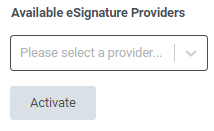
To configure eSignature for your grant program, ensure that you are connected to an eSignature provider and then follow the steps below.
Step 1: Connect to Provider
Once the provider relationship is obtained, program admins will need to connect their provider through CyberGrants. To accomplish this, the program admin user must know the following items:
- eSignature provider login
- eSignature provider password
When the above credentials are acquired, admin users must authorize permission for CyberGrants to access their provider’s settings by entering their provider credentials into the eSignature internal product application. If you are struggling to connect with the eSignature provider through CyberGrants after confirming that you have the correct credentials, please open a support ticket for assistance.
In some cases, users connecting to the DocuSign demo (sandbox) environment (account-d.docusign.com) may receive a “username/password invalid” error when using their standard DocuSign credentials. If this occurs, the user must create a free DocuSign developer account at https://account-d.docusign.com/ and use those credentials to connect to the CyberGrants sandbox environment.
- This requirement applies to sandbox connections only.
- When connecting to production, users should continue using their standard DocuSign credentials.
Step 2: Configure Templates and Fields
After the connection to the provider is established:
Step 3: Prepare Request for eSignature
Admin users must then institute the process by preparing the request for eSignature so that end users can take action by completing the Grant application. This leads to the remainder of the process flow outlined below:
- To initiate the end-user process, an admin user must indicate that the request is prepared for eSignature by using the "Ready to send for eSignature" standard field. Review the eSignature Field Descriptions for more information related to the fields required for eSignature.
- After confirming the request is ready for eSignature, if multiple templates are listed for the proposal type, the admin can select a template. If only one applies, the template assigned to the proposal type will be used, and Bonterra will then generate the eSignature document.
- In the case that the request is ready for eSignature but specific information is lacking in the template, the user may be prompted to update the information before they can proceed with sending the document for eSignature.
Step 4: Send and Finalize Document
Once admins are done configuring programs and templates, end users can use what's been configured and indicate that an individual request is ready for E-signature by completing the steps below:
- A PDF of the pre-filled document will be transmitted to the eSignature provider.
- The eSignature provider will send the PDF to all referenced signatories. The document may include a variable number of signatories, from 1 up to a total of 12 Grantseeker and Grantmaker eSignature fields combined.
- Documents are sent through an hourly back-end script to both signatories.
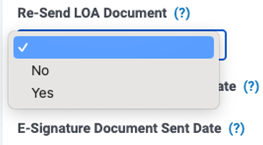
- If there is a change to a template and an eSignature document has already been sent for an approved request but not fully executed, the script will not resend the revised template. To resend a document to the required signatories, the document must be triggered by the user or the request owner.
- The signatories must sign the document.
- Bonterra will attach the fully executed document to the request.
- The fully executed document will be attached to the grant request and will be displayed to the request owner, administrator, or anyone with eSignature viewing permissions.
What else do you need help with?
Not what you're looking for? Navigate to Understanding eSignature for Grant Programs


