The Dashboard is a customizable interface that allows users to access and view important information and functionality within the system. To ensure the Dashboard displays the most relevant portlets for your needs, you can edit the portlet settings.
Looking to customize the Dashboard tab? Check out this video that guides you through the process.
Proceed as follows to learn how to access the Dashboard portlet settings, select the desired portlets, and save the changes.
Step 1: Enter the Sandbox Environment
Enter the CyberGrants system and navigate to the Sandbox environment. Once in Sandbox, users will notice a distinct visual indicator - a rainbow gradient stripe above the gray menu bar at the top of the page. This signifies that the user is currently working within Sandbox, rather than the live Production environment.

Step 2: Navigate to the Admin Tab
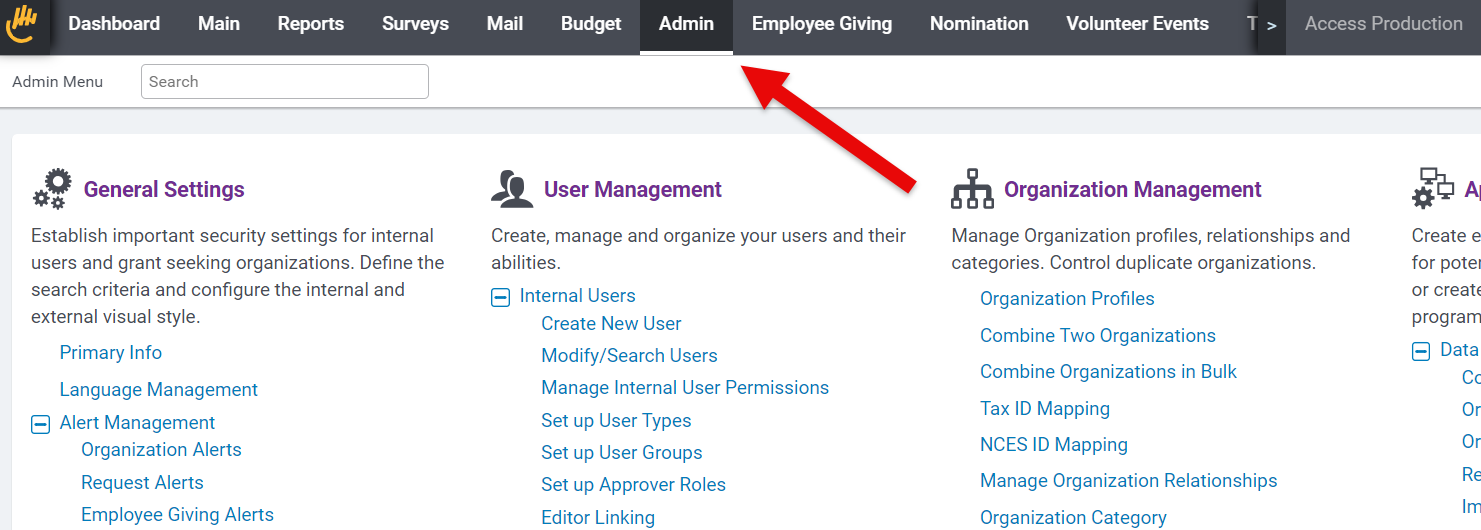
Navigate to the Admin tab.
Step 3: Access the View/Edit Portlets Link
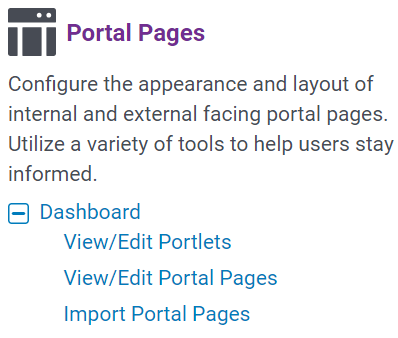
Scroll down the page until you see the "Dashboard" section and click "View/Edit Portlets."
Step 4: Select the Desired Portlets
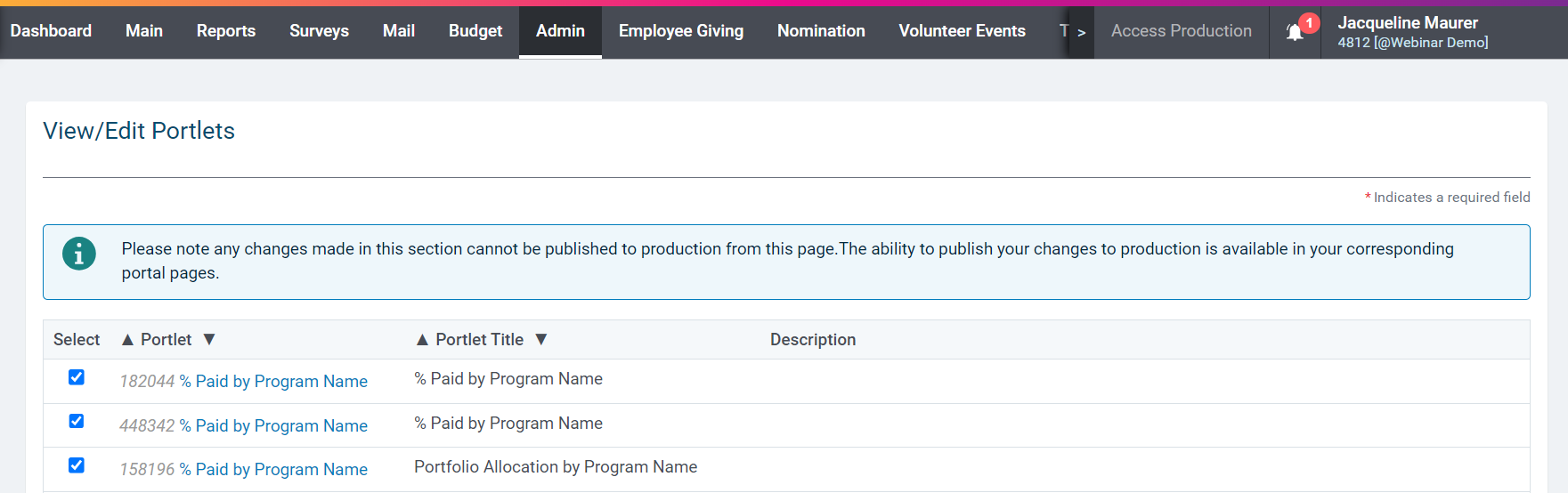
Review the list available and select the portlets you want to be displayed on the Dashboard.
 Step 5: Save the Changes
After selecting the desired portlets, click the "Save" button to apply the changes.
Step 6: Verify the Dashboard
Navigate back to the Dashboard to ensure the selected portlets are now displayed.
What else do you need help with?
Not what you're looking for? Navigate to Understanding the Dashboard Tab


