The Reporting Portlets within the CyberGrants Dashboard tab enable users to efficiently access, manage, and leverage a wide range of reporting resources to support data-driven decision-making and drive organizational success.
To learn more about the capabilities of the Reporting Portlets available in the Dashboard tab, please review the following details.
Step 1: Access the Dashboard tab
Log in to the CyberGrants platform and navigate to the Dashboard tab.

Step 2: Locate the Reporting Portlets
Identify the various Reporting Portlets available in the Dashboard, which may include:
- Report Library
- My Ad Hoc Reports
- My Favorite Reports
- My Tags
- My One-Click Reports
- Scheduled Reports
Step 3: Utilize the Report Library Portlet
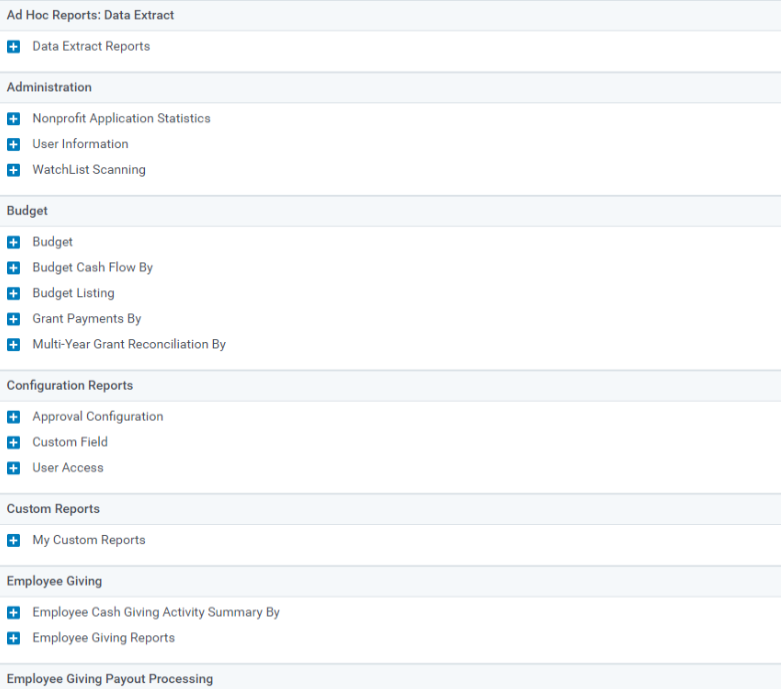
This portlet displays the comprehensive Report Library, which contains a curated collection of Standard, Ad Hoc, and Custom Reports. The reports are organized by intuitive Report Topic Categories, allowing users to easily locate the resources they need. For more detailed information about the Report Library, visit the Report Library Overview.
Step 4: Access the My Ad Hoc Reports Portlet
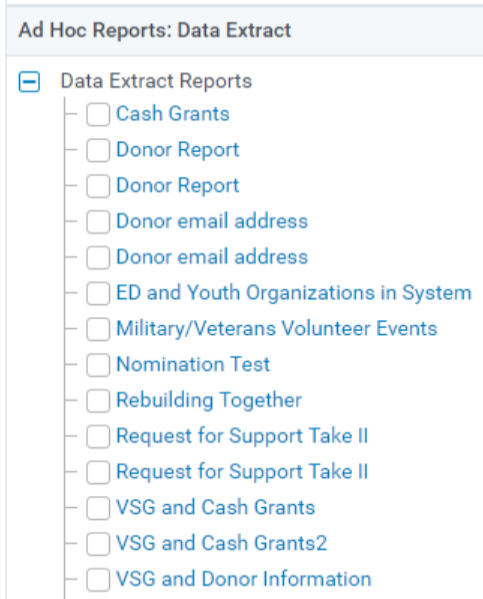
This portlet provides users with a centralized library of previously created ad-hoc reports, organized by intuitive Report Topic Categories. Users can leverage this feature to quickly locate and utilize the custom reporting resources they have developed.
Step 5: Explore the My Favorite Reports Portlet
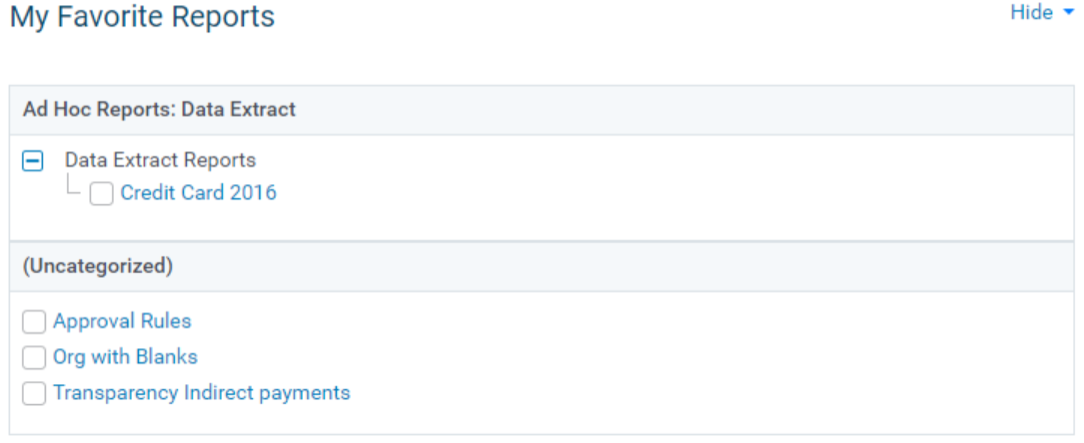
This portlet displays a personalized list of reports that have been tagged as "Favorites" by the user. Administrators can quickly access the reporting resources they rely on most, optimizing their workflow and ensuring critical data is readily available.
Step 6: Utilize the My Tags Portlet
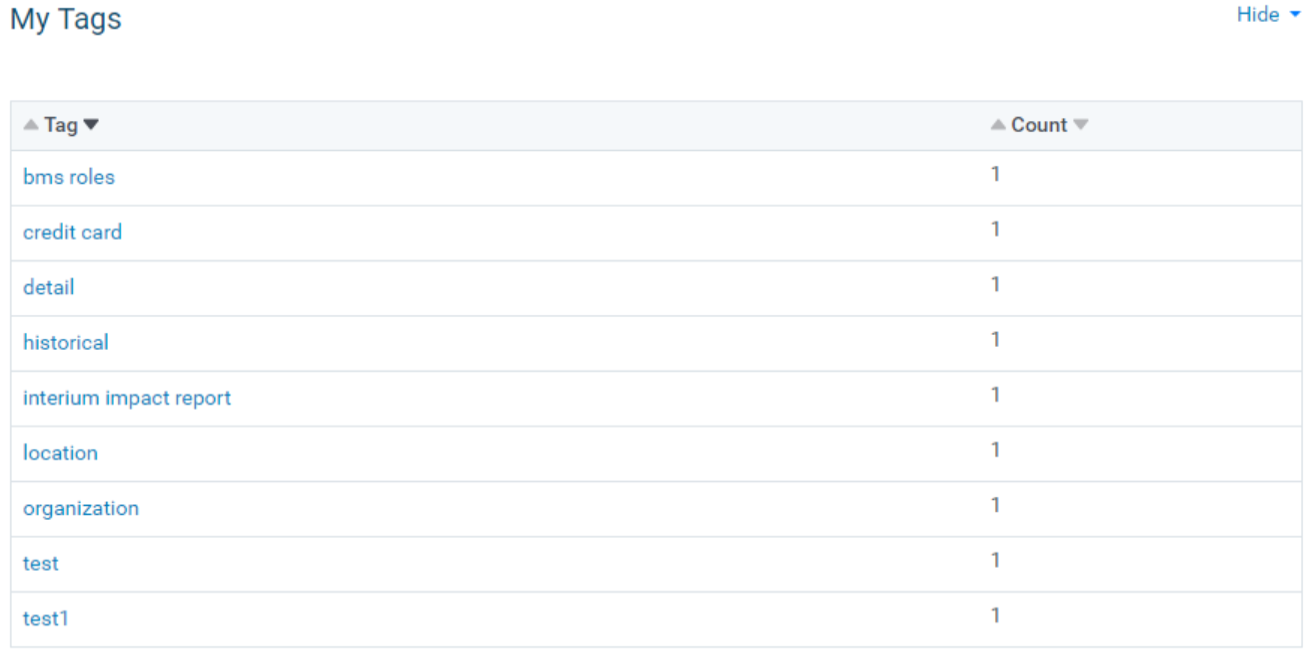
This portlet presents an at-a-glance view of all tags currently configured within the system. Authorized users can leverage these program-related tags to optimize data organization and retrieval.
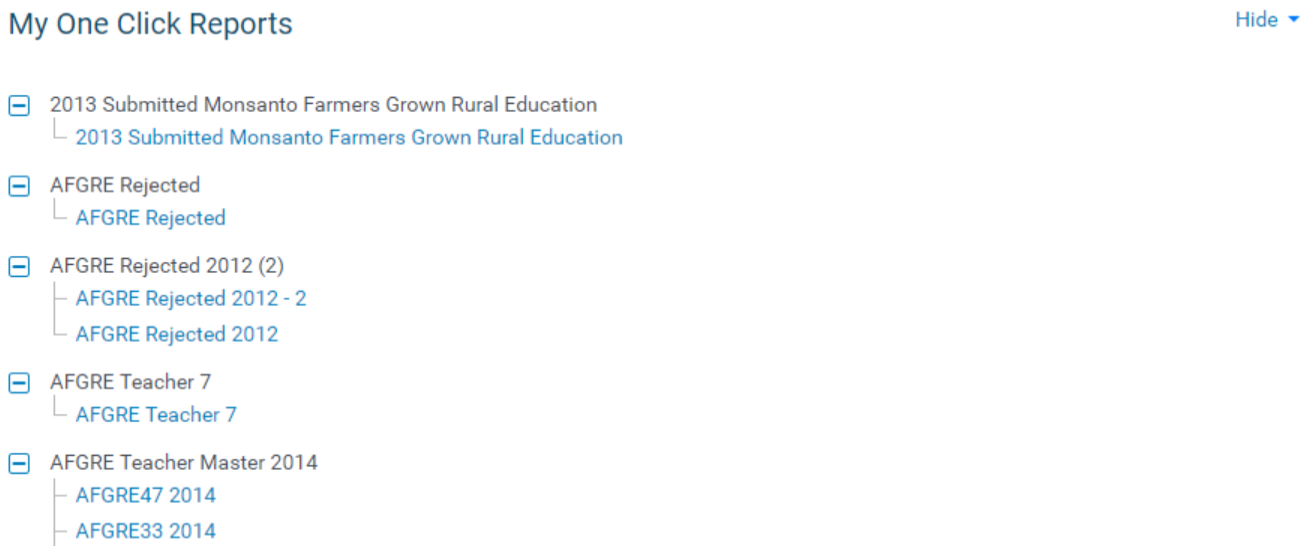
Step 7: Access the My One-Click Reports Portlet
This portlet showcases a collection of user-defined reports that have been pre-configured for rapid access and execution. Users can leverage this feature to quickly generate reports on key performance indicators, program metrics, and other critical data points.
Step 8: Explore the Scheduled Reports Portlet
This portlet displays an overview of all reports that have been configured to run on a recurring schedule. Users can monitor the status of scheduled reports and make any necessary adjustments to optimize the reporting process.
What else do you need help with?
Not what you're looking for? Navigate to Understanding the Dashboard Tab


