The CyberGrants Dashboard tab features a suite of Productivity Portlets that enable users to streamline their workflow, quickly access and manage pending approvals and requests, monitor overdue impact reports, and gain visibility into their available budget resources, all within a centralized and secure interface.
To learn more about the capabilities of the Productivity Portlets available in the Dashboard tab, please review the following details.
Step 1: Access the Dashboard tab
Log in to the CyberGrants platform and navigate to the Dashboard tab.

Step 2: Locate the Productivity Portlets
Identify the various Productivity Portlets available on your Dashboard, which may include:
- My Approvals
- My Requests Pending Approval
- My Pending Requests
- My Overdue Impact Reports
- Available Budget (gauge, cylinder)
- My Available Budget
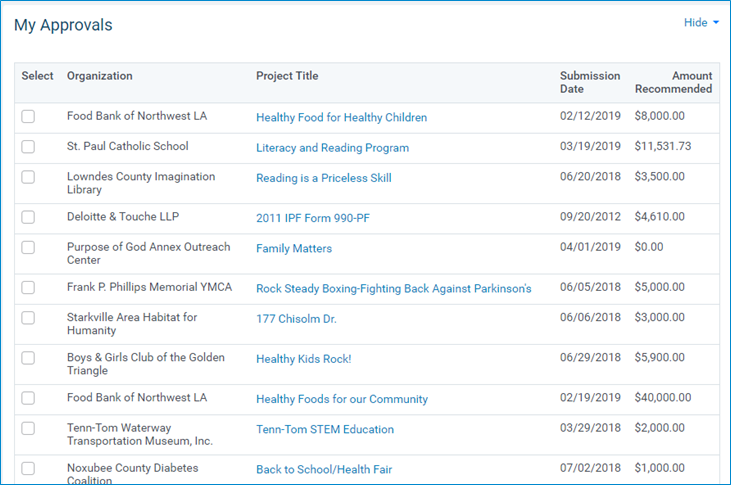
Step 3: Utilize the My Approvals Portlet
This portlet displays a list of requests pending the current user's direct approval. The results in this portlet equate to a search performed with "Pending My Approval Only" selected under the "Request Approval Status" filter from the Main tab.
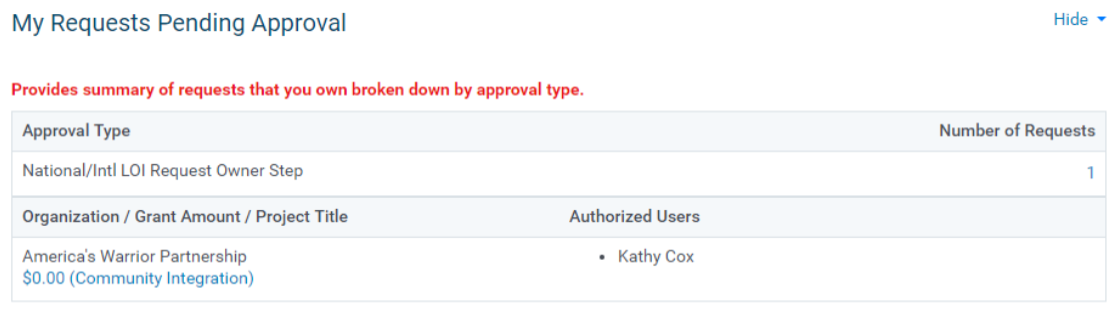
Step 4: Leverage the My Requests Pending Approval Portlet
This portlet displays a list of requests pending approval, including the approval type, as well as the number of requests, organization name, grant amount, project title, and authorized users.
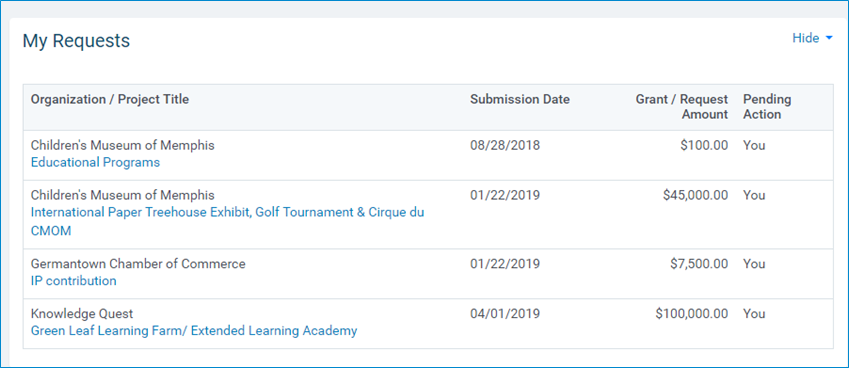
Step 5: Access the My Pending Requests Portlet
This portlet displays a list of requests owned by the current user that have not reached a final disposition. The requests from this portlet equate to a search performed from the Main tab with the filters of "My Requests", "Requests I own", and "Request Disposition" of "External" or "Pending". Users can click on the Project title to be taken directly to the Request within CyberGrants.
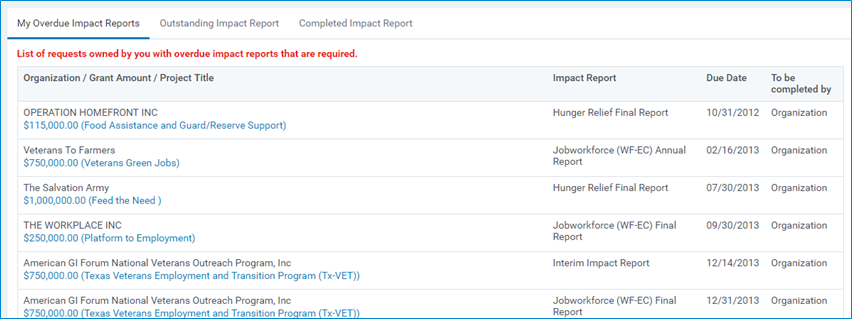
Step 6: Utilize the My Overdue Impact Reports Portlet
This portlet lists all requests owned by the current user that have overdue, required impact reports. Users can click directly on the Project Title to be taken to the Request within CyberGrants.
Step 7: Access the Available Budget (gauge, cylinder) Portlet
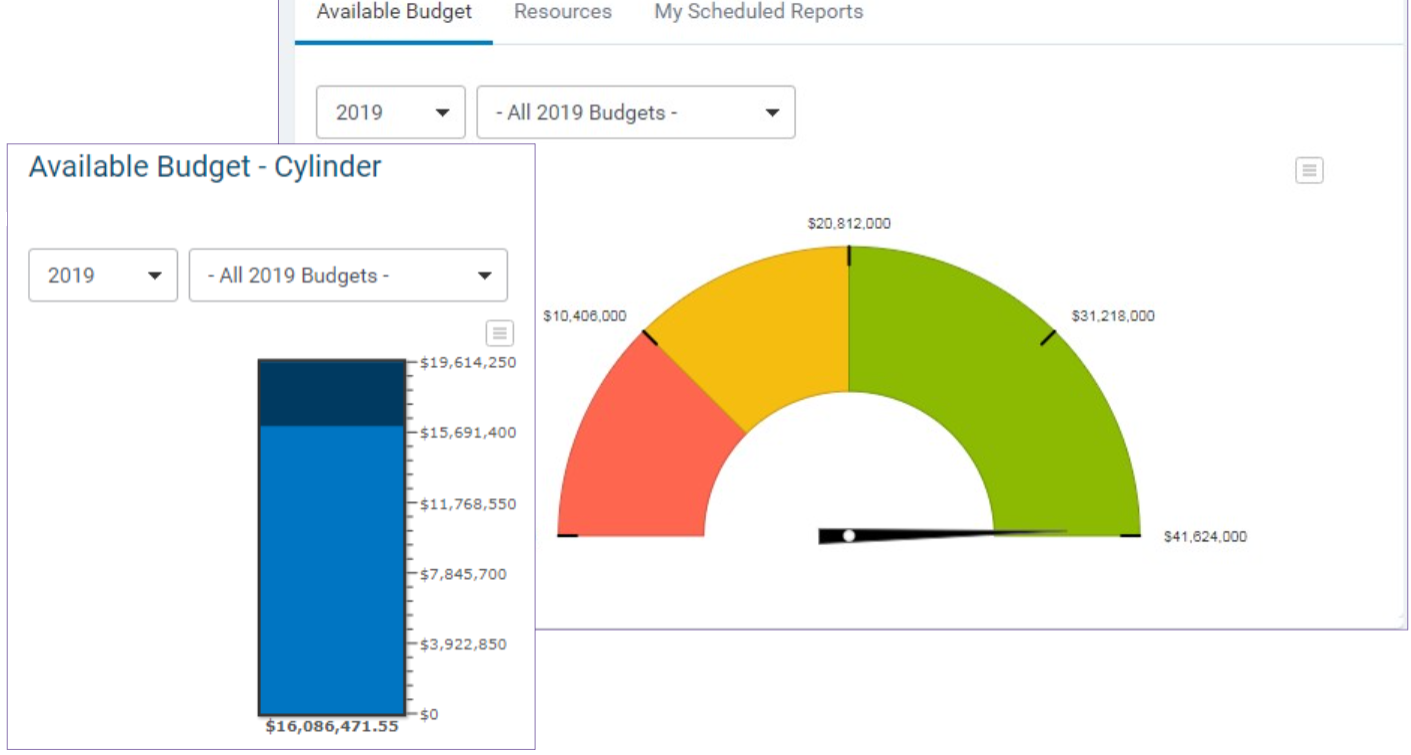
This portlet allows users to view their available budget by leveraging filters for year and budget line items while incorporating budget security controls in the view of a gauge or cylinder chart.
Step 8: Leverage the My Available Budget Portlet
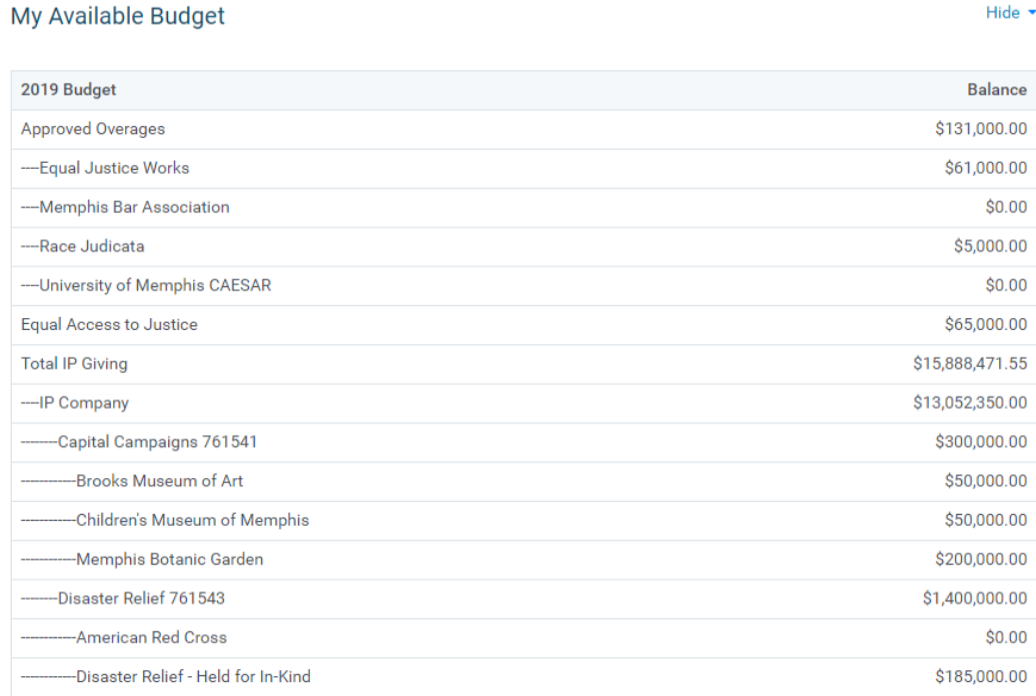
This portlet displays a hierarchical list of budgets and their balances from the current budget year. The visibility of the budget lines will be restricted to only those to which the user has permission to edit and/or view.
What else do you need help with?
Not what you're looking for? Navigate to Understanding the Dashboard Tab


