The Content Portlets within the CyberGrants Dashboard tab offer a powerful suite of features that enable users to enhance the user experience, improve access to important resources, and streamline the delivery of critical information to internal users.
To learn more about the capabilities of the Content Portlets available in the Dashboard tab, please review the following details.
Step 1: Access the Dashboard tab
Log in to the CyberGrants platform and navigate to the Dashboard tab.

Step 2: Locate the Content Portlets
Identify the various Content Portlets available on your Dashboard, which may include:
- Page Navigation
- Resources
- Static Content
- Embedded Content
Step 3: Utilize the Page Navigation Portlet
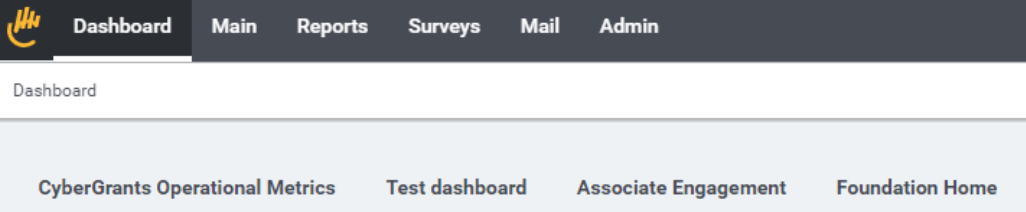
This portlet displays a navigation bar that allows you to view separate dashboard tabs, even if the page is not included in the main navigation bar. Use this feature to easily navigate between different dashboard views and access the content and functionality you need.
Step 4: Leverage the Resources Portlet
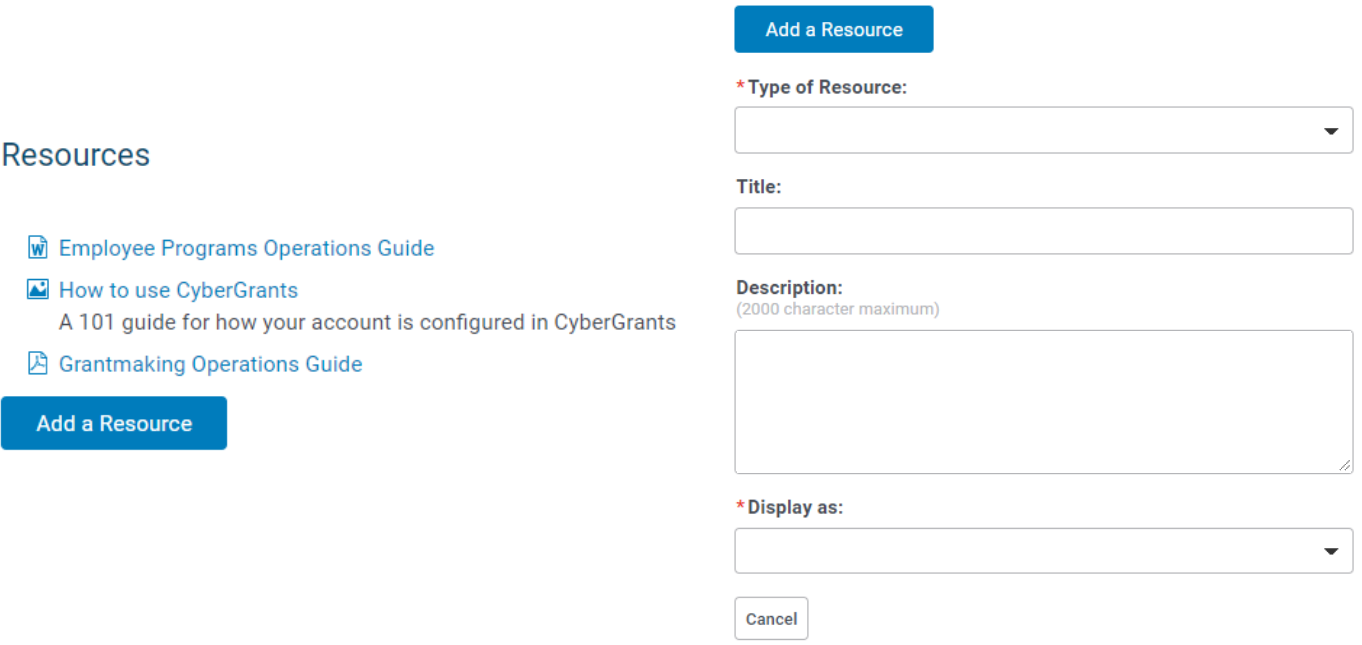
This portlet enables you to view existing program knowledge-based resources. You can also use this portlet to add new resources, such as documents, links, or other relevant information, to the knowledge base.
Step 5: Customize the Static Content Portlet
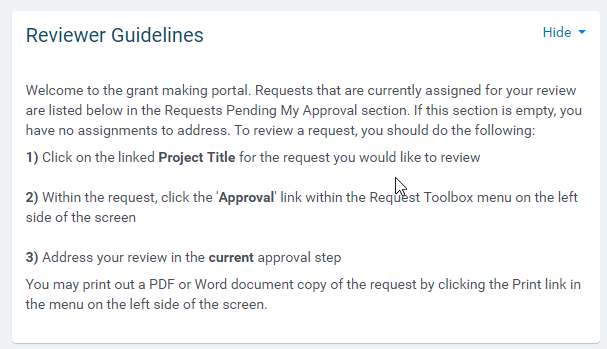
This portlet provides a configurable area to display boilerplate content, such as instructional text, system notifications, and links to files or other websites. Utilize this feature to communicate important information or provide quick access to frequently used resources.
Step 6: Manage the Embedded Content Portlet
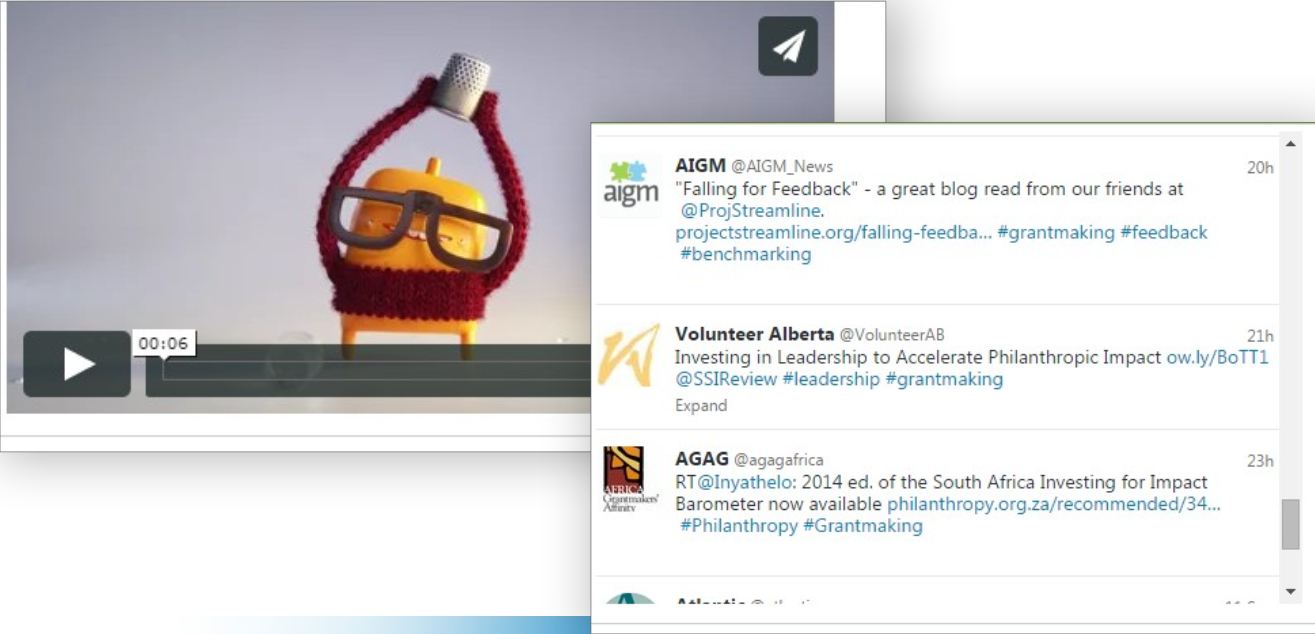
This portlet offers a centralized repository for managing and displaying various types of embedded content, including images, videos, and other digital assets. Use this feature to upload, organize, and showcase relevant multimedia content within the Dashboard.
What else do you need help with?
Not what you're looking for? Navigate to Understanding the Dashboard Tab


