The CyberGrants Dashboard tab offers a comprehensive suite of Search Portlets that enable users to streamline their workflow, quickly locate relevant information, and optimize their data-driven decision-making processes.
To learn more about the capabilities of the Search Portlets available in the Dashboard tab, please review the following details.
Step 1: Access the Dashboard tab
Log in to the CyberGrants platform and navigate to the Dashboard tab.

Step 2: Locate the Search Portlets
Identify the various Search Portlets available on your Dashboard, which may include:
- Record Lookup
- Organization Search
- Recent Main Searches
- My Favorite Searches
- Outstanding Payments
- Outstanding Impact Report
- Completed Impact Report
Step 3: Utilize the Record Lookup Portlet
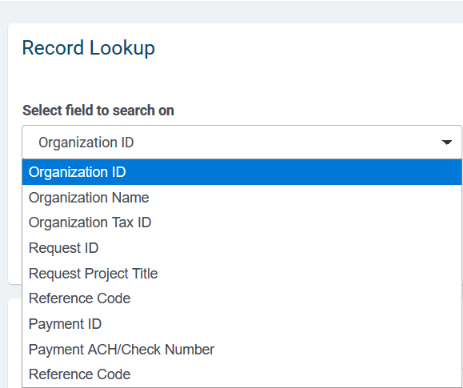
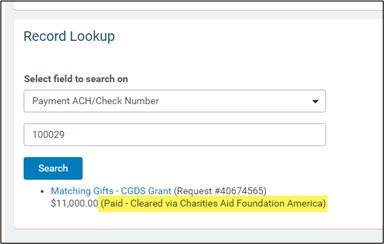
This portlet allows you to perform quick searches for pre-existing organizations, requests, and payments. You can select the desired search criteria from the drop-down menu, such as Organization ID or Name, Request ID and Project Title, or Payment ID and ACH/Check Number.
- The search results will display additional details, such as payment sub-statuses (e.g. “Cleared”) and CGDS account type names.
Step 4: Leverage the Organization Search Portlet
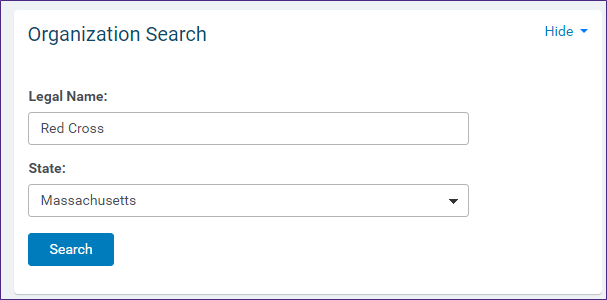
This portlet enables you to quickly lookup pre-existing organizations in the client's database, as well as potential new ones from the IRS Business Master File. The functionality is similar to clicking the 'New Organization' button on the Main Tab and performing a search by Keyword and State.
Step 5: Utilize the Recent Main Searches Portlet
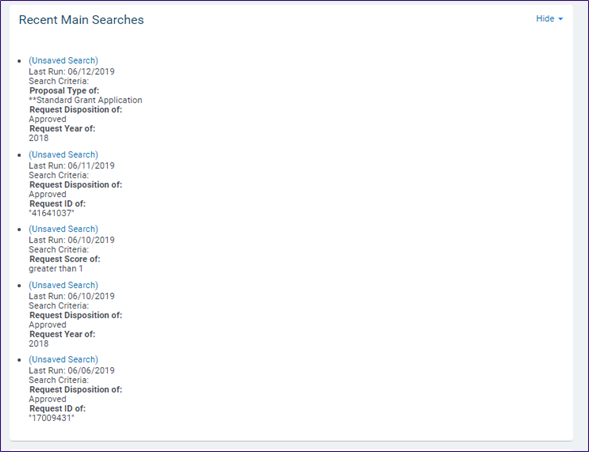
This portlet displays the last 5 searches performed from the Main Tab, including the search criteria used. By clicking on the blue title of a search, you will be brought to the Main Tab, and the search will be executed.
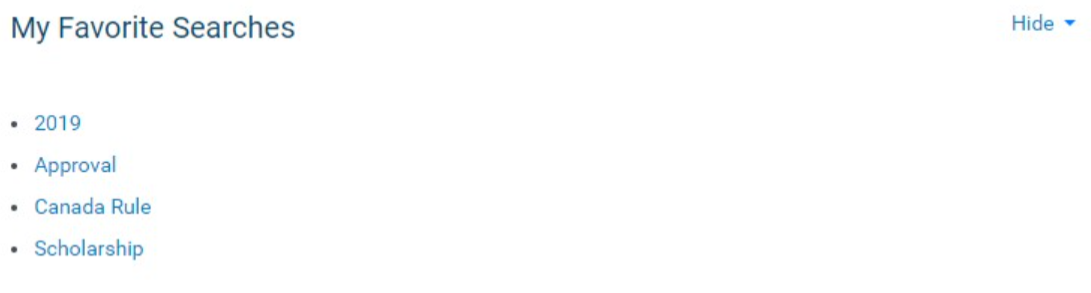
Step 6: Access the My Favorite Searches Portlet
This portlet lists all of your saved favorite searches from the Main Tab.
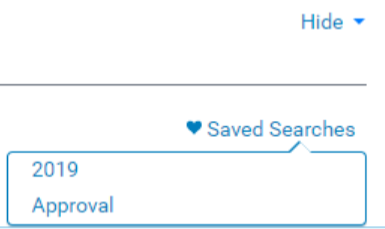
- Clicking on any of the favorite searches will bring you to the Main Tab, where the search will be performed.
Step 7: Leverage the Outstanding Payments Portlet
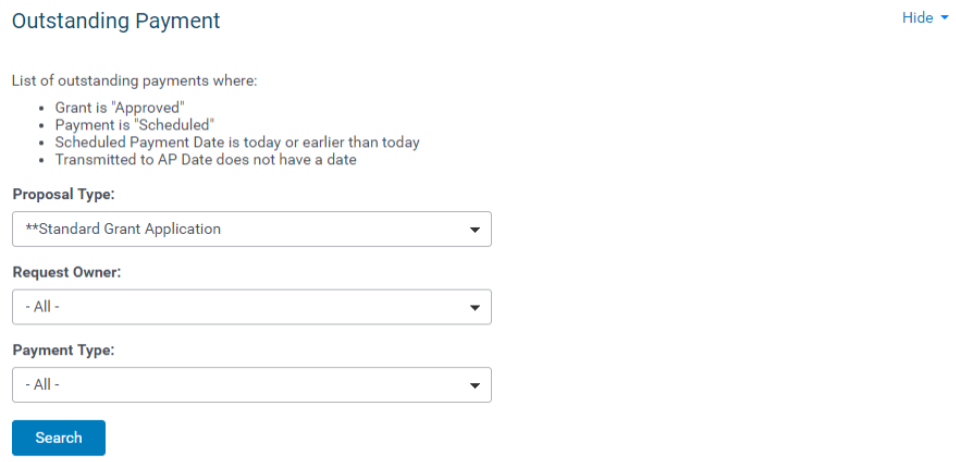
This portlet displays a comprehensive list of all outstanding payments that are currently ready for processing. Users can refine the view by applying intuitive filters, such as Proposal Type, Request Owner, and Payment Type.
Step 8: Utilize the Outstanding Impact Report Portlet
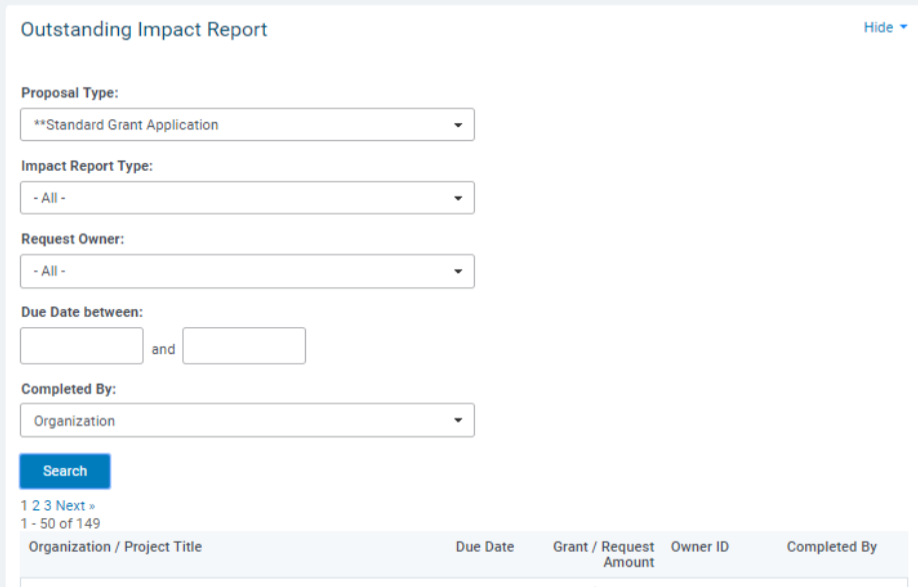
This portlet provides an overview of all outstanding impact reports. Users can leverage filters to view requests with unsubmitted impact reports, searching by proposal type, impact report type, request owner, due date, and user completing the report.
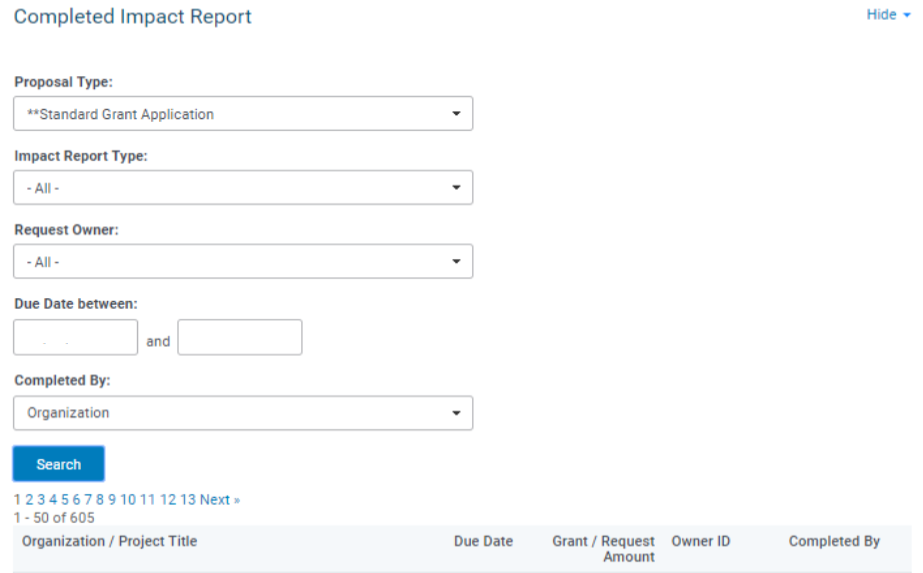
Step 9: Access the Completed Impact Report Portlet
This portlet displays a summary of all completed impact reports that have been successfully submitted. Users can apply filters to view requests with submitted impact reports, searching by proposal type, impact report type, request owner, due date, and user completing the report.
What else do you need help with?
Not what you're looking for? Navigate to Understanding the Dashboard Tab


