The nomination tab is where you review the nominations of organizations that have been submitted by your employees.
Step 1: Access the Nomination Tab
Navigate to the Nomination tab.
Step 2: Nomination Tab Sections
The Nomination Tab is comprised of two sections:
Search Section:
Defines criteria to search for organizations and nominations.

Results Section:
Displays the organizations and nominations that match the criteria specified in the Search Section.

The following steps will lead you through the process of updating your Search Filters and Search Result Columns.
Step 3: Click Settings
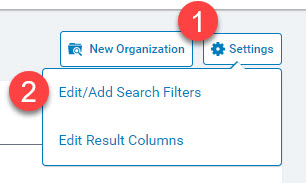
Click the Settings link in the top right corner to set your preferences for the columns and filters you want to see.
Step 4: Choose Filters
Click Edit/Add Search Filters and choose the filters you want to apply.
Select filter preferences and click on Save Settings
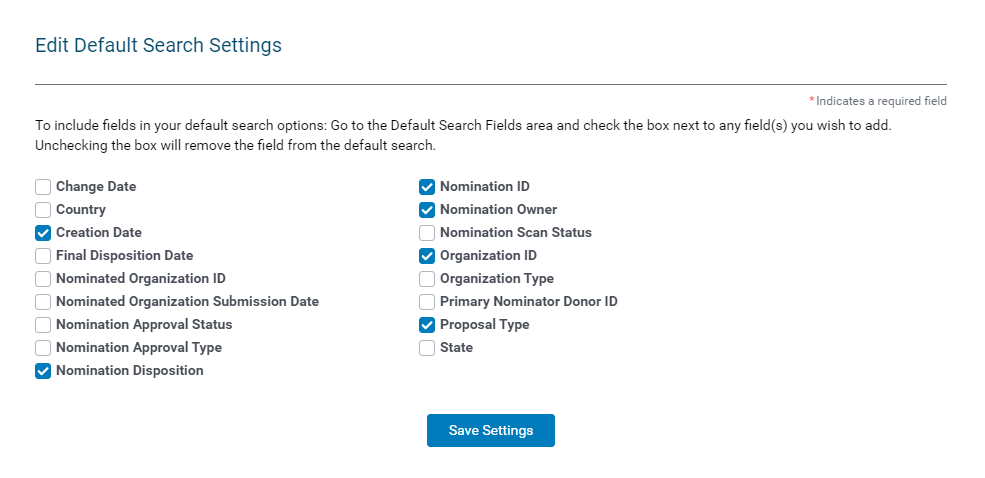
Available Filters:
- Change Date
- Country
- Creation Date
- Final Disposition Date
- Nominated Organization ID
- Nominated Organization Submission Date
- Nomination Approval Status
- Nomination Approval Type
- Nomination Disposition
- Nomination ID
- Nomination Owner
- Nomination Scan Status
- Organization ID
- Organization Type
- Primary Nominator Donor ID
- Proposal Type
- State
Nomination Approval Status Filters
- Pending My Approval Only -This filter is used to display nomination records that are pending your approval.
- Not Yet Submitted for Approval - This filter is used to see outstanding nomination records that have not entered an approval workflow (ie just submitted via donor).
- Pending Others Approval - This filter is used to see outstanding nominations pending approvals by other people. **
- Pending My Authorized Approval - This filter is used to see outstanding nominations I can take action on due to editor linking over somebody else.
- Final Decision Reached - Nominations that have completed the approval workflow and are in a final disposition.
Step 5: Editing Columns:
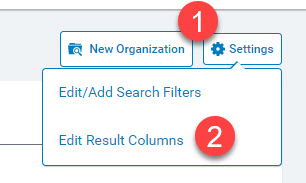
Select Settings and click on Edit Result Columns.
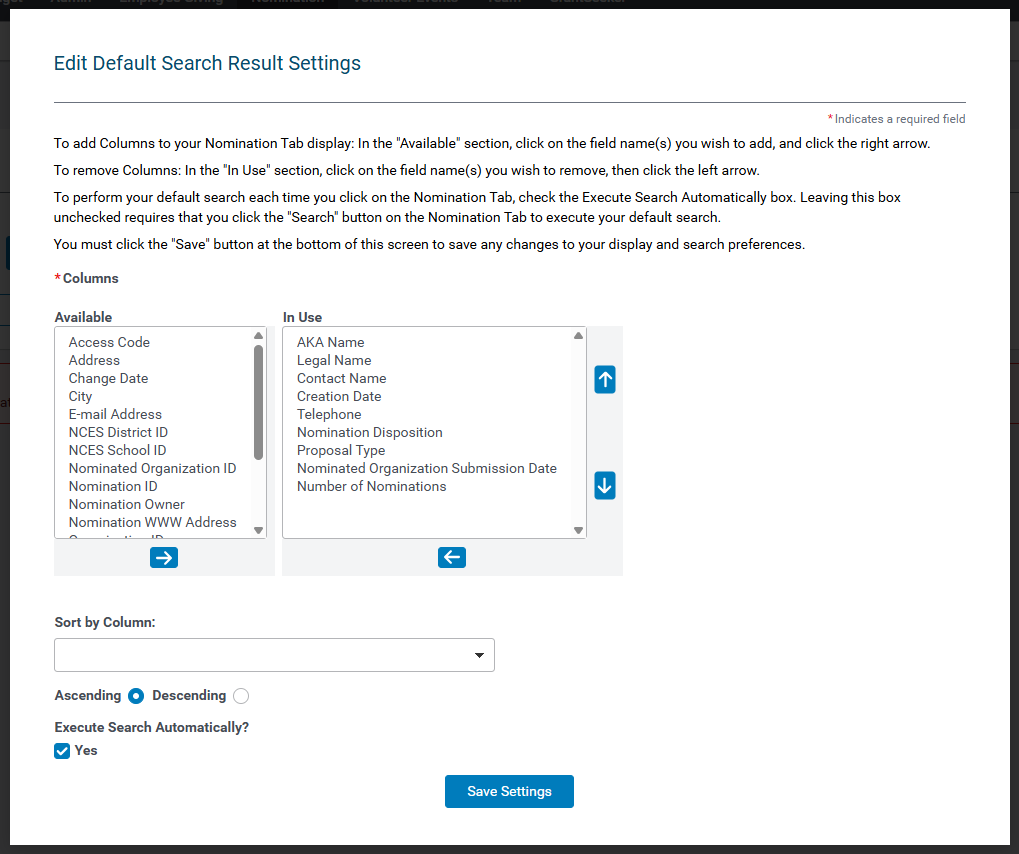
Review the list of available columns and select the ones you want to display in the Results Section by adding them to the "In Use" box. Select column names and use the navigation arrows to move columns between the "Available" and "In Use" boxes.
- You can also realign your selected columns by using the Up and Down arrows.
- Sort results by a chosen column, ascending or descending.
- When done, click "Execute Search Automatically?" if you want your default search to execute each time you click on the Nomination Tab. Leaving this box unchecked requires you to click the "Search" button to execute your default search.
- Then, Save Settings.
Available Columns:
- AKA Name
- Access Code
- Address
- Change Date
- City
- Contact Name
- Creation Date
- E-mail Address
- Final Disposition Date
- Legal Name
- NCES District ID
- NCES School ID
- Nominated Organization ID
- Nominated Organization Submission Date
- Nomination Approval Status
- Nomination Approval Type
- Nomination Disposition
- Nomination ID
- Nomination Owner
- Nomination Scan Status
- Nomination WWW Address
- Number of Nominations
- Organization ID
- Organization Tax ID
- Organization Type
- Primary Nominator
- Proposal Type
- Province
- State
- Telephone
- Zip
What else do you need help with?
Not what you're looking for? Navigate to Understanding CyberGrants System Tabs and Navigation


