The Insights Employee Engagement Benchmark Dashboard allows Insights users with Employee Engagement programs to compare their company's program (purple text) metrics against industry benchmarks (black text). This data can be efficiently downloaded from the dashboard, enabling you to further analyze the information and share it with key stakeholders, such as HR, leadership, or other decision-makers.
By reviewing the downloaded data, whether it's the complete dashboard or individual reports, you can identify key trends that can inform your employee engagement strategies. Analyzing this data can facilitate informed decision-making and drive continuous improvement within your company's program.
Proceed as follows to access and download reports from the Employee Engagement Benchmarking standard dashboard.
Step 1: Access the Dashboard
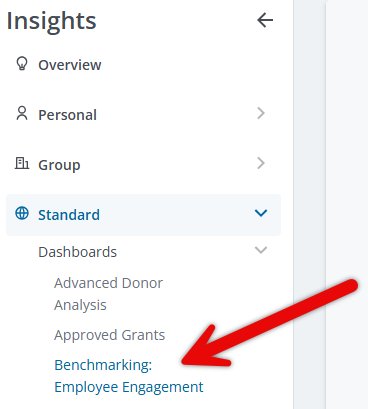
Access the Insights platform and navigate to the "Benchmarking: Employee Engagement” dashboard under the "Standard” dashboards section.

Step 2: Download the Complete Dashboard
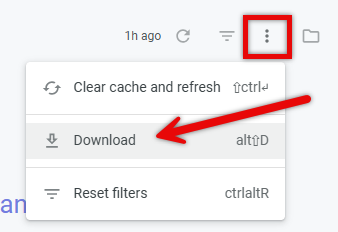
Locate the vertical ellipses icon in the top right corner of the dashboard and select "Download" from the menu.
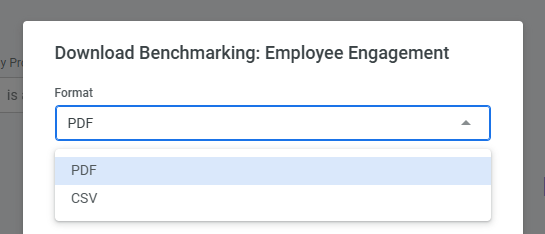
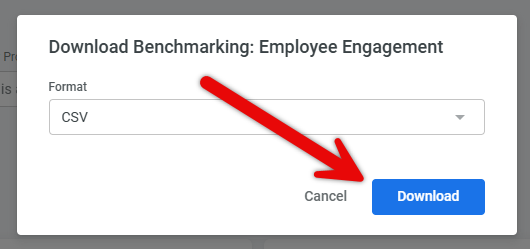
Choose the desired file format, either PDF or CSV, from the available options.
Step 3: Customize the PDF Download (if applicable)
If you selected the PDF format, you will have additional options to customize the download:
- Select the desired paper size from the dropdown menu.
- Expand tables to show all rows. NOTE: Large tables may render as plain text or limit the displayed rows.
- Arrange the dashboard tiles in a single column for better readability.
- Open the downloaded file in your web browser.
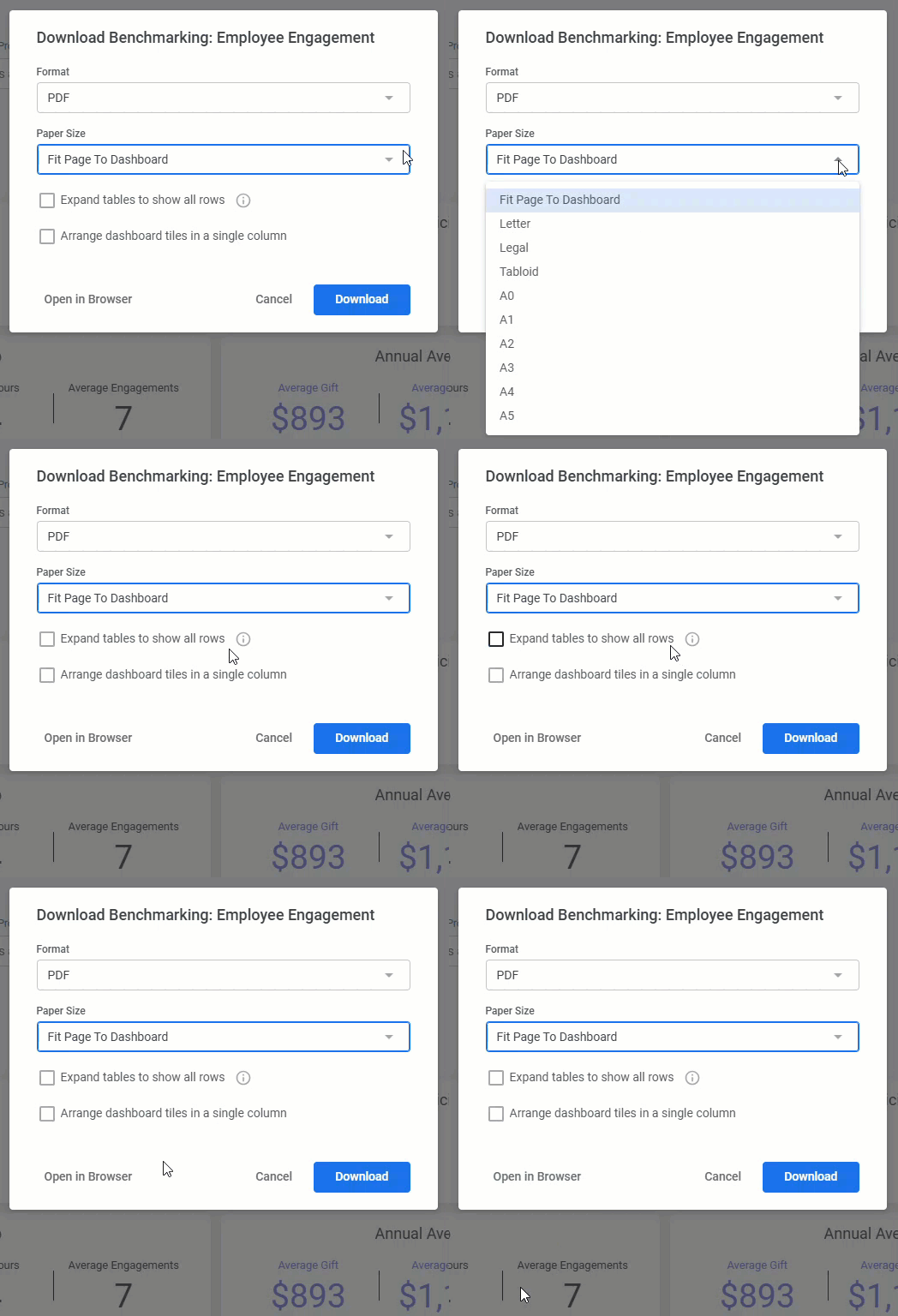
Then, after selecting either PDF or CSV, click "Download" and view the document.
Step 4: Download Individual Reports
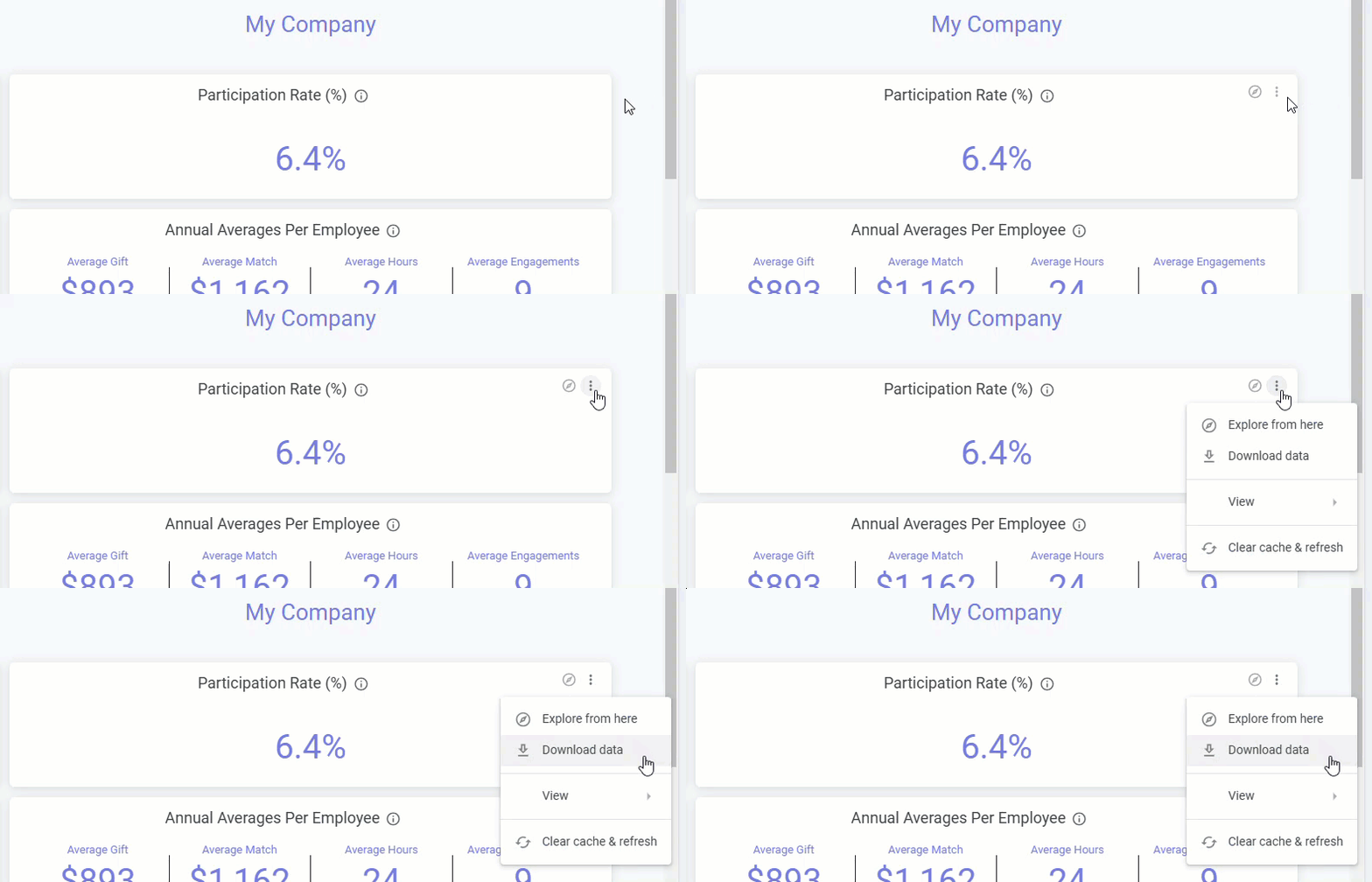
If you need to download individual reports or tiles within the dashboard, hover your cursor over the top right corner of the tile you want to download and click the vertical ellipses that appear. Then, select "Download data" from the dropdown menu.
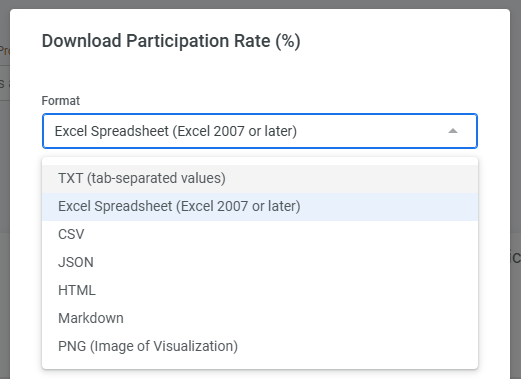
Customize the download settings by leveraging the following options:
- Format - Choose a desired file format from the available list.
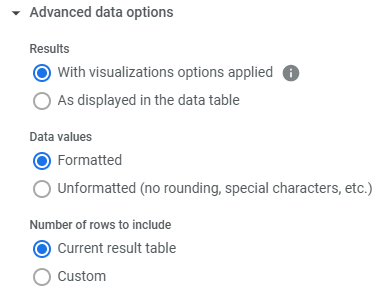
- Results - Download the data with visualizations applied or as displayed in the data table. This includes options like re-labeling columns, hiding totals, or adding conditional formatting.
- Data Values - Choose between formatted or unformatted data (no rounding or special characters).
- Number of Rows - Download the current result table or a custom number of rows.
Click "Download" to save the individual report. NOTE: Each individual tile must be downloaded separately. Insights allows you to download a "Benchmark" tile and the corresponding "My Company" tile to compare the benchmark to your company's program data through two separate reports.
What else do you need help with?
Not what you're looking for? Return to Understanding Insights Employee Engagement Benchmark Reporting or navigate to Insights Standard Dashboards Overview


