The "Benchmarking: Employee Engagement" dashboard within the Insights platform provides valuable data and trends related to your company's employee engagement program performance. By leveraging the available filters, you can gain a deeper understanding of your program's performance compared to industry benchmarks.
We have 2 different fields to indicate a company size range:
- Company Size Range (HR File) - This places a company into a size category based on the number of Active employees on the HR file that is sent to CyberGrants. This number also excludes any employees who might be marked as “Friend/Family”. This Size Range is the default option used on the benchmarking dashboard.
- Company Size Range (External Source) - This places a company into a size category based on the employee count sourced from Crunchbase.
Watch the following video to learn about utilizing filters in the Employee Engagement Insights Dashboard.
Proceed as follows to access and utilize the filters within this dashboard.
Step 1: Access the Dashboard
Access the Insights platform and navigate to the "Benchmarking: Employee Engagement” dashboard under the "Standard” dashboards section.

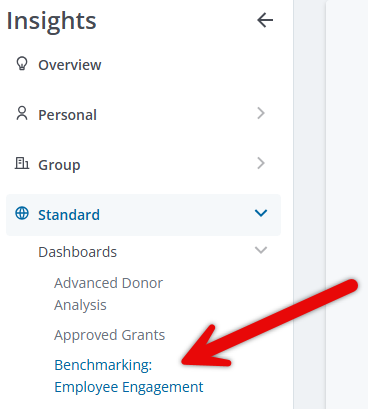
Step 2: Apply Filters
Use the available filters in the Benchmarking: Employee Engagement Insights dashboard to refine the data and access relevant trends:
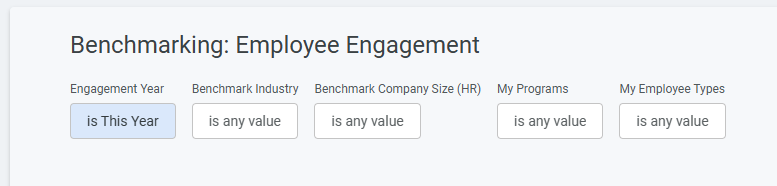
Engagement Year - Select the year for which you want to view benchmark data, either the current year or the previous year. NOTE: You cannot view benchmark data for prior years.
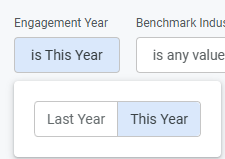
Benchmark Industry - Choose the industry that best aligns with your company to view the comparison of your program's data to other companies in your industry. The available options are:
- Energy & Utilities
- Financial Services & Insurance
- Health Care & Life Sciences
- Manufacturing & Industrial
- Media & Hospitality
- Professional Services
- Retail
- Social Impact & Public Sector
- Technology & Telecommunications,
- Transportation & Logistics
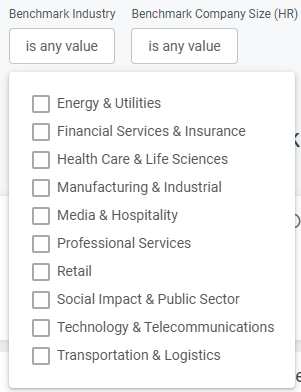
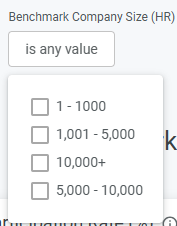
Benchmark Company Size (HR) - Select the range that corresponds to your company's size based on the total from your program's HR file. The available options are:
- 1 – 1000
- 1,001 - 5,000
- 5,000 - 10,000
- 10,000+
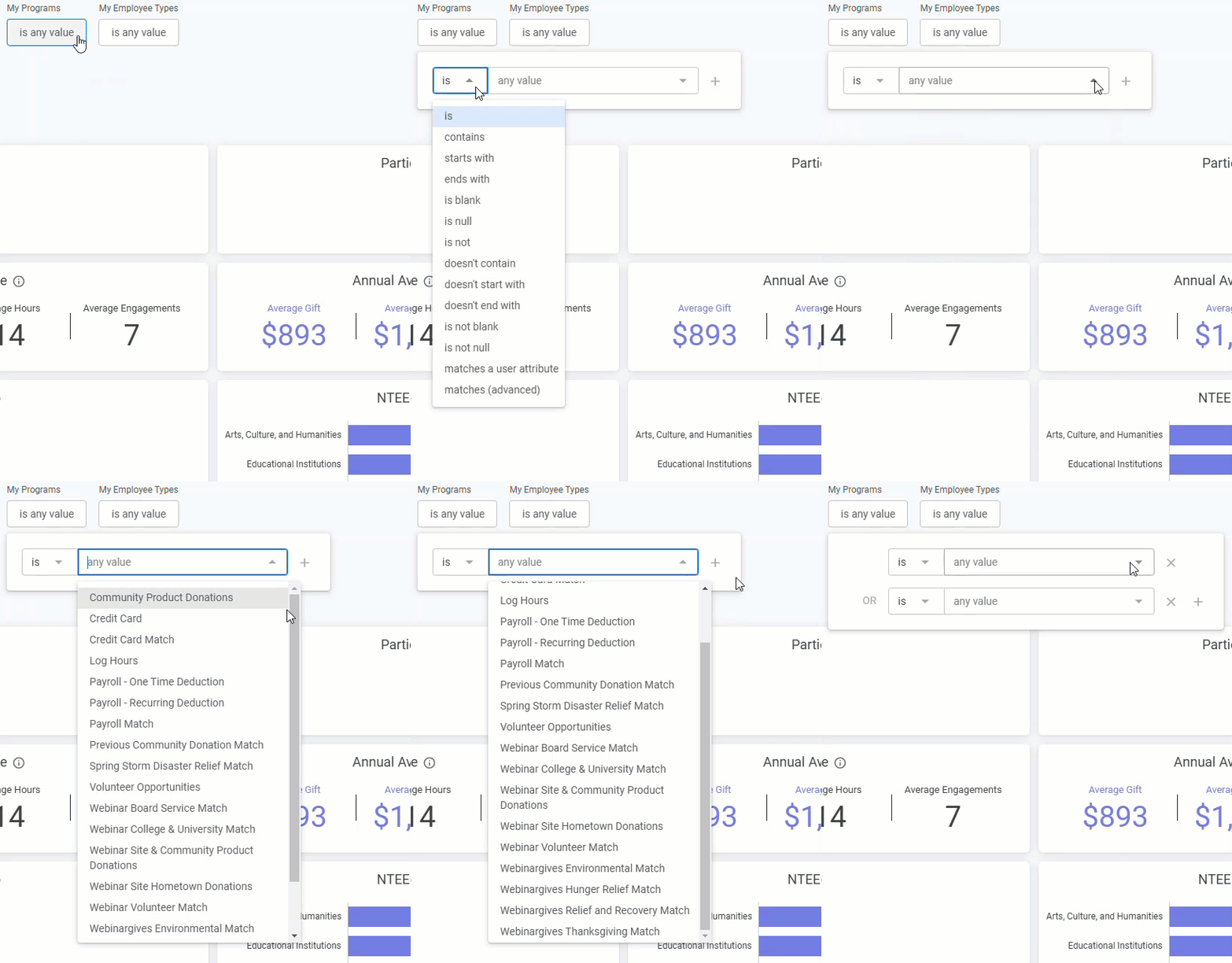
My Programs - Use this filter to identify your employee engagement program activity by program name, including or excluding specific program name(s) from the available dropdown.
- This allows you to determine which programs should be included or excluded in your benchmark comparison. Program names vary by company, therefore, this filter will only apply to the "My Company" side of the dashboard.
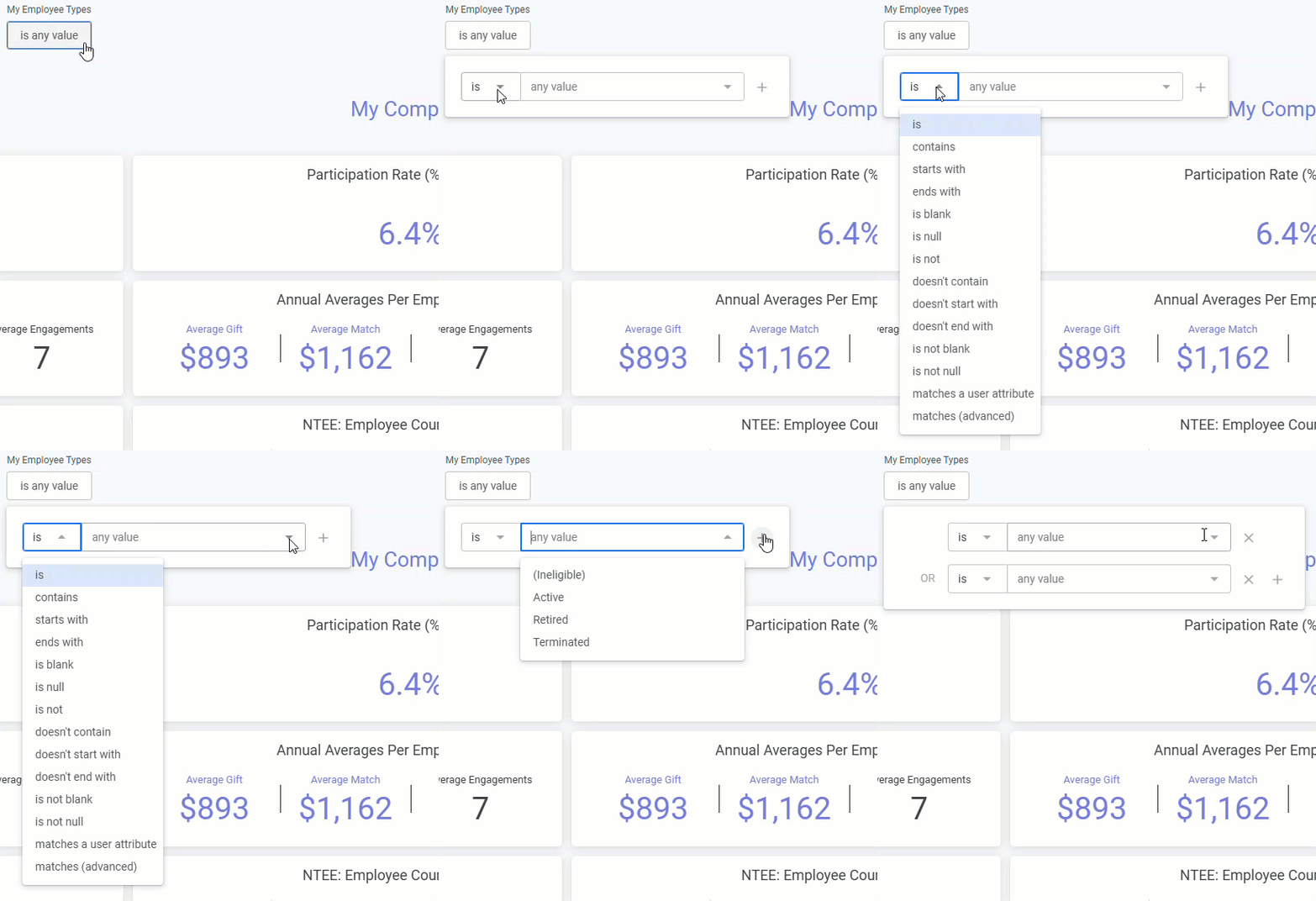
My Employee Types - Use this filter to identify your employee engagement program activity by employee type, including or excluding applicable employee type(s) from the dropdown.
- This allows you to determine which employee types should be included or excluded in your benchmark comparison. Employee Types vary by company, therefore, this filter will only apply to the "My Company" side of the dashboard.
Step 3: Reset Filters
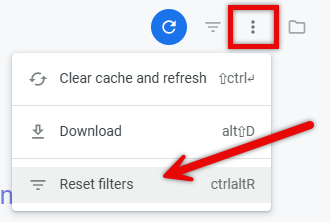
To reset the filters, click the vertical ellipsis in the top right corner of the dashboard and select "Reset Filters."
Step 4: Hide Filters
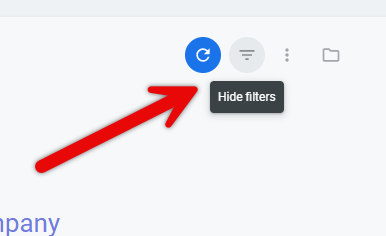
If desired, you can hide the filters by selecting the filter icon in the top right corner of the dashboard.
What else do you need help with?
Not what you're looking for? Return to Understanding Insights Employee Engagement Benchmark Reporting or navigate to Insights Standard Dashboards Overview


