Insights dashboards offer multiple options for downloading data enabling users with the flexibility to ensure that they can efficiently access and analyze their program's metrics.
Looking for assistance with downloading data in an Insights Dashboard? Check out this video!
Learn about the three Insights dashboard download options available, depending on the level of data being viewed, by following the instructions below.
Step 1: Download a Full Dashboard
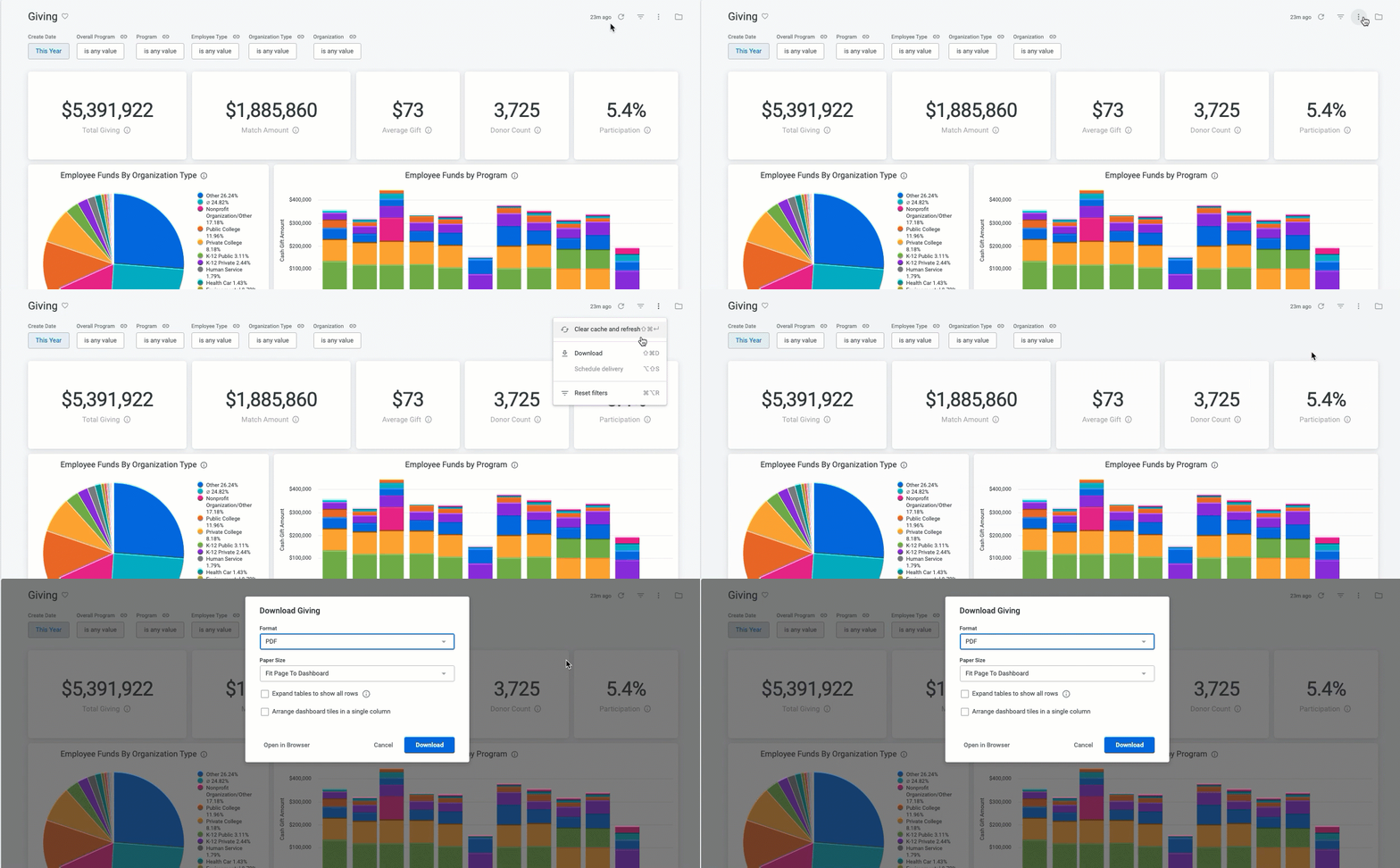
To download an entire dashboard, start by clicking the vertical ellipses menu in the top-right corner of the dashboard. From the menu, choose the "Download" option and a modal will appear, giving you the choice to download the dashboard as a PDF or a CSV file.
Download as a PDF
This option will download the entire dashboard, including all visualizations, as a PDF document.
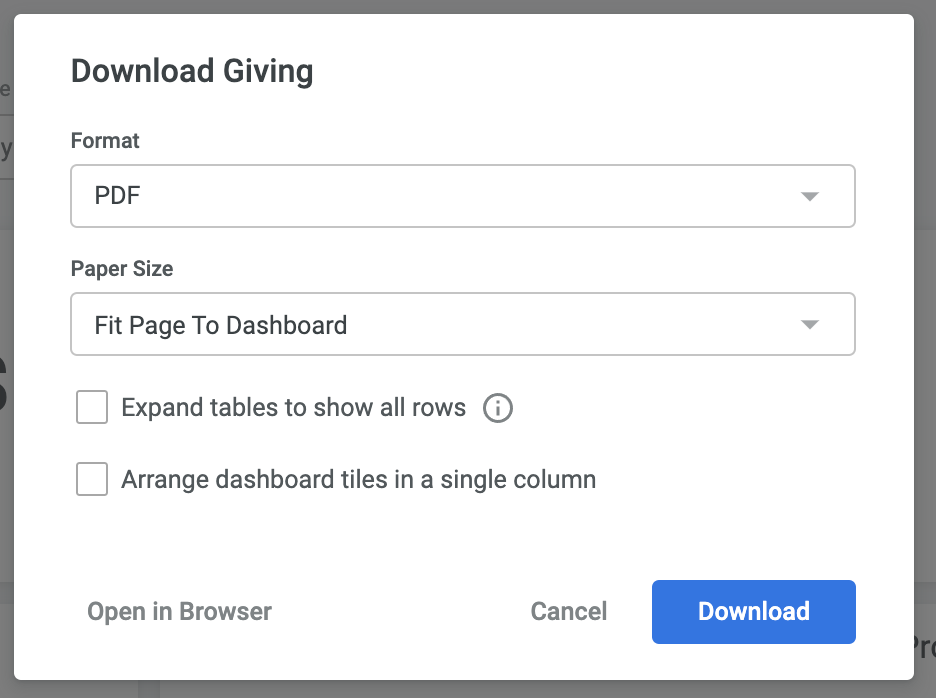
- Paper Size - This selection will default to “Fit Page to Dashboard”, but several other sizing options can be selected. If you select something other than Fit Page to Dashboard, an Orientation option appears where you can choose to orient the dashboard in portrait or landscape position.
- Expand tables to show all rows - This will ensure that all rows on a scrollable table visualization are displayed on the download and not just the thumbnail preview that is displayed in the current view.
- Arrange dashboard tiles in a single column - This will reposition each tile visualization into a single vertical column on the PDF document, as opposed to how they are arranged in the current view.
- Open in Browser - This allows you to preview the PDF file in a separate browser tab.
Download as a CSV File
This option will download the underlying data for each tile visualization as a zipped collection of CSV files.
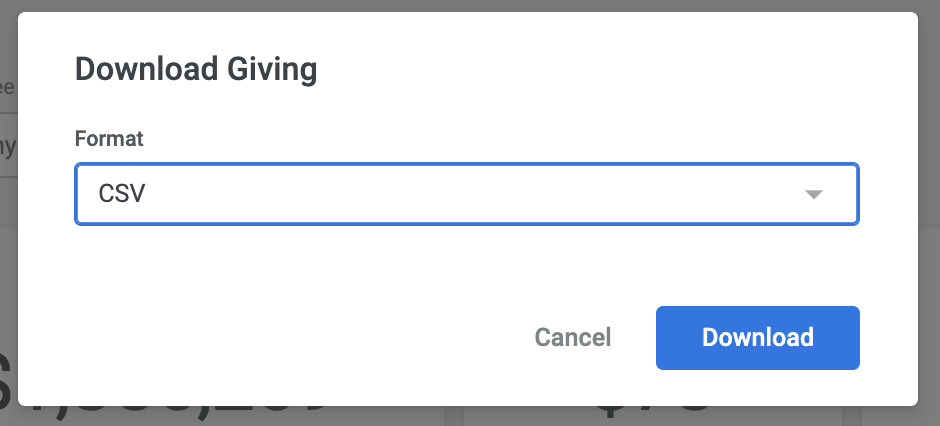
- NOTE: The row limits in the downloaded files correlate to the row limits on the corresponding tiles.
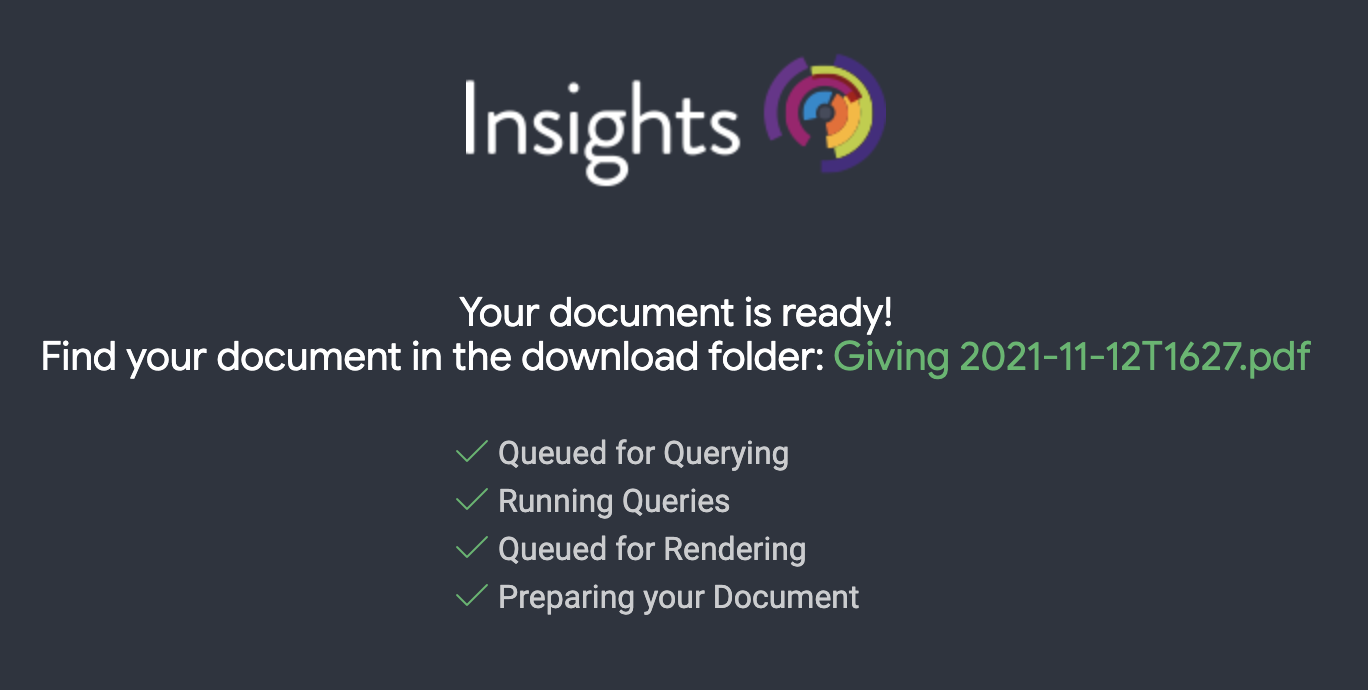
Click "Download" to initiate the download process. A new tab in your browser will open, displaying the status of your download.
Step 2: Download a Specific Tile on a Dashboard
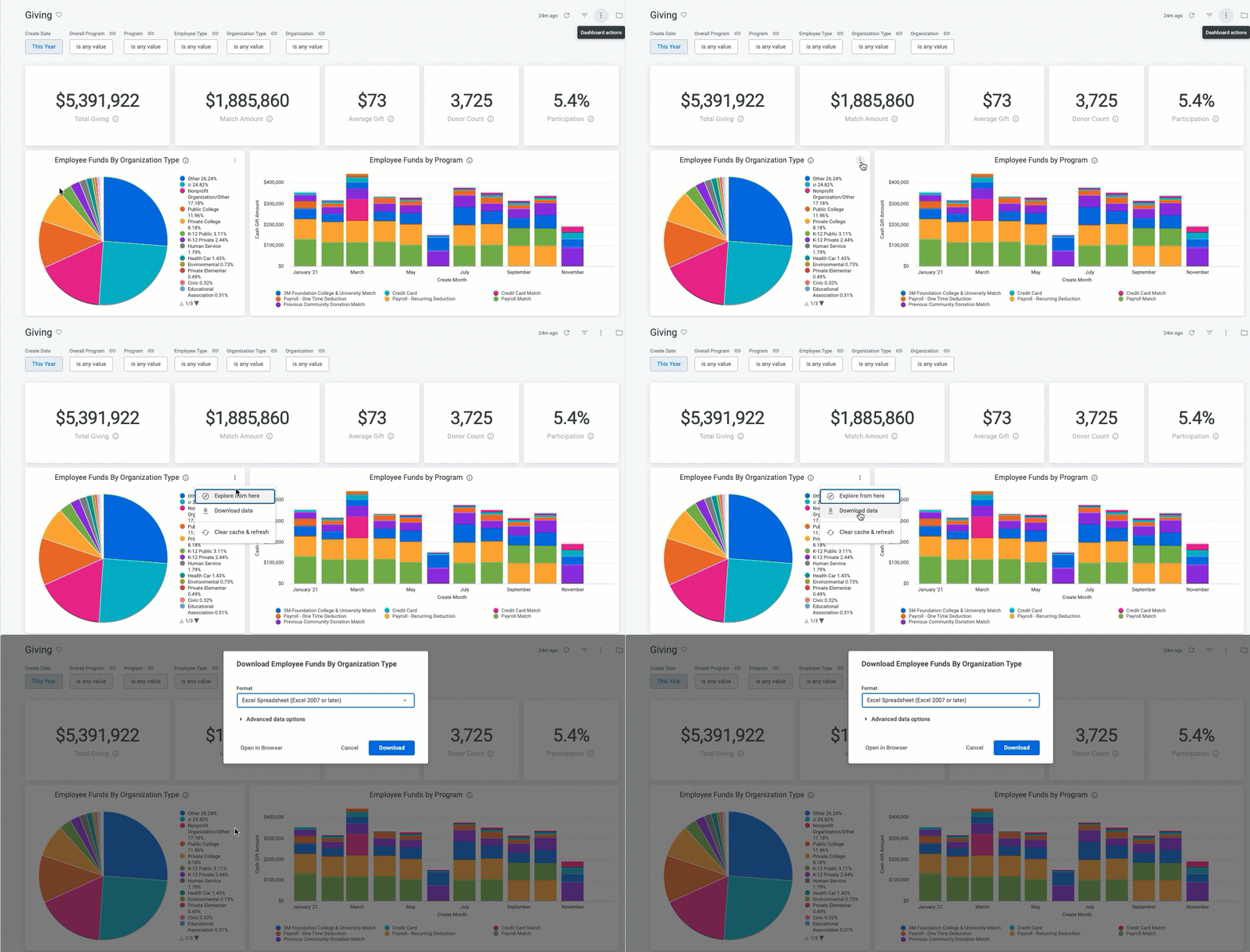
To download data from a specific tile, click the vertical ellipses menu on the tile you want to export and choose the "Download data" option.
Step 3: Download a Drilled-in Report from a Dashboard
When viewing a drilled-in report from a dashboard tile, look for the "Download" option in the top-right corner.
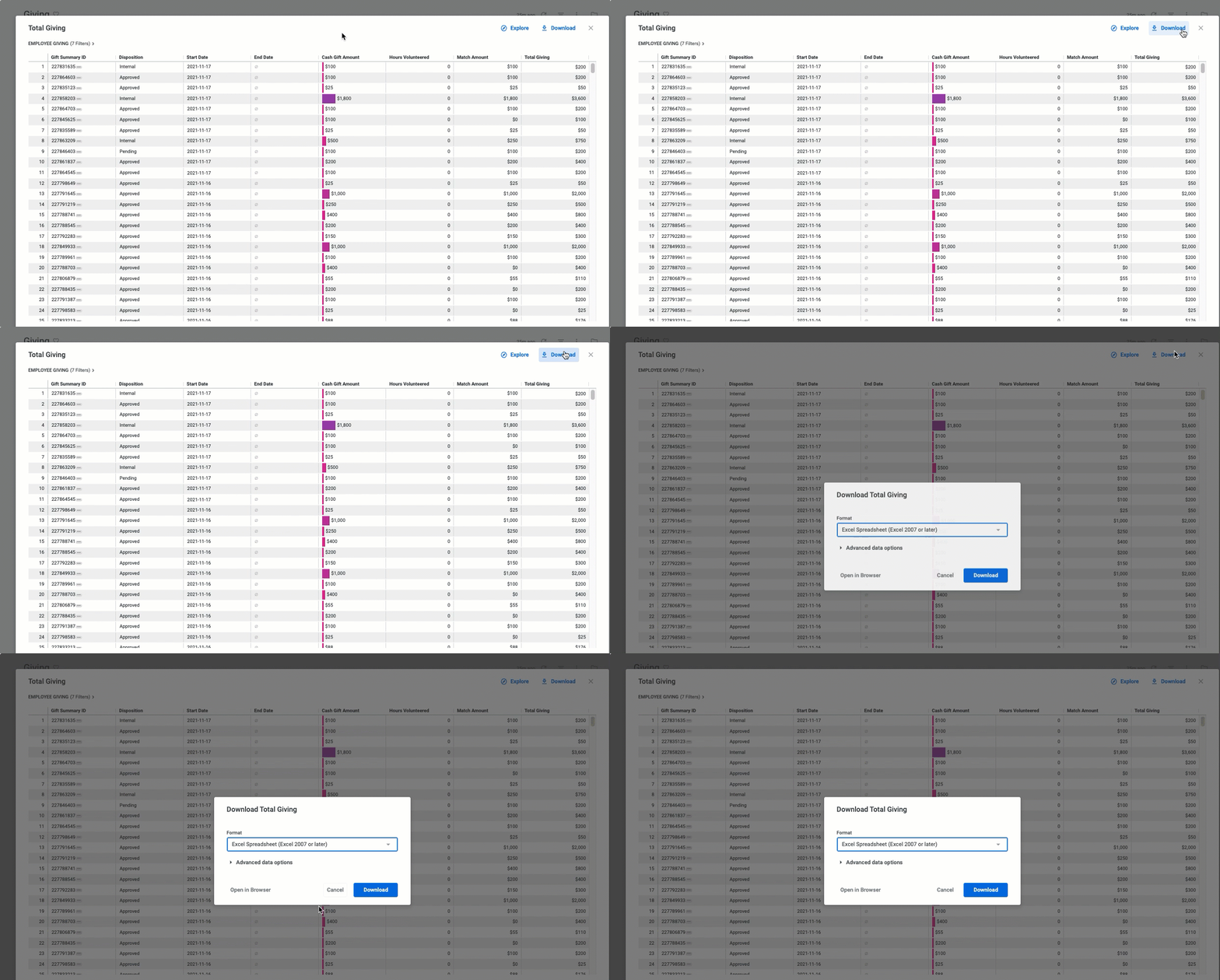
A modal will appear, allowing you to select the desired file format for your download:
- TXT (tab-separated values)
- Excel spreadsheet (Excel 2007 or later)
- CSV
- JSON
- HTML
- Markdown
- PNG (image of visualization)
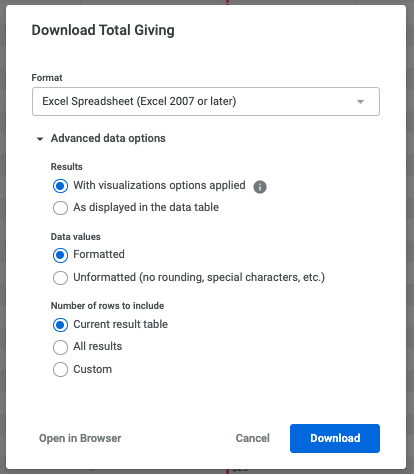
Clicking “Advanced data options” will present additional options for your download and “Open in Browser” will allow you to preview your format selection within a separate browser tab. When prepared, click the "Download" button to start the download process.
What else do you need help with?
Not what you're looking for? Navigate to Understanding Insights Dashboard Filtering and Navigation
Looking for training?
Explore this feature at your own pace - access training video content or watch a recorded webinar by clicking the link below.


