The Insights platform provides users with the ability to access and explore a diverse array of dashboards through its intuitive and user-friendly interface.
Check out this video for instructions on how to view dashboards in Insights.
The following steps will guide you through the process of finding, setting, and copying dashboards within the platform.
Step 1: Locate a Dashboard
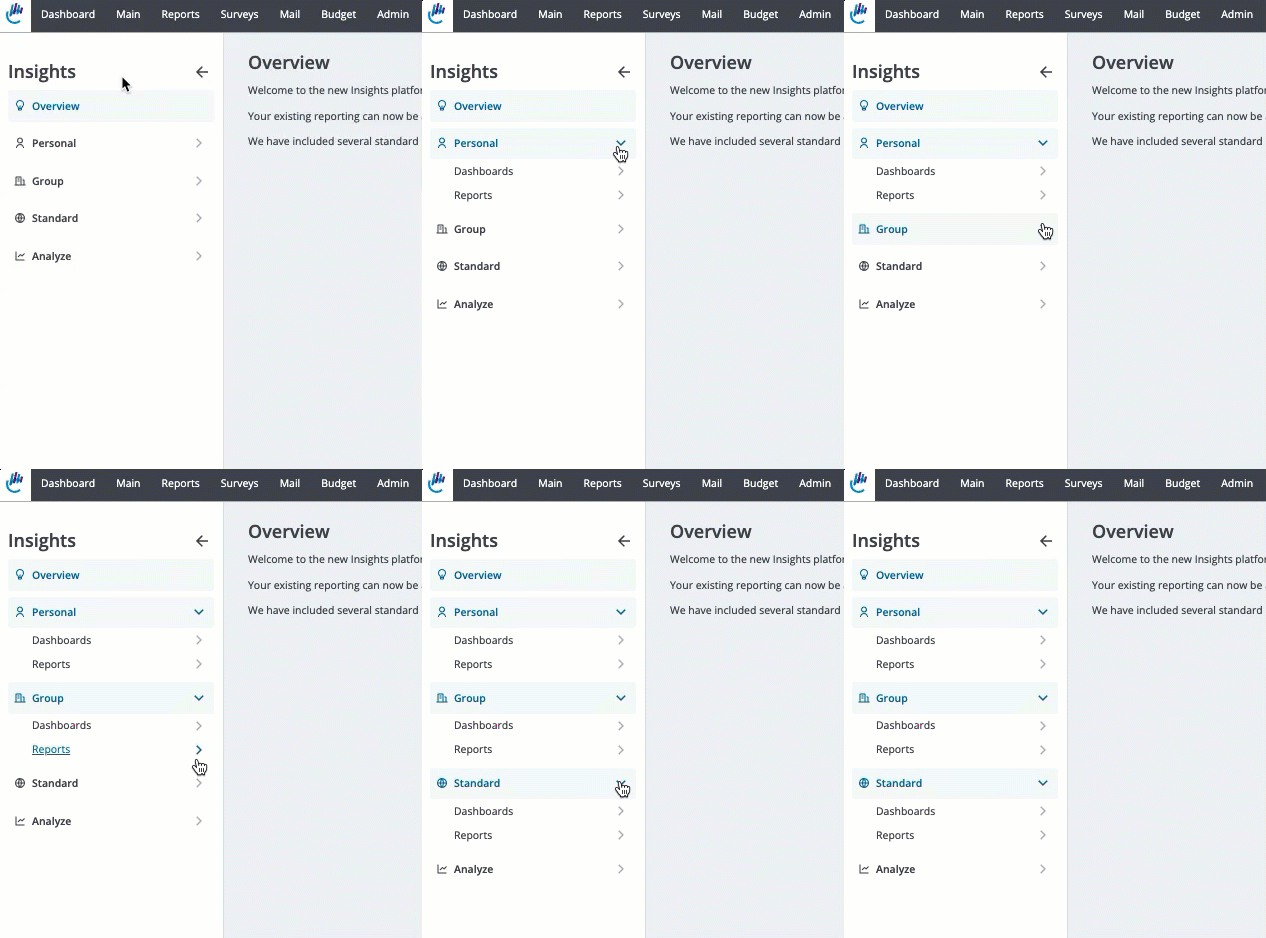
All dashboards can be found within one of three left menu folders in Insights:
- Personal - Dashboards only you can access.
- Group - Dashboards shared with all licensed Insights users within your company.
- Standard - Dashboards that have been implemented by CyberGrants and are available to all Insights users.
Step 2: Set a Default Insight
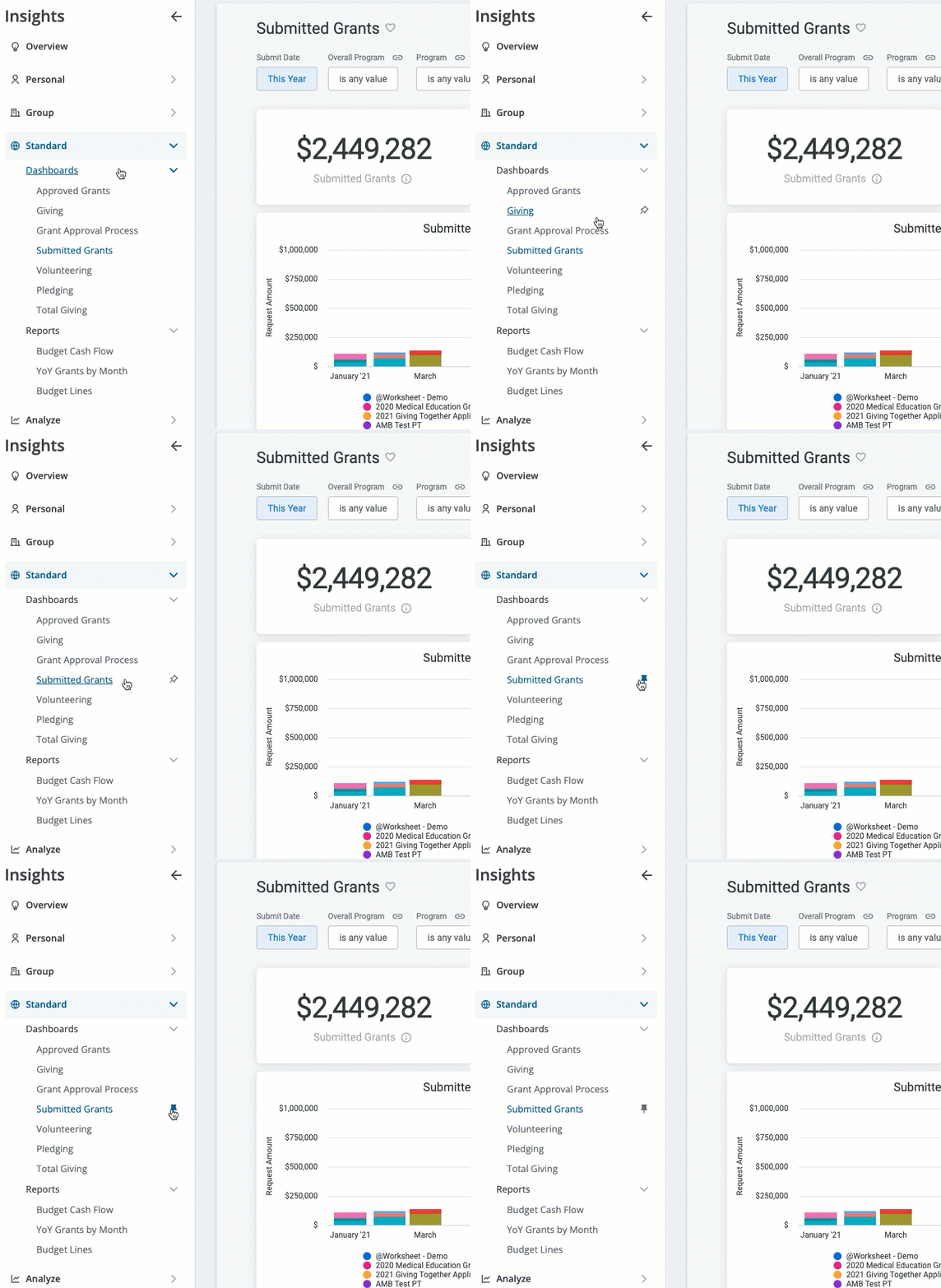
Insights users have the ability to designate a dashboard or report as their "Default Insight." This setting ensures that the selected dashboard or report automatically loads whenever accessing Insights providing a more personalized experience by allowing you to easily and quickly view the analytics you need.
- To set a dashboard or report as your default insight, simply hover over the dashboard or report name and click the pushpin icon. Click the pushpin icon again to deselect.
Step 3: Copy a Dashboard
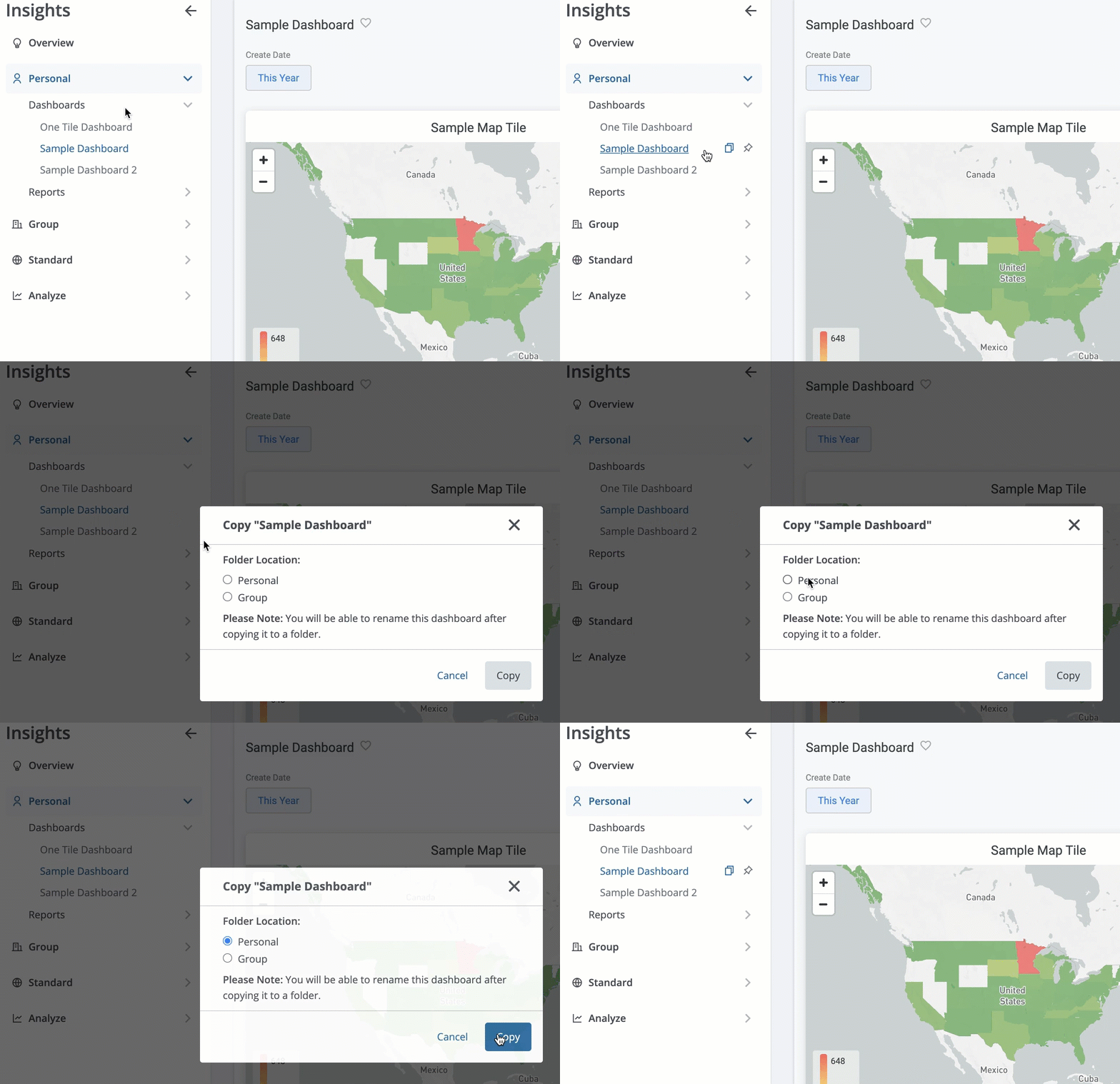
If you have the Analyst user role within Insights, you can, also, copy/clone a dashboard and save a duplicate version of that dashboard into the folder of your choosing. This option provides the ability to use an existing dashboard as a starting point for additional exploration and analysis.
To copy a dashboard, simply hover and click the papers icon next to the dashboard name, which will then prompt you to select either the Group or Personal folder as the destination for your copied dashboard.
- Once the copy is complete, the new dashboard will automatically appear in the folder you have selected, and you can then edit your copied dashboard to rename it as needed.
At this time, only dashboards located in the Group or Personal folders can be copied, not those in the Standard folder.
What else do you need help with?
Not what you're looking for? Navigate to Understanding Insights Dashboard Filtering and Navigation


