Inviting an international organization allows donors to support nonprofits outside the United States and Canada when those organizations are not already available in standard search results.
The following steps guide you through inviting an organization, understanding what happens after the invitation is sent, and completing a donation once the organization becomes eligible.
Step 1: Sign in to your giving site
Begin by signing in to your company’s CyberGrants program website. You must be logged in to access the International Giving credit card donation flow.
Step 2: Open the credit card donation flow for international giving
Navigate to the giving tab and select the credit card donation option configured for international giving. This ensures you are in the correct workflow for inviting an international organization.
Step 3: Search for the organization
On the organization selection page:
- Start with a standard search.
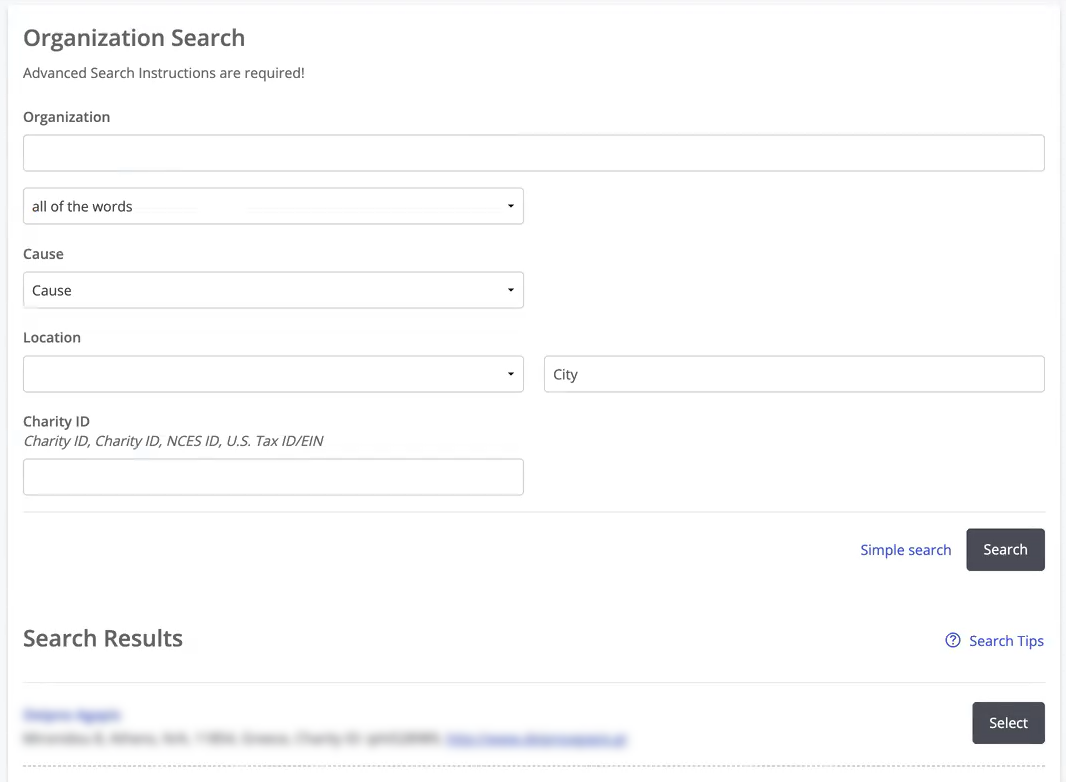
- If no results appear, use Advanced Search.
- Enter the organization name, country, charity ID, or other relevant details and search again.
If the organization still does not appear, proceed to the nomination step.
Step 4: Open the International Invitations workflow
If your search returns no results, click Nominate your organization.
You will be prompted to choose the organization’s country.
After selecting the country outside of the U.S., the page displays a brief overview of CAF America’s vetting process.
Step 5: Complete the CAF America invitation form
Select Continue to open the email invitation form. Enter the following details:
- Organization name
- Organization email (a contact who can access CAF America’s registration process)
- Tax ID or registration number (if known)
Review the pre-composed email. The message includes:
- A statement that you are an employee donor recommending the organization
- An explanation that your company uses CAF America for international vetting
- A link the organization must use to access CAF America’s registration and eligibility application
- A note that the organization may need to pay a fee and submit documentation to complete the process
When you are ready, select Send. A CAF America Invitation record is created and will appear in your CAF America Invites / International Invitations portlet.
Step 6: Understand what happens after the invitation is sent
Once the invitation is submitted:
- The organization receives an email with a link to CAF America’s site, where they may choose to begin the required eligibility process.
- To become eligible, the organization must:
- Pay the CAF America eligibility fee
- Access and complete the Grant Eligibility Application
- Provide all required documentation
CAF America conducts due diligence and sanctions screening. Reviews typically take 4–6 weeks once all materials are submitted. If approved, the organization is added to the CAF America Global Charity Database.
Step 7: Review possible statuses and outcomes
CyberGrants displays two statuses that reflect the organization’s progress with CAF America:
Invited
This status appears once the invitation is sent. It includes all pre-approval stages, such as the organization not yet opening the link, beginning the CAF America application, or being under CAF America review.
Note: If the organization appears delayed, consider contacting them directly to encourage follow-up with CAF America.
Available
This status appears only after CAF America approves the organization. The organization is now eligible for donation and matching and will appear in search results.
Note: If an organization shows as Available in your Invitations portlet but cannot be selected for a donation, contact your program’s support team.
Step 8: Track and manage your invitations
Open the CAF America Invites / International Invitations portlet. This section displays the organization name, country, date invited, and current status.
- Select View to review the original email and details
- Resend the invitation if the organization did not receive or cannot locate the original email
Step 9: Donate once the organization becomes available
When the CAF America review is complete and the organization is approved, it will be available for donations.
- Return to the credit card donation page.
- Search for the organization again. It will now appear as an eligible option.
- Complete your donation and, if applicable, submit a matching gift request.


