Any user, regardless of role, can be granted access to view sandbox content. Administrators must grant access to Sandbox on the individual user account level to users who do not have configuration access (typically non-administrator security levels).
Changes to user accounts can be made in both the Sandbox and Production environments. It's important to note that Sandbox access is not a default setting and must be explicitly granted to each user who requires it.
Granting a user access to the Sandbox environment does not automatically provide them with the permissions needed to promote or roll back changes. These elevated privileges must be configured separately as part of the user's defined roles and permissions within the system.
Check out this video that guides you through granting Internal Users access to view Sandbox.
To grant access, please proceed through the following steps:
Step 1: Go to the Admin Tab
Navigate to the Admin tab in CyberGrants.
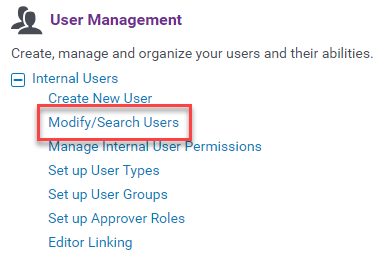
Step 2: Access "Modify/Search Users"
In the User Management area under Internal Users, click “Modify/Search Users.”
Step 3: Search and Select the User
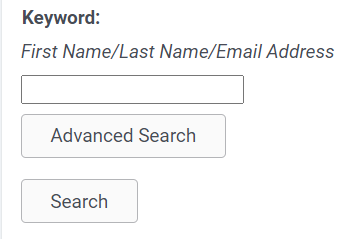
Locate the user requiring Sandbox access by searching for their First Name, Last Name, or Email Address in the keyword search field and click on the user's name.
Step 4: View Module Access
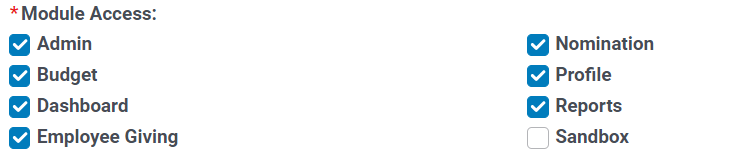
Scroll down the page to the Module Access area of the user profile to locate the Sandbox module.
Step 5: Update Sandbox Access
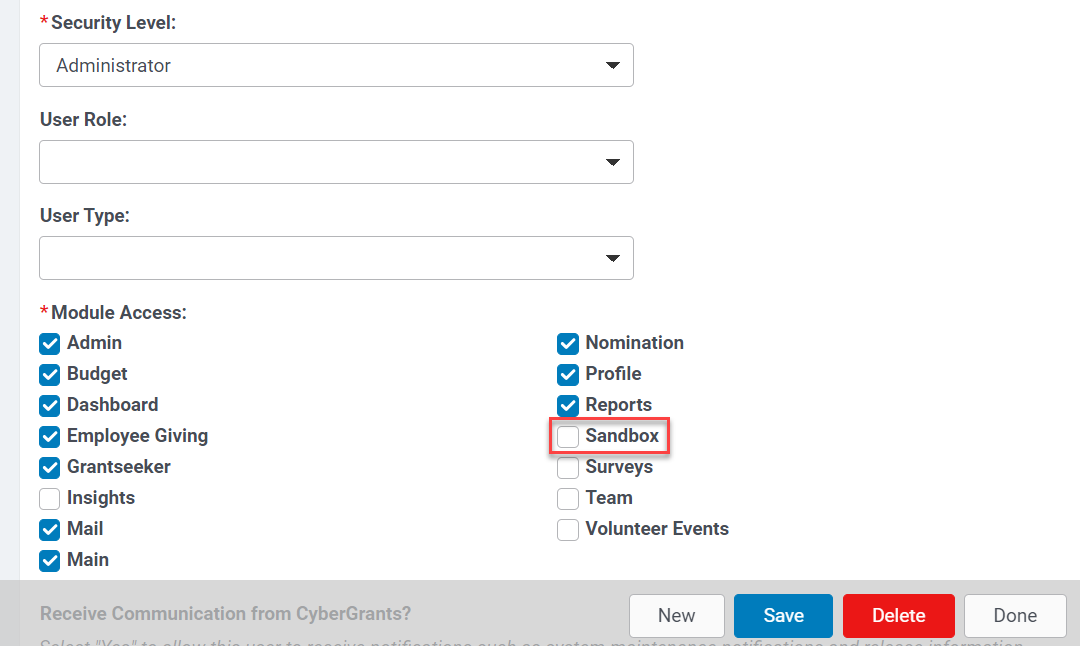
Check the box next to the word Sandbox and click the Save button at the bottom of the user’s profile
What else do you need help with?
Not what you're looking for? Navigate to Understanding CyberGrants Sandbox and Production Environment


