If a client wishes to repeal changes that were published to Production, authorized users can roll back the account to a previous configuration version. Rollback should not be used as the primary means for “undoing” changes, such as correcting typos, reactivating fields, etc. Use of the Rollback feature should be reserved for situations such as reverting non-functioning changes or in the event that changes were published prematurely.
- It's important to note that every time changes are published from Sandbox to the Production environment, the system takes a complete backup of the client's account configuration. We recommend reviewing these configuration versions regularly and highlighting the best version, should a rollback be necessary in the future.
- It's also worth noting that if rolling back to a previous version would potentially impact system data, the rollback will not be possible. For example, if a client published a new proposal type today, and a grantseeker submitted a request against that proposal type today, the system would not permit a rollback to yesterday's configuration. Reverting or rolling back will never result in the deletion of any transactional data.
- Any changes rolled back from the Production environment will appear as unpublished changes in Sandbox. If a user is rolling back because of a configuration error, this error will need to be corrected in the Sandbox environment and then republished to the Production environment.
Looking to roll back changes made in Production? Check out this video that guides you through the process.
To rollback to a previous version:
Step 1: Go to the Admin Tab in Production
Navigate to the Admin tab in CyberGrants while in the production environment.
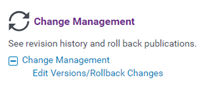
Step 2: Click “Edit Versions/Rollback Changes”
Click the “Edit Versions/Rollback Changes” link in the Change Management area of the Production Admin Tab.
Step 3: Select a version
A list of items that were published either in bulk or as an individual change in the previous thirty (30) days will be displayed. Click on a version number to view the attributes of the configuration backup selected. Users with the appropriate permission can mark configuration versions as valid/”OK” and add commentary about the version.
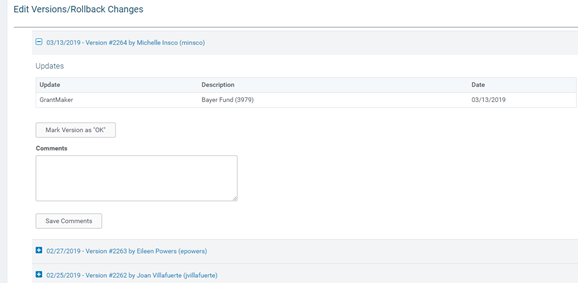
Step 4: Click Revert
Click the “Revert” button to roll back to the selected version. If the rollback is successful, the user will see a confirmation message. If the rollback cannot take place, an error message will provide additional information.
What else do you need help with?
Not what you're looking for? Navigate to Understanding CyberGrants Sandbox and Production Environment


