By default, all users are not permitted to publish Sandbox changes to the Production environment, nor are they allowed to revert or roll back changes from Production to an earlier configuration version. These elevated permissions must be explicitly granted to users by Administrators.
To properly manage these change management capabilities, administrators can create and assign user roles using the appropriate publishing and rollback permissions. This helps to limit the number of people who can make changes to the CyberGrants system. When developing and assigning user roles, it's a best practice to consider "separation of duties" principles. This means prohibiting a single user from having the ability to both publish and roll back system changes, which could allow for unauthorized or unilateral changes.
Additionally, if there are separate functional groups or teams that utilize different areas of the CyberGrants system (e.g. a "foundation" team with its own application types and workflows, and a "sponsorship" team with different configurations), Administrators must be especially cautious when assigning publishing permissions. Incomplete or untested changes made by one team could potentially be pushed to Production and impact the other team's workflows.
NOTE: Program admin users can update basic permissions. The CyberGrants Client Manager must enable advanced permissions.
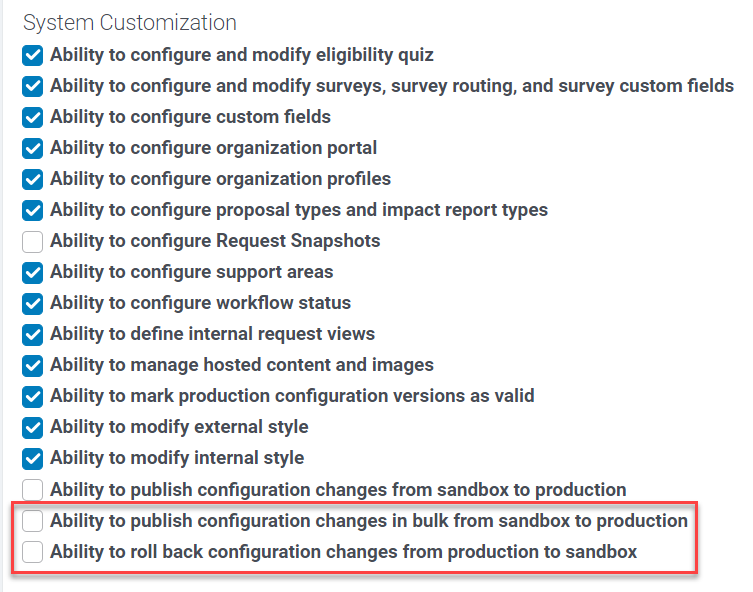
There are four (4) permissions associated with publishing and rolling back system changes categorized as basic and advanced:
| Basic Permissions | Advanced Permissions |
|
Ability to promote (individual) configuration changes from sandbox to production.
- Allows users to publish a change to an individual configuration component.
|
Ability to promote configuration changes in bulk from sandbox to production.
- Allows users to publish all outstanding changes.
|
|
Ability to mark production configuration versions as valid.
- Allows users to highlight and comment upon configuration backups.
|
Ability to roll back configuration changes from production.
- Allows users to revert changes to a previous configuration version.
|
Looking to define user roles and grant permissions to publish changes? Check out this video that guides you through the process.
Proceed through the following steps to define user roles and grant permissions to publish and/or roll back Sandbox changes to Production.
Step 1: Go to the Admin Tab
Navigate to the Admin tab in CyberGrants.
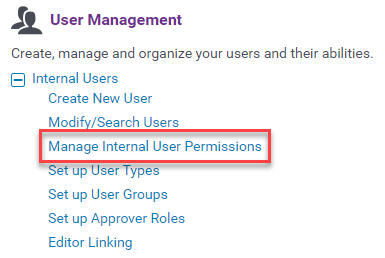
Step 2: Access "Manage Internal User Permissions"
In the User Management area under Internal Users, click “Manage Internal User Permissions.”
Step 3: Create a new/edit an existing role
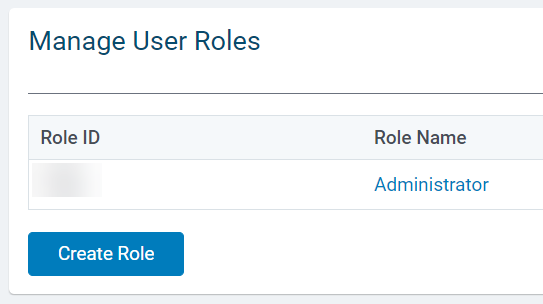
Click the link to create a new role or, to edit an existing role, click the Role Name.
Step 4: Select permissions
Locate the new permissions in the “System Customization” area. Select the desired combination of permissions appropriate for the user role and save changes.
Step 5: Access "Modify/Search Users"
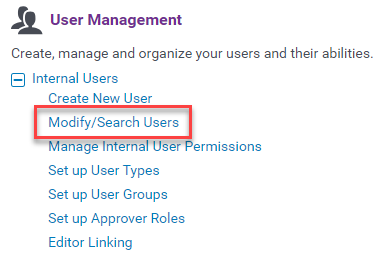
In the User Management area under Internal Users, click “Modify/Search Users” to assign the user role to the desired users.
Step 6: Search and Select a User
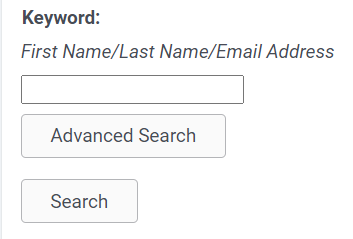
Locate a user by searching for their First Name, Last Name, or Email Address in the keyword search field and click on the user's name.
Step 7: Assign a User Role
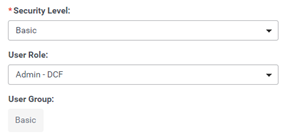
Scroll to the User Role area of the user’s profile, select the appropriate User Role, and click “Save” at the bottom of the user’s profile.
What else do you need help with?
Not what you're looking for? Navigate to Understanding CyberGrants Sandbox and Production Environments


