Existing mailing lists are modifiable by clicking the mailing list name in the Information Frame. The contacts associated with the selected mailing list display. Proceed through the following steps to modify an existing mailing list.
Step 1: Enter the Mail tab
Navigate to the Mail tab in CyberGrants.
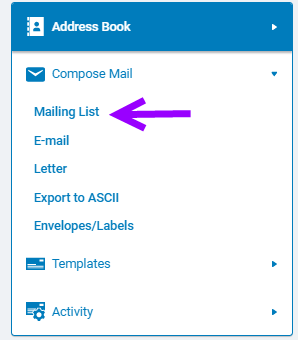
Step 2: Click Mailing List
Click "Mailing List" under "Compose Mail."
Step 3: Locate the mailing list you want to modify
In the Information Frame, click on the name of the mailing list you want to modify.
Step 4: View the contacts associated with the selected mailing list
The contacts associated with the selected mailing list will be displayed.
Step 5: Add new contacts to the mailing list
Click the “Add Contacts” button to filter the contact list and add different contacts.
Step 6: Filter the contact list
Select the desired filters and values to limit which contact records appear when adding contacts. Click the "Search" button.
Step 7: Select the contacts to add
From the search results, select the individual contacts you want to add. Click the "Add Selected Contacts" button to add the selected contacts. Alternatively, click the "Add All Contacts" button to add all the contacts returned by the search.
Step 8: Click Done
Click the “Done” button once all of the contacts are added. The selected contacts will now be added to the mailing list.
What else do you need help with?
Not what you're looking for? Navigate to Understanding Mail Activity


