The Mail tab in CyberGrants provides comprehensive tools to handle undelivered emails, work on draft messages, and review and resend sent items. The following outlines the key functionalities available under the Activity section designed to help streamline your communication processes.
Step 1: Enter the Mail tab
Navigate to the Mail tab in CyberGrants.
Step 2: Click Activity
Click on “Activity” to display links to the following functionalities:
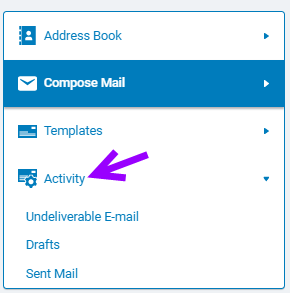
Step 3: View or Edit Undelivered E-Mail:
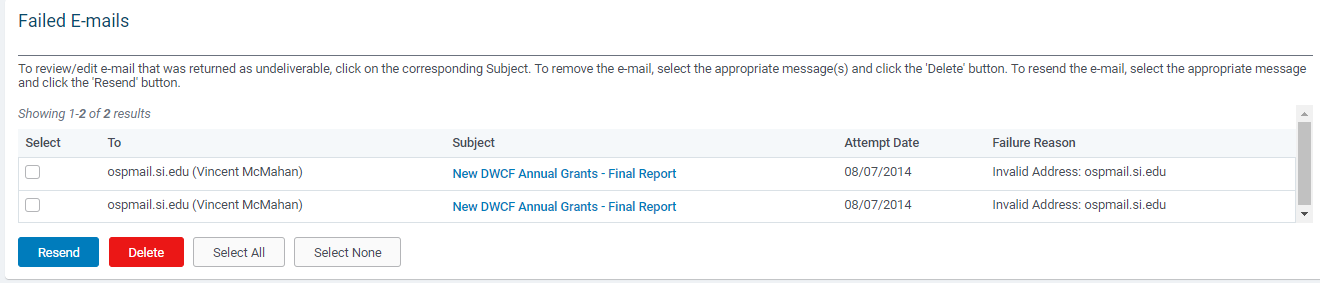
If an e-mail is returned as undeliverable, the message will appear under "Failed E-Mails".
- Click on the link "Undeliverable E-Mail". Any failed e-mails will be recorded here.
- Click on the corresponding Subject to make changes to the undelivered e-mail.
Step 4: View or Edit Drafts:
Click the "Drafts" link in the Navigator Frame under the Activity section to review all e-mail messages or letters in draft status. By default, the Drafts section of the Mail Tab displays in General View mode, which allows the user to process an entire mail batch as a single transaction. The correspondence groups by mail batch, which may include a single letter, a group of letters, or an entire mailing list.
However, the user is unable to edit mail while in the General View mode. Click the “Change to Detailed View” link to list each piece of mail individually for editing purposes. Users may process mail as individual pieces or select multiple pieces for processing within the detailed view.
To edit individual e-mails/letters, click the "Change to Detailed View" link located at the bottom of the page if you wish to make changes to the email/letter.
- Click the appropriate Subject link to continue working on a previously saved e-mail or letter draft.
- Click the "Save as Draft" button to save the e-mail/letter, "Send E-mail" button to send the e-mail, or "Generate Letters" button to create the letters in PDF, Microsoft® Word (RTF), or RTF (Rich Text Format) format.
To delete e-mail/letter drafts, select the checkbox next to the appropriate draft(s) and click the "Delete" button.
Step 5: View, Resend, or Regenerate Sent Mail:
Click on the “Sent Mail” link in the Navigator Frame under the Activity section. A list of the e-mail messages and letters that have been generated or sent appears. By default, the Sent Mail section of the Mail Tab is displayed in General View mode. The general view allows the user to view an entire mail batch as a single transaction. The correspondence is grouped by mail batch (which may be a single letter or a group of letters to an entire mailing list).
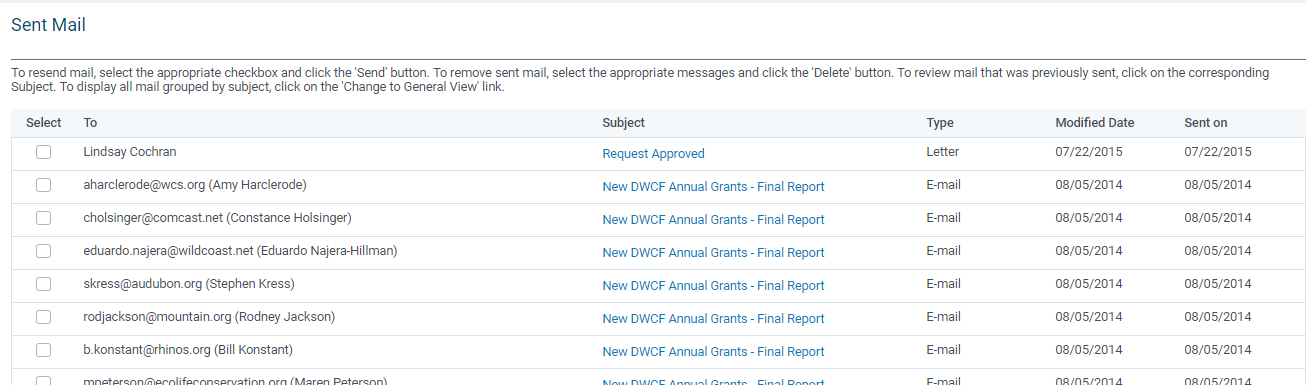
To review, resend, or regenerate individual e-mails/letters, click the “Change to Detailed View” link located at the bottom of the page if you wish to make edits to the email/letter.
- Click the appropriate Subject link to edit the e-mail or letter.
- Click the "Save" button to save the e-mail/letter, "Send E-mail" button to send the e-mail, or "Generate Letters" button to create the letters in PDF, Microsoft® Word (RTF), or RTF (Rich Text Format) format.
To delete sent e-mails/letters, select the checkbox next to the appropriate item(s) and click the "Delete" button.
What else do you need help with?
Not what you're looking for? Navigate to Understanding Mail Activity


