The template section of the Mail Tab allows users to create and modify letter templates or emails. Templates are used within CyberGrants to generate letters and e-mails from within a request record, an organization record, or for mass mailings from within the Mail tab itself. Templates can be used in conjunction with mailing lists. To create a Mail Template, proceed through the following steps.
Step 1: Access the Mail Tab
In production, click the Mail tab in the Navigation Bar.
Step 2: Create a New Template
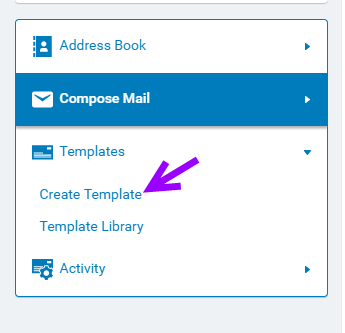
Click 'Create Template' in the navigator pane under Templates.
Step 3: Complete the Template Details
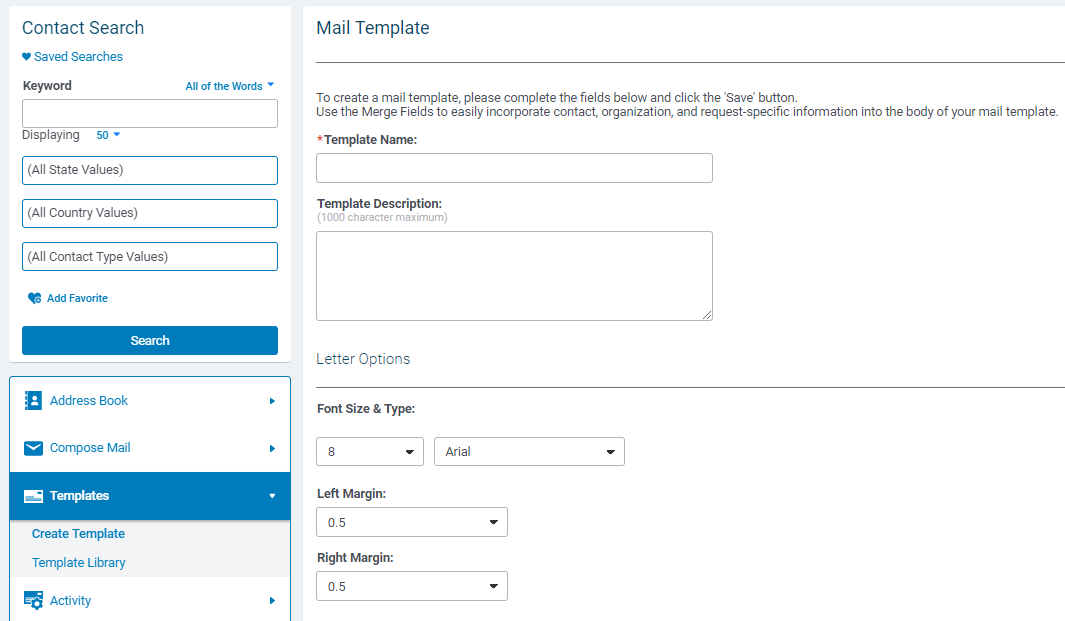
Complete all fields marked with an asterisk (*) and any additional information needed.
Template Name and Description
- Create a Template Name, which should be unique and descriptive as it serves to identify the template.
- Enter the Template Description. The Template Description textbox allows a user enter details about the purpose of the template. This information is used for reference only and does not affect a user's letters or e-mails.
Letter Options
- Select Font Size, Font Type, and Margin Sizes: Specify the default font size and font type for the template. CyberGrants includes several standard font types.
Email Options
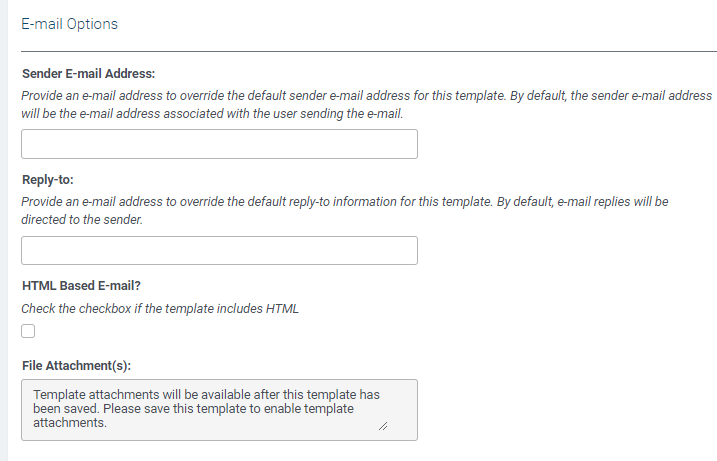
- Sender E-mail Address: Provide an e-mail address to override the default sender e-mail address for this template. By default, the sender's e-mail address will be the e-mail address associated with the user sending the e-mail.
- Reply-to: Provide an e-mail address to override the default reply-to information for this template. By default, e-mail replies will be directed to the sender.
- HTML Based E-mail? Check the checkbox if the template includes HTML. For tips on using HTML, visit How do I use Basic HTML?
- File Attachment(s): Template attachments will be available after this template has been saved. Please save this template to enable template attachments.
Step 4: Create the Template Contents
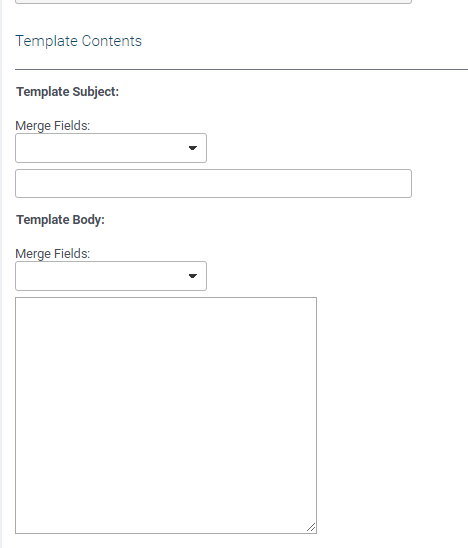
Enter the Template Subject, this serves as the Subject of any Email or Letter generated with this template.
- Select all Merge Fields to include in the Template. The Merge drop-down list is useful for incorporating Contact, Organization and Request-Specific information into the Mail Template.
- Utilize the Body field to type the full text of your Letter or Email including any selected Merge Fields.
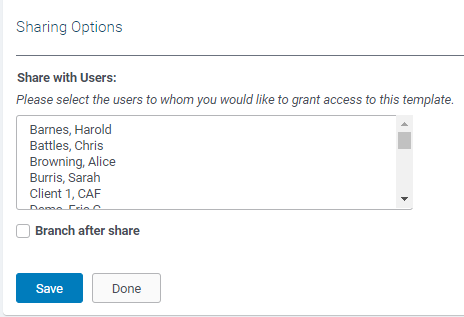
Step 5: Sharing Options
Use the Share With Users list to give other users access to this Mail Template. Select None to limit access to yourself. Use the "Branch After Share" to give each user selected an editable version of the template.
Step 6: Save the Template
Click the "Save" button at the bottom of the page.
What else do you need help with?
Not what you're looking for? Navigate to Understanding Mail Activity


