The Template Library contains all the saved Mail Templates that you have created and that other users have granted you access to. Note: If another user has granted you use of a template they created, but they did not give you editing ability ("Branch After Share") you cannot make any changes to the template.
Proceed through the steps below to manage templates in the Mail Template Library.
Step 1: Access the Mail Tab
In production, click the Mail tab in the Navigation Bar.
Step 2: Click Template Library
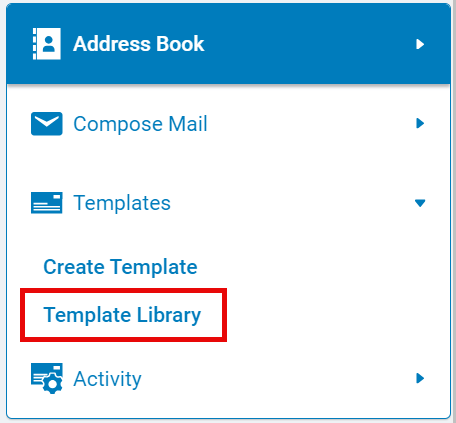
Select the 'Template Library' link in the navigator pane under Templates.
Step 3: Select Template
Select the appropriate Mail Template by clicking on the Template Name to edit a template.
Step 4: View/Edit Template
Make necessary changes to the template. Admin users can edit the Template Name (which should be unique and descriptive as it serves to identify the template), modify the Template Description (used for reference only and does not affect a user's letters or e-mails), change the letter options, and/or change the email options.
- Letter Options: Users can update the Font Size, Font Type, and Margin Sizes. CyberGrants includes several standard font types.
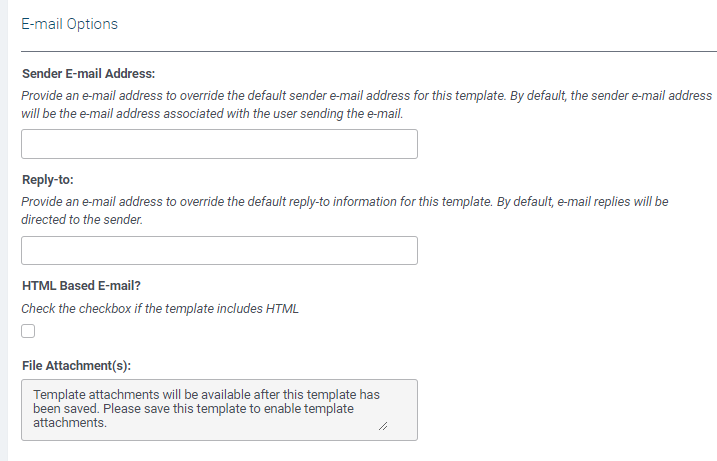
- Email Options: Users can change the custom sender email address and reply-to email address, as well as, enable HTML formatting and attach files to the template. For tips on using HTML, visit How do I use Basic HTML? Save the template to make attachments available.
Step 5: View/Edit Template Contents
Review the Template Subject and make changes as needed. Template subjects should be descriptive and unique. Changes can, also, be made to the merge fields and the relevant letter/email body field.
Step 6: Sharing Options
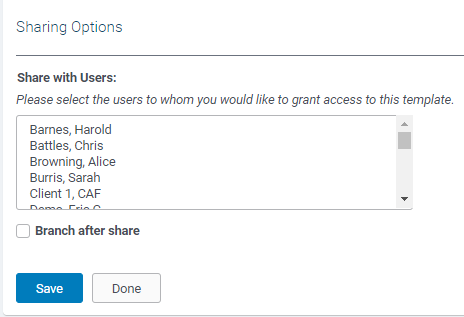
Use the "Share With Users list" to give other users access to the Mail Template or select "None" to limit access to yourself. Use the "Branch After Share" to give each user selected an editable version of the template.
Step 7: Save the Template
After completing updates to a template, click the "Save" button at the bottom of the page.
What else do you need help with?
Not what you're looking for? Navigate to Understanding Mail Activity


