Saved templates can be cloned, which is a useful feature that allows users to easily create a new template that is very similar to an existing one. This can be particularly helpful when you need to create a template that is almost the same as an existing one but with a few minor changes.
Proceed through the steps below to clone an existing mail template.
Step 1: Access the Mail Tab
In production, click the Mail tab in the Navigation Bar.
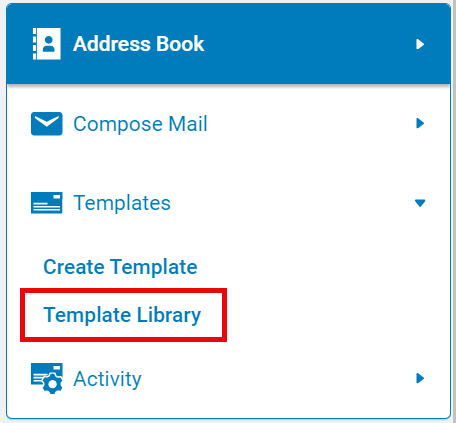
Step 2: Click Template Library
Select the 'Template Library' link in the navigator pane under Templates.
Step 3: Select Template
Click the name of the source template from the template library.
Step 4: Click Clone
Click the "Clone" button at the bottom of the template.
Step 5: Review Cloned Template
The Mail Template page will be populated with the new cloned template.
Step 6: Customize Template
Rename and edit the template fields to make them unique. View How do I create a Mail Template? for tips and additional information on how to update the Mail Template fields and content.
Step 7: Save Template
Click the "Save" button at the bottom of the page.
What else do you need help with?
Not what you're looking for? Navigate to Understanding Mail Activity


