The Search Configuration module allows Administrators to designate the default search configuration for the Main, Employee Giving, Nomination, Grantseeker, Surveys, Team, and Volunteer Events Tabs. Remember, making changes to the search configuration will affect all existing searches, so be mindful of the impact on your users.
Step 1: Go to the Admin Tab
Navigate to the Admin tab in CyberGrants.
Step 2: Access the Search Configuration module
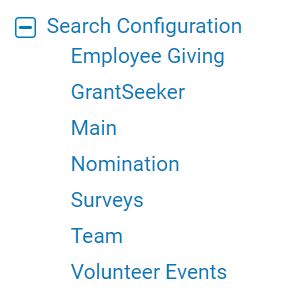
Expand the Search Configuration to view the default search tabs. This module is typically available to Administrators.
Step 3: Understand the field display options
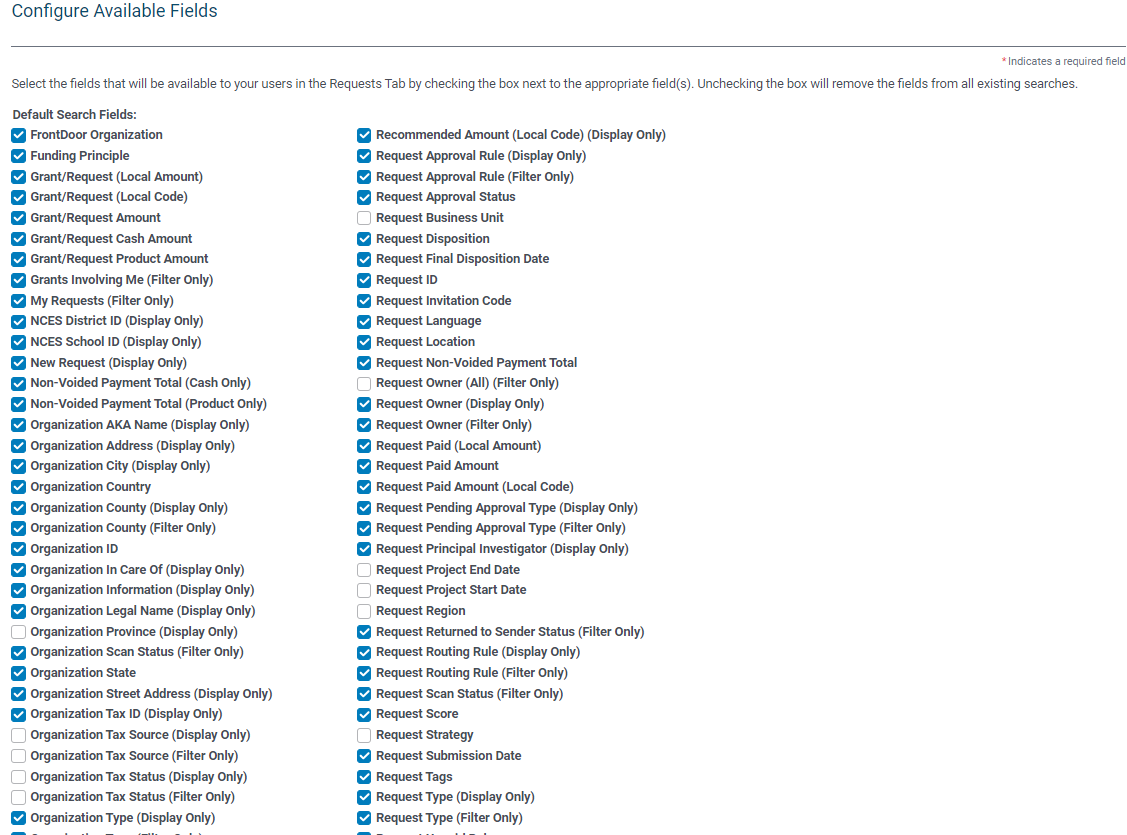
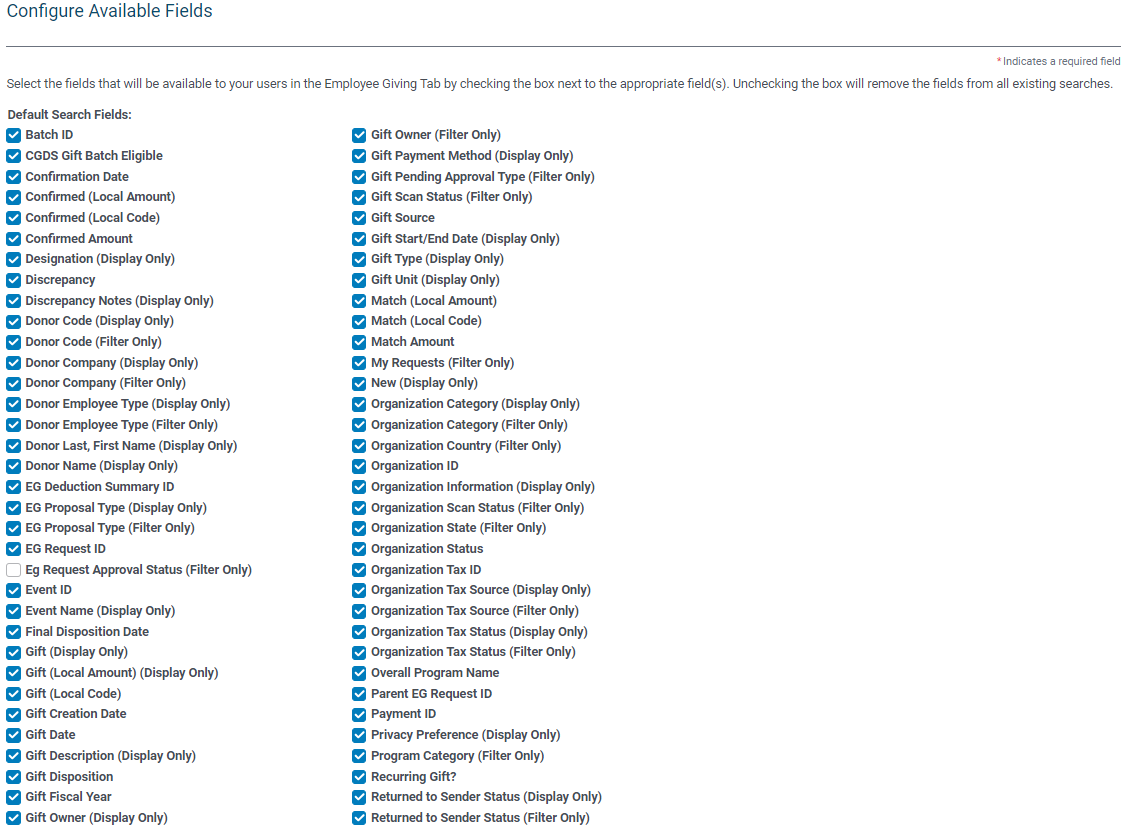
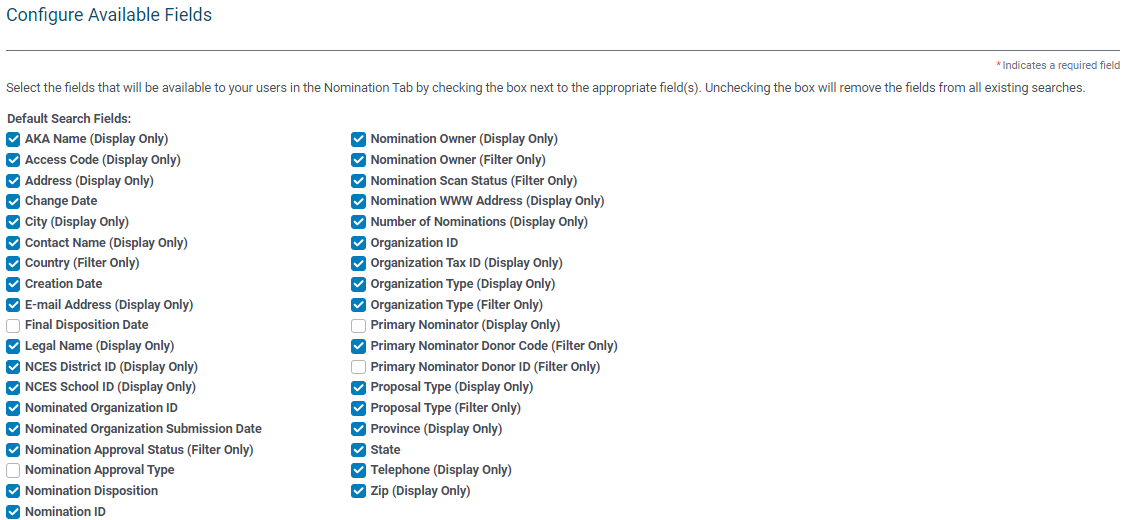
- If the field name is followed by "Display only:", it means the field is available to be used as a column only.
- If the field name is followed by "Filter only:", it means the field is available as a filter only.
If neither of the above is displayed, the field can be used as both a column and a filter on the tabs.
Step 4: Configure Available Fields
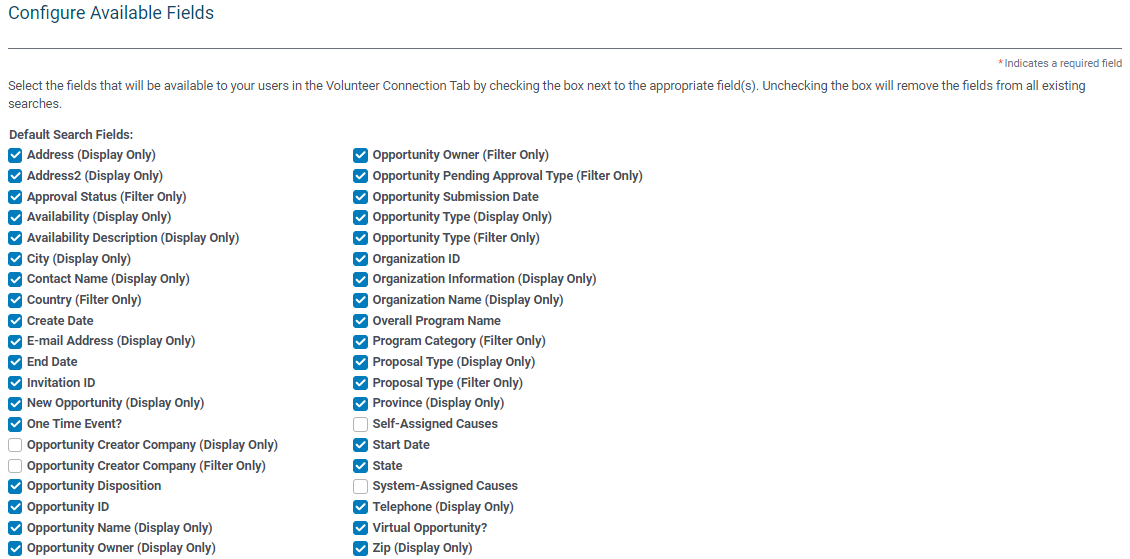
Click on each configuration page to select the fields that will be available to your users in each tab:
- Check the box next to the appropriate field(s) to make them available.
- Unchecking the box will remove the fields from all existing searches.
Main:
Employee Giving:
Nomination:
Grantseeker:
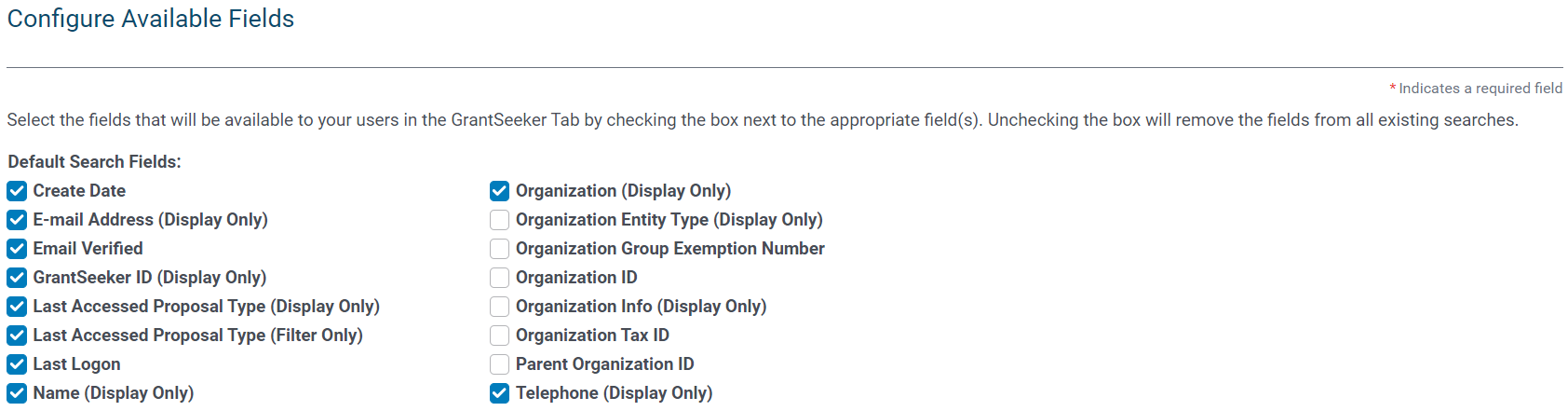
Surveys:
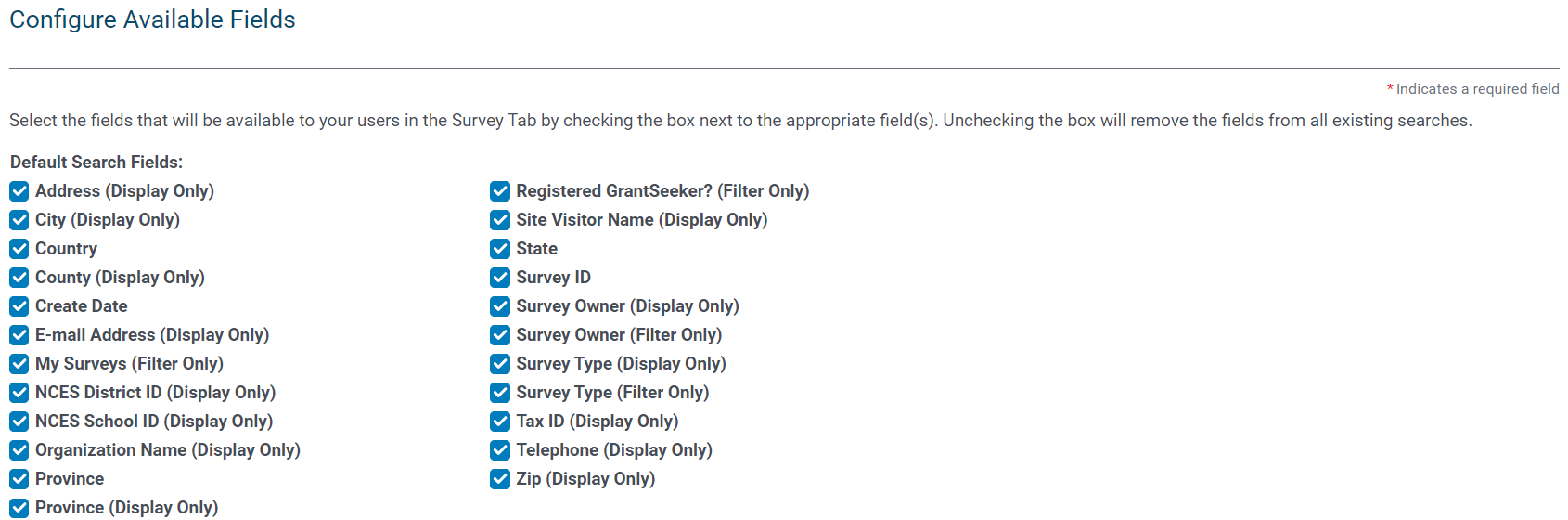
Team:
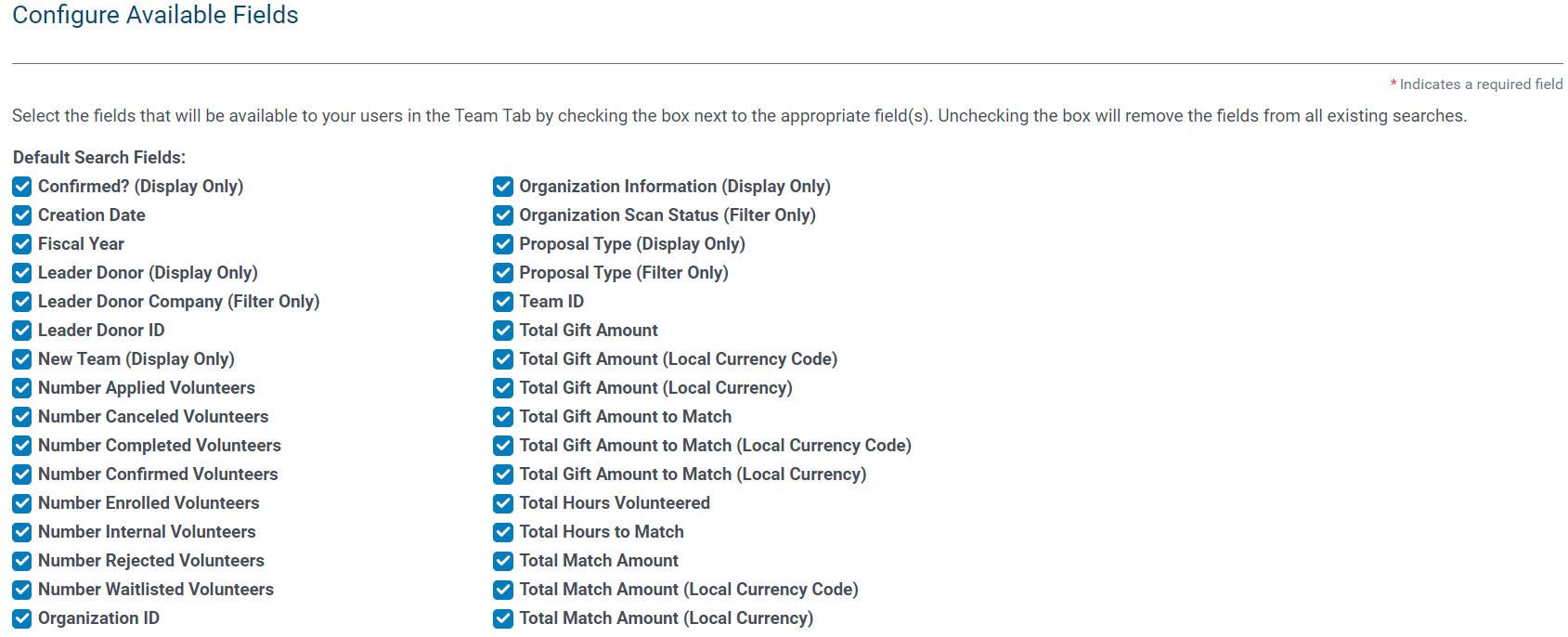
Volunteer Events:
Step 5: Save Changes
Save the changes to the search configuration for each tab.
What else do you need help with?
Not what you're looking for? Navigate to Understanding Search Configuration


