The “Add favorite search” functionality allows a user to name and save frequently used searches.
Step 1: Select a Tab
Navigate to the Main, Survey, Employee Giving, Nomination, or Volunteer Events tab within CyberGrants.
Step 2: Enter Search Criteria
Type in or select the search criteria.
Step 3: Click Search
Click the Search button. Your results will be displayed.
Step 4: Click "Add"
Click the “Add” button next to the “Heart Icon” field.

Step 5: Enter a Favorite Search Name
Type a name in the “Name this favorite search” field.
Step 6: Click Save All
Save search settings. NOTE: Named searches are listed in the “Saved Searches” field on the top right-hand corner of the screen, eliminating the need to re-enter a specific set of search criteria.
Step 7: View Saved Searches
View named searches in the saved searches section.
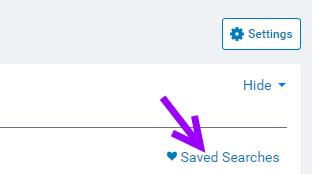
Step 8: Select a favorite search field
The “Saved Searches” field is visible if a user has saved favorite searches. Click the link "Saved Searches" to display the named searches then click a name. Then, click the “Name” of the search to perform the search.
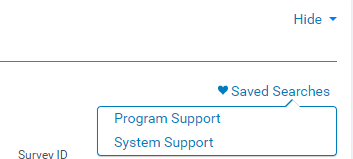
Step 9: Remove from Favorites Field
To remove a favorite search from the “Saved Searches” dropdown field, Click the link "Saved Searches" to display the named searches then click a name. Click the "Remove" link on the far right:

What else do you need help with?
Not what you're looking for? Navigate to Understanding Search Configuration


