Admin users can apply search filters on the Main, Survey, Employee Giving, Nomination, and Volunteer Events tabs to refine their search criteria and generate targeted results. This powerful tool allows users to streamline their workflow and access the most relevant information within the application.
Proceed through the following steps to customize the search filters to meet your specific needs.
Step 1: Select a Tab
Navigate to the Main, Survey, Employee Giving, Nomination, or Volunteer Events tab within CyberGrants.
Step 2: Access Settings
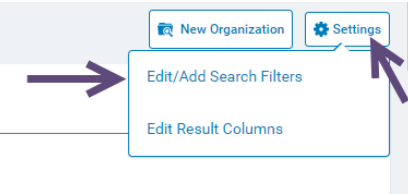
Click on the Settings option.
Step 3: Edit Filters
Click on Edit/Add Search Filters.
Step 4: Save Preferences
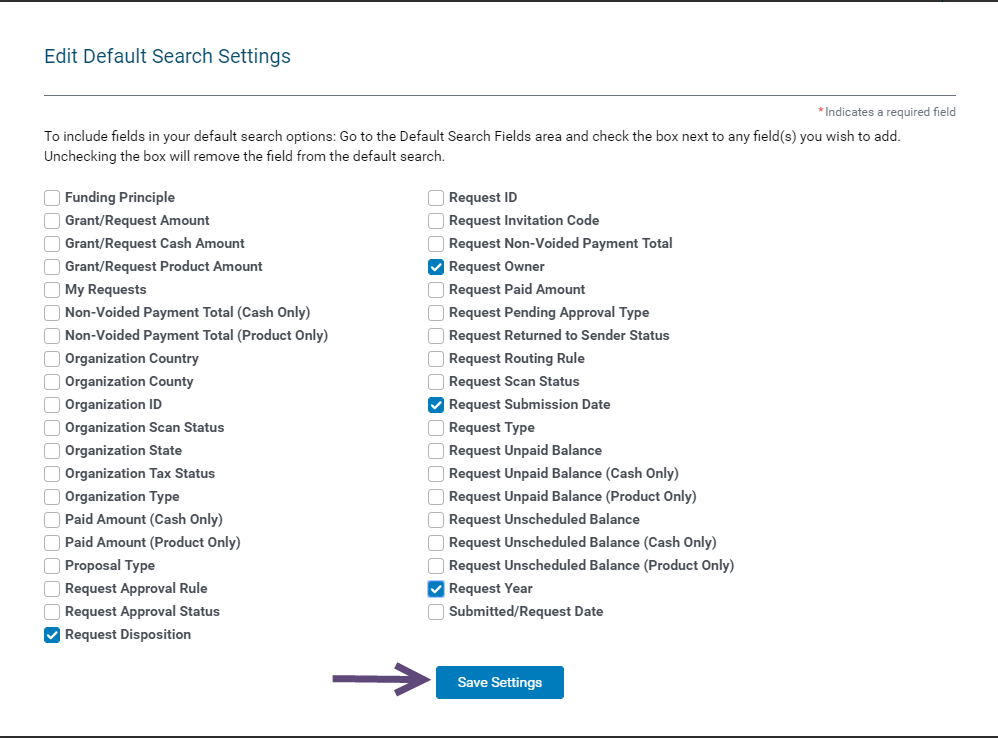
Choose your desired filter preferences and click Save Settings.
Step 5: View Filters
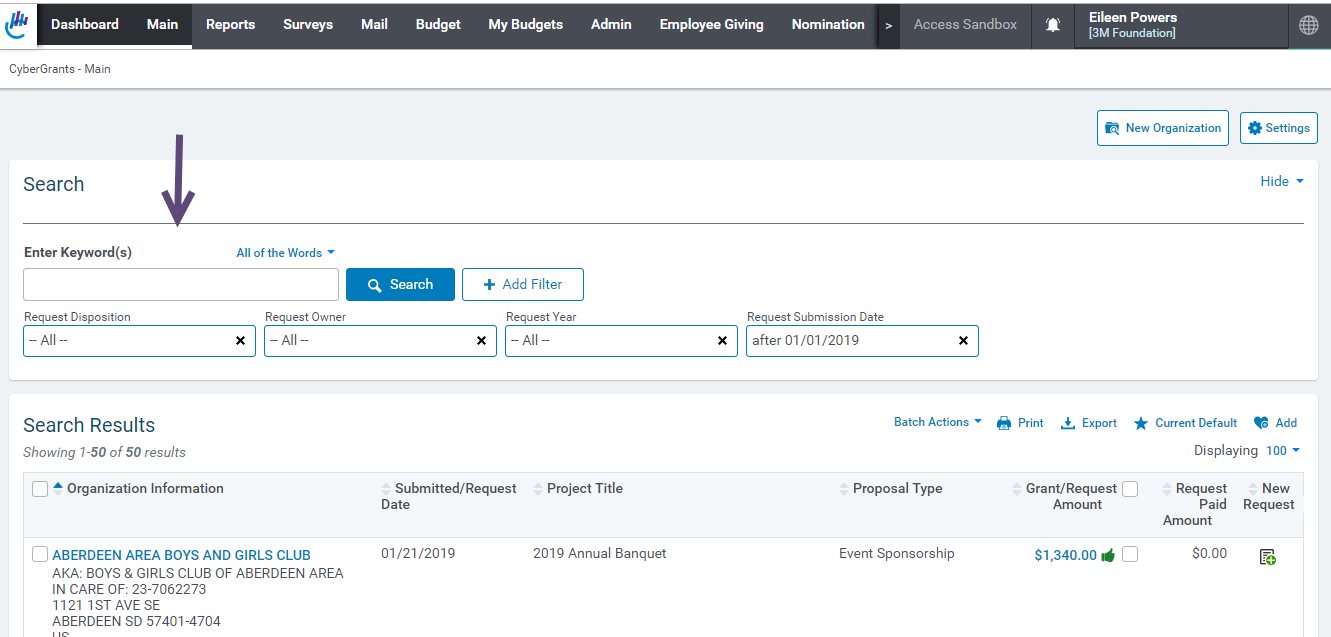
Your saved filter preferences will now be displayed on the tab.
Step 6: Manage Filters
At any time, you can click the + Add Filter button to include additional filters or the X icon to remove existing ones.
What else do you need help with?
Not what you're looking for? Navigate to Understanding Search Configuration


