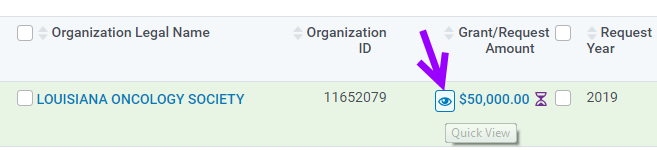
The Quick View gives internal users an at-a-glance view of a request’s approval, payment, and impact report information without having to leave the Main Tab. All requests have a Quick View, regardless of whether a client uses payments or impact reports for their program. It is identified by a magnifying glass icon located next to the Grant/Request Amount column. Quick View functionality is available in Production and Sandbox environments.
Step 1: Access the Main Tab
Navigate to the Main tab within CyberGrants.
Step 2: Locate request
Locate the request you want to view.
Step 3: Identify magnifying glass
Identify the magnifying glass icon next to the Grant/Request Amount column for that request.
Step 4: Open Quick View
Click on the magnifying glass icon to open the Quick View.
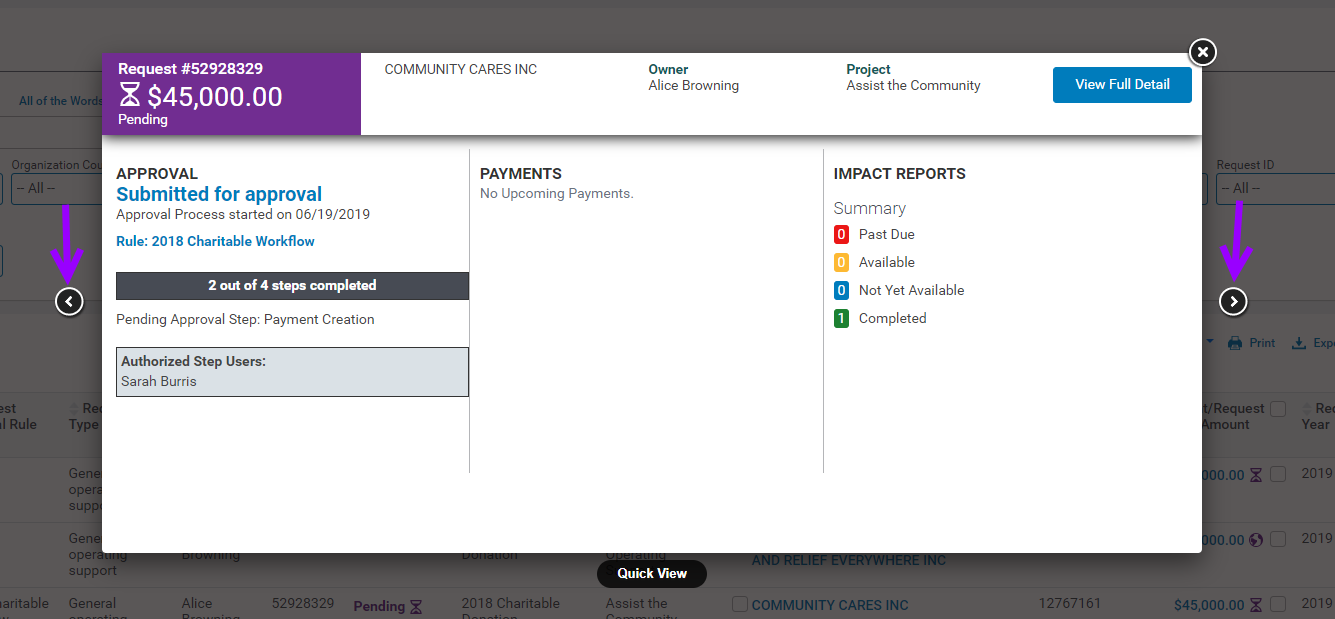
Step 5: Quick View Display
Users can toggle through Quick Views of their current search results without having to close the view. Each Quick View will display basic request information along with the following:
Approval Workflow
- Approval submission status and date (if applicable)
- Pending Approval type and authorized user(s)
- Number of approval steps completed and total number of steps
Payment
- Total non-voided payment amount
- Last payment in paid status
- Next scheduled/contingent payment
Impact Report
- Details of next available impact report
- Summary (quantity) of Pending, Available, Completed, and Overdue Impact Reports
What else do you need help with?
Not what you're looking for? Navigate to Understanding Search Configuration


