The "External Styles" link in the General Settings subsection displays a form to create and maintain one or more external styles for the Grantmaker’s online application(s).
- Typically, an external style is developed by an Implementation Consultant or Client Manager and reviewed by an Administrator.
- Changes to the external style must be performed in the Sandbox environment.
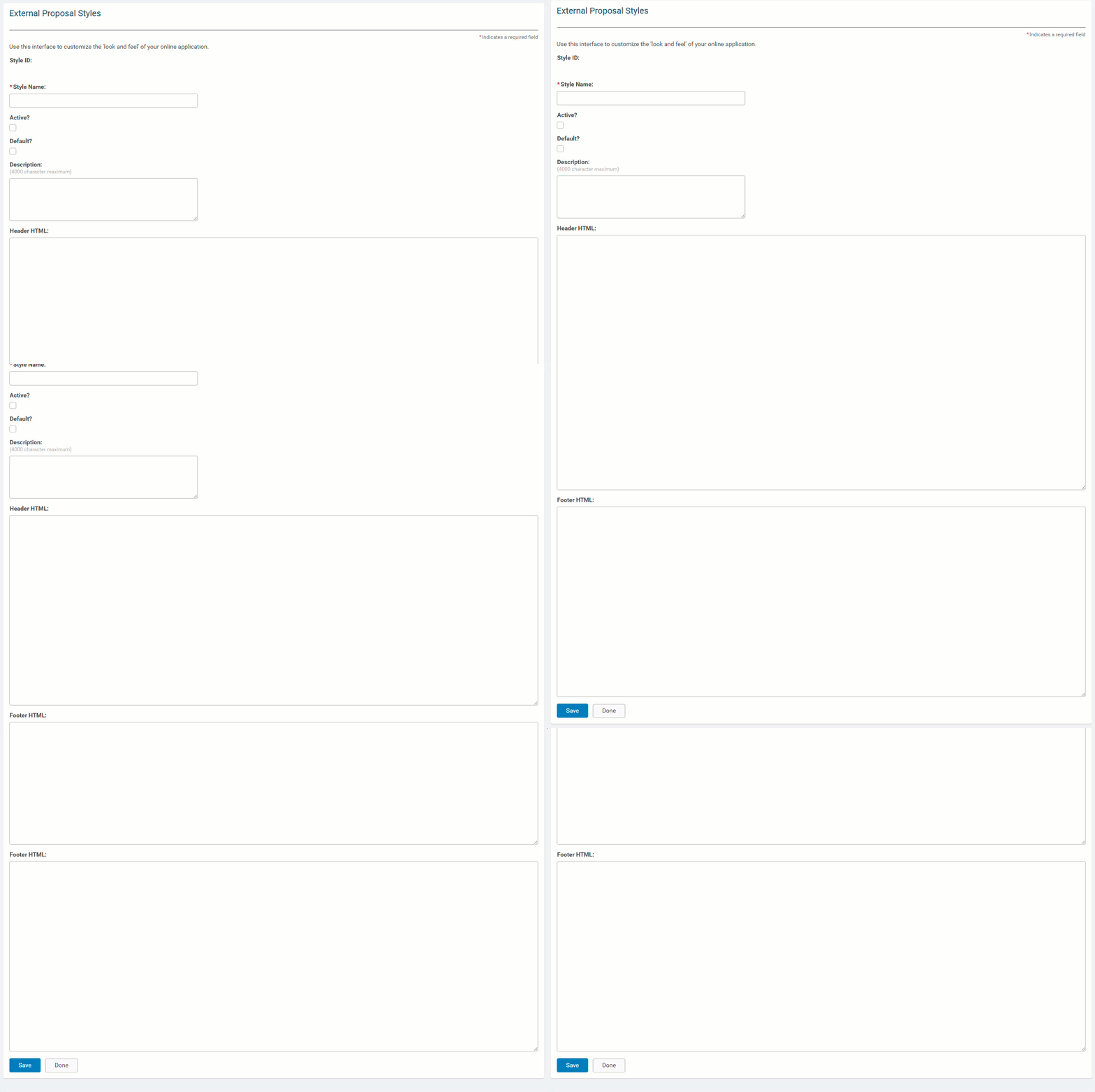
Learn about creating external styles by following the instructions below.
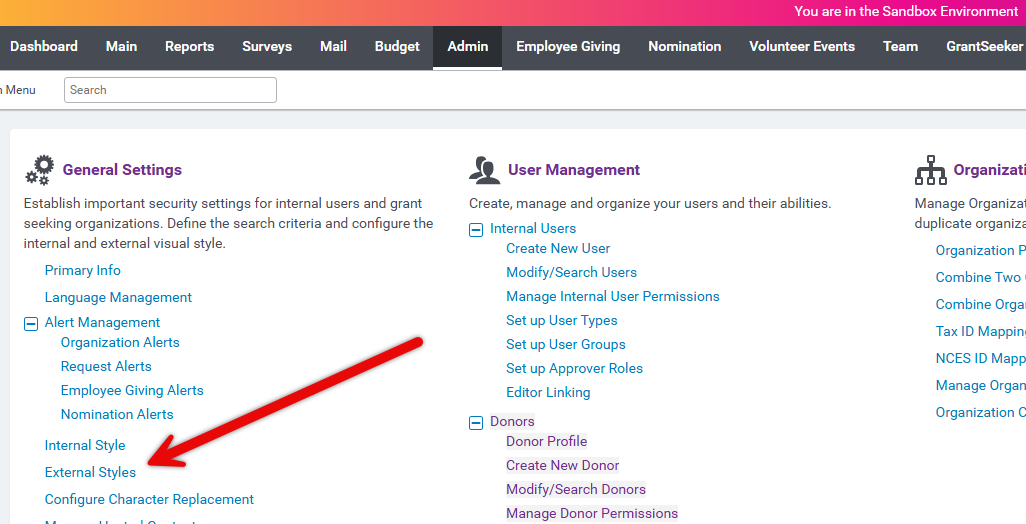
Step 1: Navigate to External Styles
Enter the Admin tab through the Sandbox environment and access "External Styles" under "General Settings."
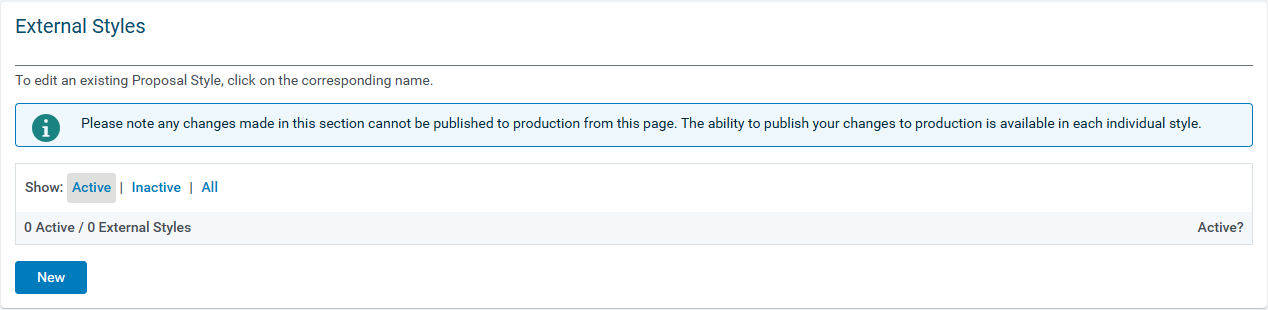
Step 2: Click the New Button
Click the "New" button to proceed with creating a new external style.
Step 3: Provide a Descriptive Name
Enter a descriptive name to identify the external style.
Step 4: Activate the Style
Check the "Active?" checkbox to activate the newly created external style.
Step 5: Determine a Default Setting
Decide whether the style should serve as the default for the Grantmaker.
Step 6: Insert HTML Code
Insert the header and footer HyperText Markup Language (HTML) code in the "Apply Online Setup" screen to define the desired "look and feel" (navigation and graphics of the Grantmaker) for the CyberGrants webpage, referring to the How do I use Basic HTML? article for guidance.
- Click the “Save” button to save the header and footer HTML code.
Step 7: Access the Color Settings
After completing the above steps, the screen refreshes and additional options appear at the bottom of the page. Among these options is the "Change Colors" feature. Click the “Change Colors” button to display a list of Style Elements.
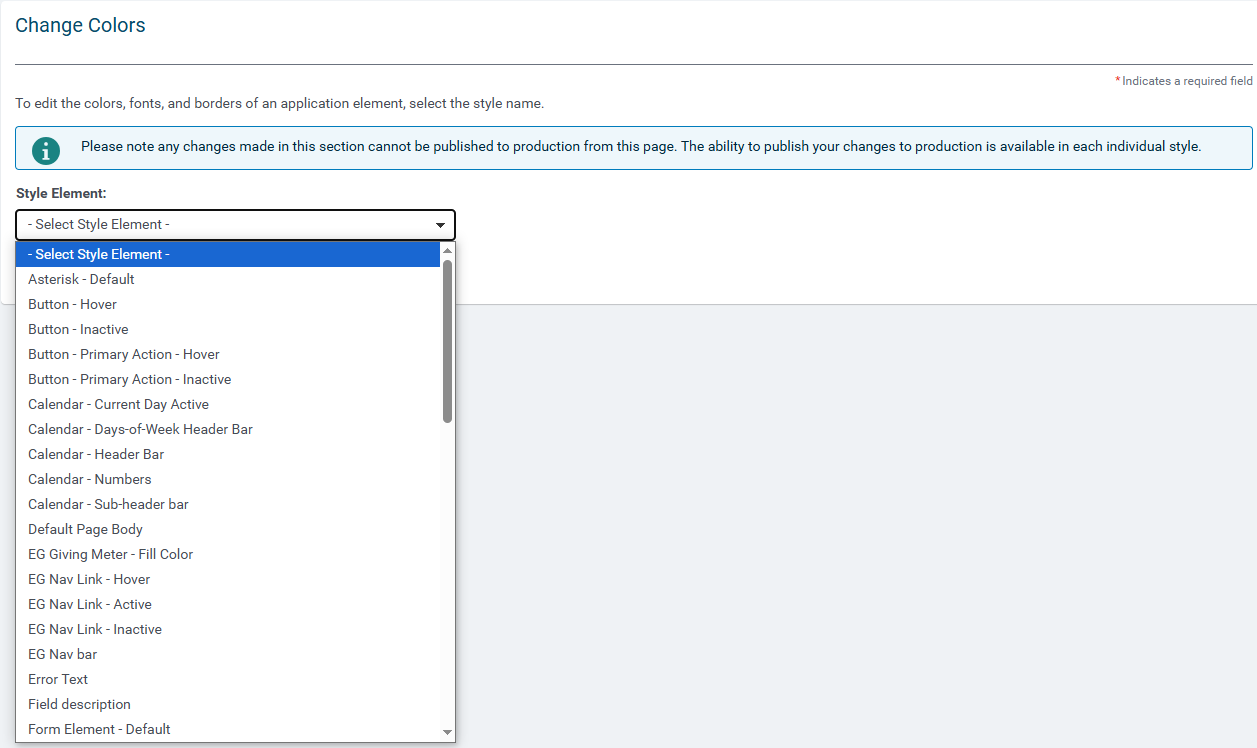
Select a style element in the drop-down box to display/change the setting for color, font, size, and format of the application element.
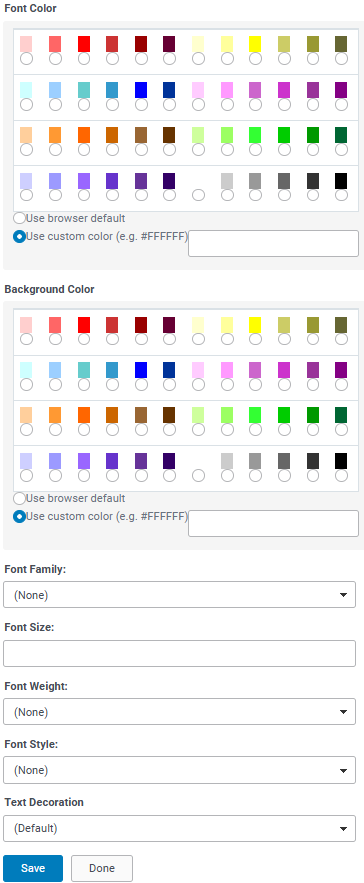
Step 8: Save and Preview
Click the "Save" button to apply the setting changes and, then, the "Preview" button to review the updated style before publishing.
What else do you need help with?
Not what you're looking for? Navigate to Understanding Content Configuration.


