The "Configure Character Replacement" functionality is used to translate a special character that does not display appropriately in a web browser.
- The character is often displayed as a blank square (▫) or darkened square (▪).
See the below information to learn more:
Step 1: Understand Character Replacement
Special characters often arise when an applicant cuts text from a document created by word processing software and pastes the text into the online application.
- The word processing software uses a "code" to represent a special character, which the browser does not appropriately translate.
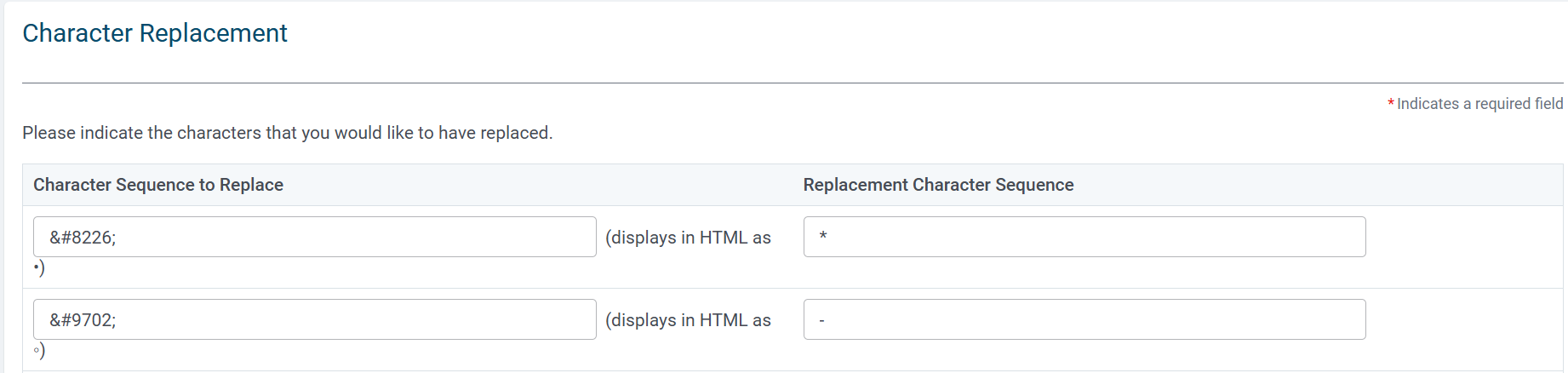
The following are the most common replacement codes from word processing programs.
- • displays in HTML as *
- ◦ displays in HTML as -
Step 2: Access Feature
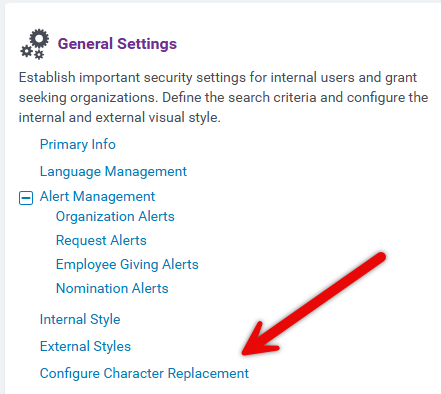
To access the "Configure Character Replacement" feature, enter CyberGrants and navigate to the Admin tab. Then, click "Configure Character Replacement" under "General Settings." Updates can be configured in the Production environment.
NOTE: This functionality is typically set up by the CyberGrants Client Manager.
- If text in an application displays blank squares, darkened squares, or other non-displayable characters, submit a case to support for assistance with configuring the character replacement.
What else do you need help with?
Not what you're looking for? Navigate to Understanding Content Configuration.


