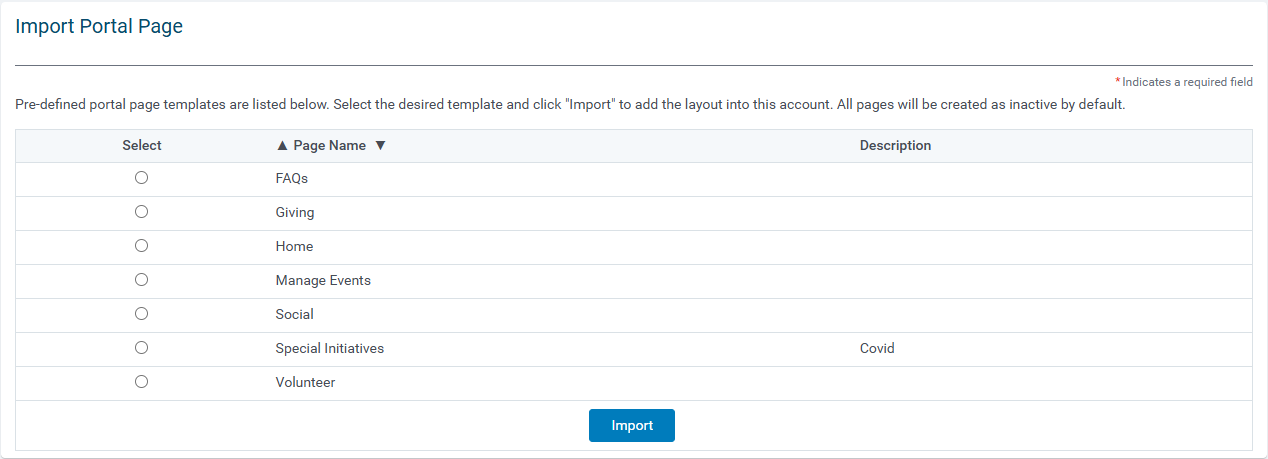
The "Import Portal Pages" functionality allows administrators to import pre-configured portal pages for each portal page type. In the Sandbox environment, administrators can access a list of these pre-configured portal pages, which include the necessary portlets, and select the ones they want to import.
Proceed through the following steps to import a portal page.
Step 1: Select a Portal Page
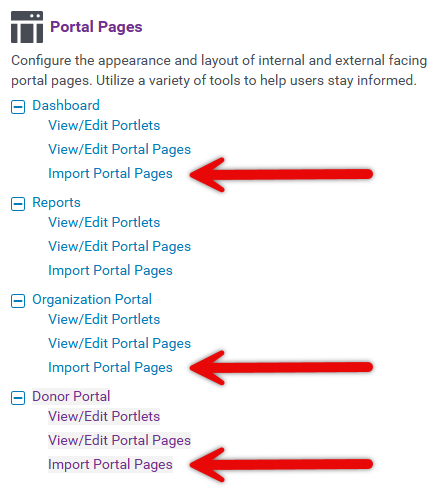
Enter the Sandbox environment and access the Admin tab. To import an existing portal page, click "Import Portal Pages" under the desired portal page type.
Create a New Portal Page
If there are programs that are different from the pages listed, create a new portal page.
You can either clone one of the existing portal pages from the list and alter the portlets/layout on the new page you created or create a new page from scratch by following the instructions below:
- Navigate to Admin > Portal Pages > **Click the name of the portal page type - for example, Donor Portal > View/Edit Portal Pages.
- Click "New Portal Page."
- Fill out the required fields and click "Save."
- Repeat this process for as many portal pages as needed.
Use the "Portal Page Shortcut" option for each page to enter in a page name alias. This will be helpful in the future when linking pages and/or creating new pages for the program.
Step 2: Import Portal Pages
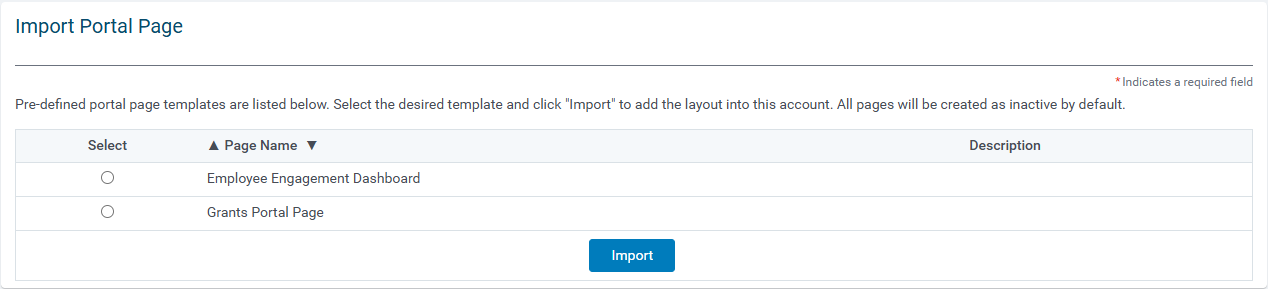
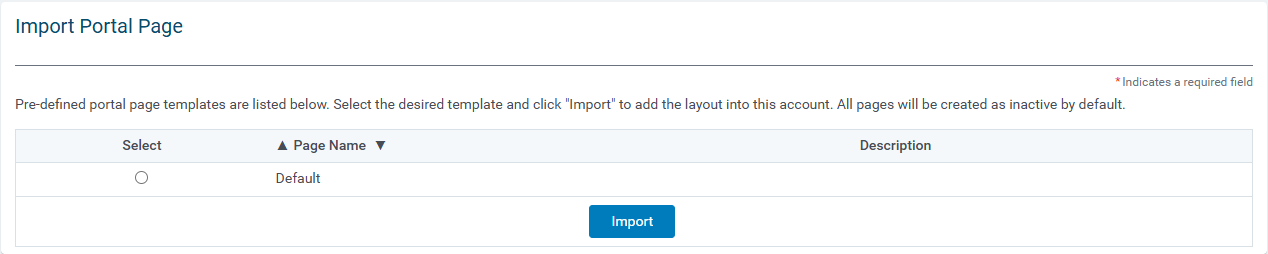
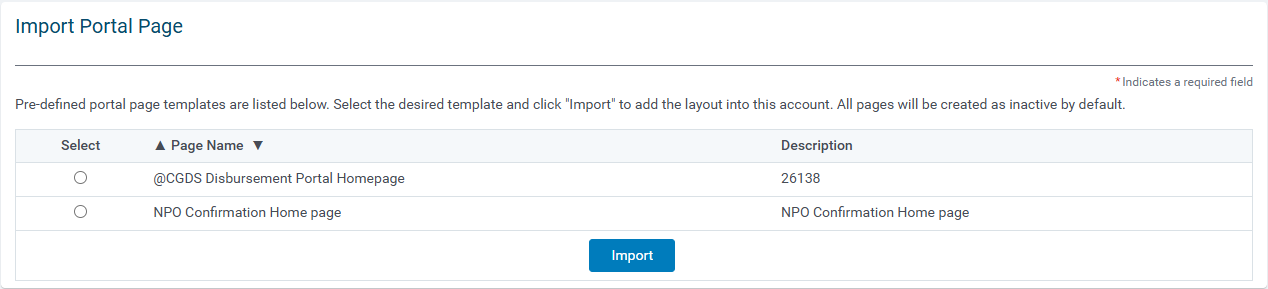
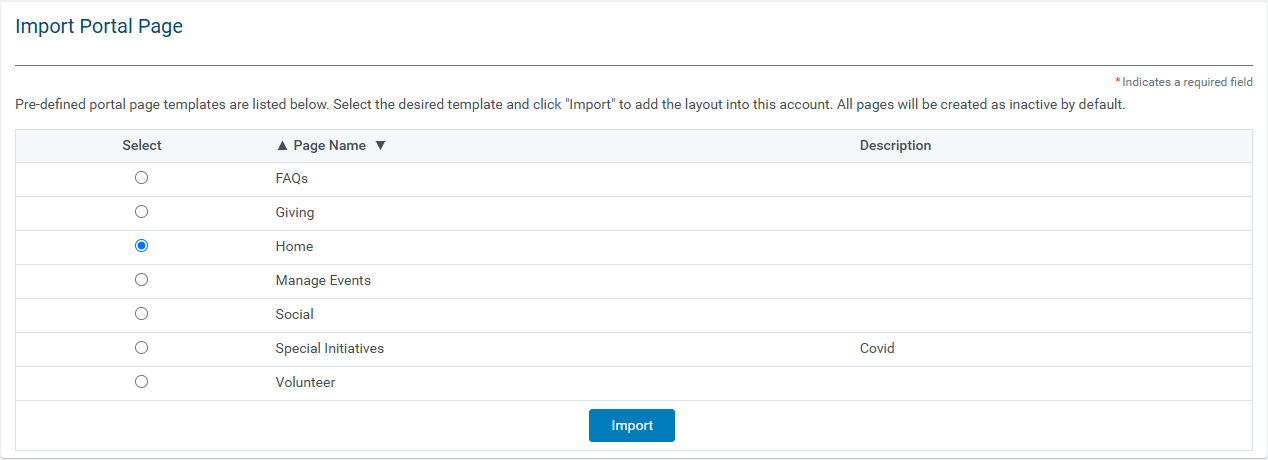
After identifying the appropriate portal page from the list on the "Import a Portal Page" screen, click the corresponding radio button and, then, select "Import." This process may take a minute before feedback on the successful import.
- As an example, to create a Donor Portal Home page, you would need to click the radio button for Home and then Import.
Step 3: Understand Portlet Cloning
If using an import portal page more than once, the same portlets will be cloned and have the same name. This means that manual updating of the portlet names needs to be completed.
- The best way to make sure you are updating the correct portlet is to select it from the "Portlets used in this page" from that portal page.
 Key Configuration Notes
- If a portlet that was auto-cloned is not going to be used, it is suggested to delete it so the portlet page does not become overwhelming.
- If you import the same portal page twice, it will use the same portlets on each. - Importing the portal page does not clone and create new portlets for the second page. You will have to clone the portlets if you need them different on each page.
Step 4: Customize the Portal Pages
Open each portlet page and Add/Remove/Edit desired portlets to the portal page.
NOTE: Be sure to make the portal page "Active" once the customization is complete.
What else do you need help with?
Not what you're looking for? Navigate to Understanding Content Configuration.


