The Custom Alerts feature allows administrators the ability to customize and activate alerts for various predetermined scenarios related to requests, organizations, and employee giving records. Administrators can adjust the text displayed to internal users, as well as designate the Alert as one of the following:
- A Warning (allowing progress to continue)
- An Error (requiring action before continuing)
Standard Alerts:
The following table includes the current standard alerts:
| Organization Alerts: |
- Organization's approval status has expired (general)
- Organization has 509(a)(3) Tax Status
- Organization is rejected
- Organization has unacceptable tax status
- Organization is on the OFAC list
|
| Request Alerts: |
- Organization is rejected for this proposal type
- Overdue impact reports
- Organization Located in Unacceptable Region for this Proposal Type
- Organization has unacceptable tax status for this proposal type
- Overdue required impact reports
- Organization's approval status has expired (current proposal type)
|
| Employee Giving Alerts: |
- Potential Duplicate Gift Detected
- Organization's approval status has expired (current proposal type)
- Organization Located in Unacceptable Region for this Proposal Type
- Gift Confirmed with Discrepancy
- Organization is rejected for this proposal type
- Gift Confirmed by Different Organization
- Gift Registered and Confirmed at Same IP Address
- Organization has unacceptable tax status for this proposal type
|
| Nomination Alerts: |
- Organization listed as SPLC Hate Org
|
Configure an Alert
To learn about configuring an alert, proceed through the following steps.
Step 1: Access Alert Management
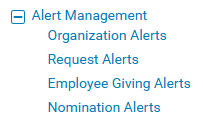
Enter the Admin tab in CyberGrants and navigate to "Alert Management" under "General Settings." Then, to configure an alert, click one of the following sections:
Step 2: Arrange the Order and Activate Alerts
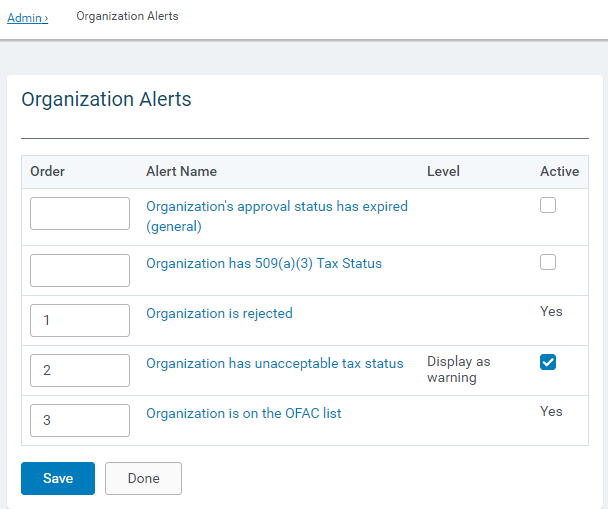
From the main screen, the order of the alerts can be configured and made active.
Step 3: Edit Alert Messages
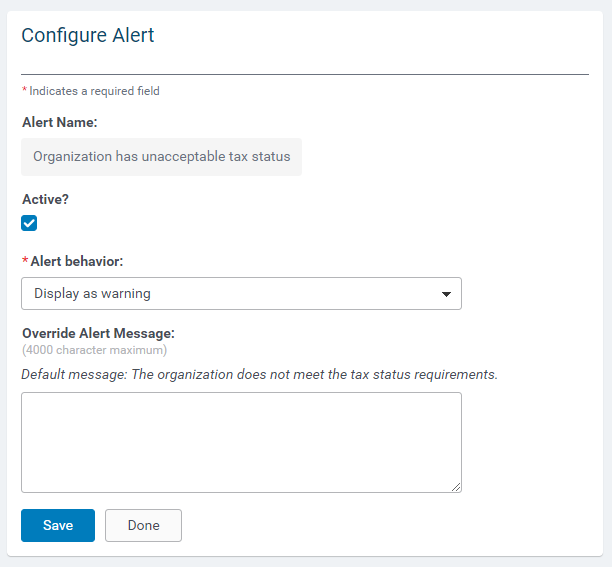
Clicking on the alert name will display the screen to edit the warning message. Make sure to save your changes and publish.
What else do you need help with?
Not what you're looking for? Navigate to Understanding Content Configuration.


