The “Email” link provides a means to send e-mails to an individual or a group of contacts with standard or personalized text. With the use of a template and a mailing list, sending an email to hundreds of contacts can take a few seconds.
Step 1: Enter the Mail tab
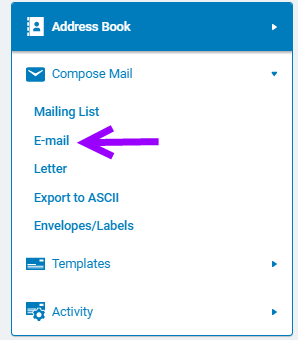
Navigate to the Mail tab in CyberGrants.
Step 2: Click E-Mail
From the Compose Mail dropdown, select "E-Mail."
Step 3: Limit Contact Search Results
Use the Contact Search on the Navigation Frame to limit your contact search results that displays in the Address Book on the Information Frame.
Step 4: Select a Template or Mailing List
If using a template, select a template. If not, select "(No template)". If using a mailing list, select a mailing list.
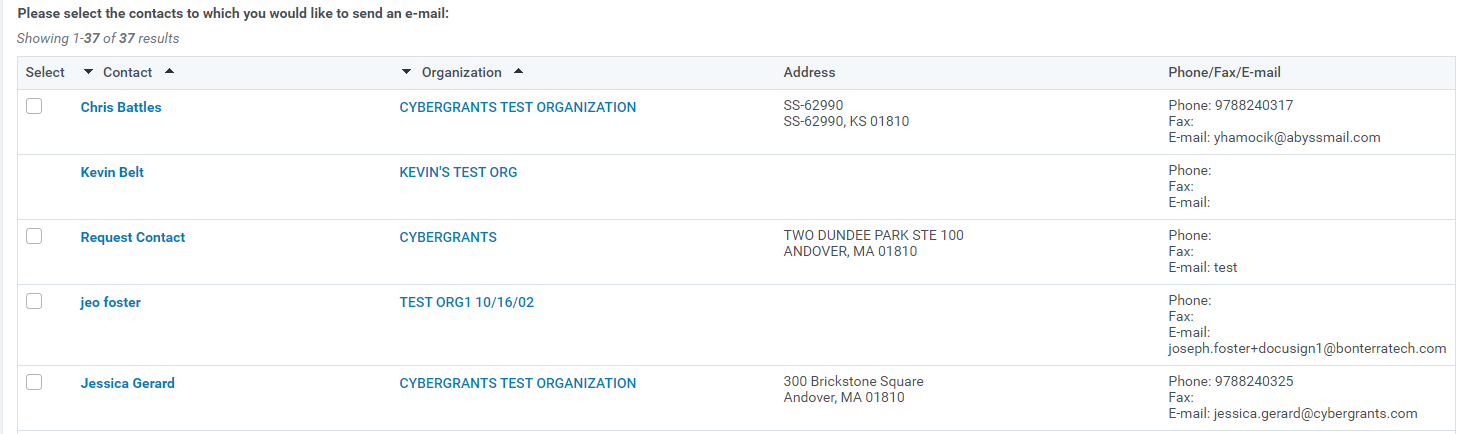
Step 5: Select Recipients
Check the checkbox beneath the "Select" column to select the recipient(s) of the email or click the "Select All" link at the bottom of the list to send the email to all of the contacts. (Click the "Select None" link to clear all of the boxes.)
Step 6: Compose or Preview the Email
Click on the "Create/Edit Email" button at the bottom of the page to compose or preview the e-mail message. Note: If the user doesn't specify a template, the content of the letter will be identical for all recipients as merge fields are not available.
Step 7: Add Additional Recipients
Send this email to additional recipients by entering their e-mail addresses into the To:, cc:, or bcc: text fields. Separate multiple e-mail addresses with commas.
Step 8: Edit Email Subject and Body
Enter or edit the subject or body of the email.
Step 9: Save or Send the Email
Click either the "Save as Draft" button to save the e-mail message without sending, or the "Send Email" button to send the message(s). All saved or sent emails are stored in either the "Drafts" or the "Sent Mail" in the "Activity" link.
What else do you need help with?
Not what you're looking for? Navigate to Understanding Email Communication Management


