The Email Digest is for those clients with users who would prefer a single email that consolidates all of their new approvals into a single message. Once activated across the Grantmaker account, Digests will go out to all reviewers with new grants that have arrived in their queue since the last time they received a notification.
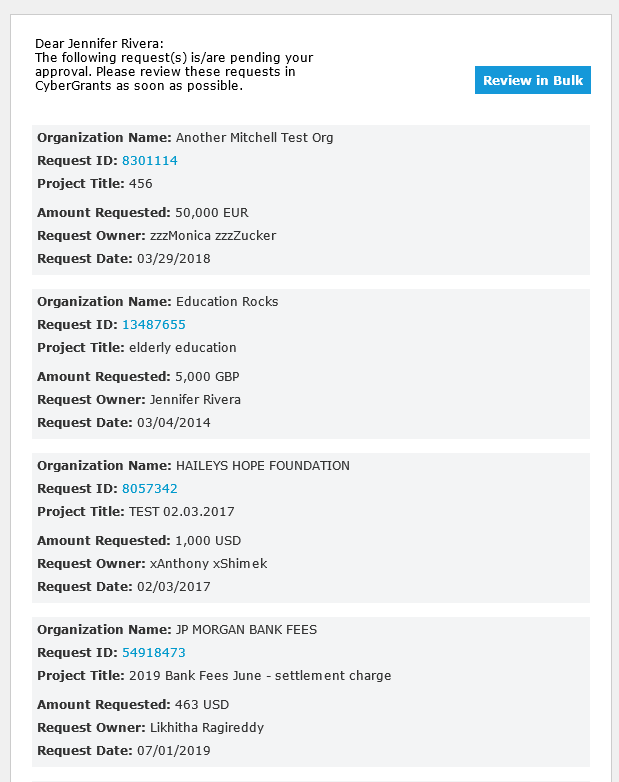
The message will be HTML-based so it will contain markup that makes it appealing to view either on the recipient’s desktop or on their mobile device. Recipients may click on the link next to a particular grant to load it in a browser or select the “Bulk Approval” button to review all of them at once. It is important to keep the following in mind:
- Emails will only be generated if there are new requests pending approval
- Links will expire after 14 days
- Emails will be limited to 20 requests
- The Digest is created via a nightly job
Please proceed through the following steps to activate the Email Digest.
Step 1: Go to the Admin Tab
While in the CyberGrants Sandbox environment, navigate to the Admin tab.
Step 2: Go to Digests
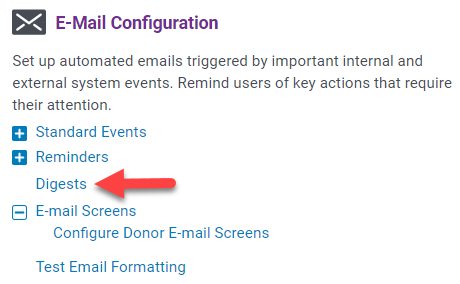
On the Admin tab, navigate to Digests in the E-Mail Configuration section.
Step 3: Click Edit next to the Email Digest
Click the Edit button corresponding to the digest name in the Available E-mail Events table.
Step 4: Activate Digest
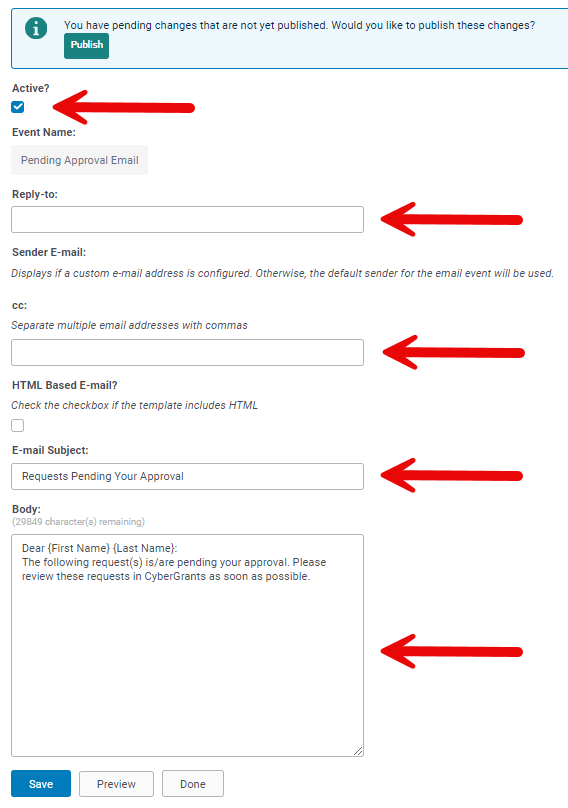
Select the "Active?" button to activate the email event.
Step 5: Enter Reply-to Email Address
If required, enter a reply-to email address.
Step 6: Enter CC-Email Addresses
If required, enter cc email addresses.
Step 7: Modify the Subject Line
An Administrator can change the subject of the email digest in the “E-mail Subject” field.
Step 8: Modify the email Body content
The content of the body text can also be modified in the “Edit Event E-mail” screen. Enter the general text that all recipients will receive.
Step 9: Click Save and Publish
When the updates are completed, click the "Save" button to save your changes. Click the "Publish" button to migrate your changes to production.
The Email Digest will include individual links to requests and a link to review all the requests in bulk.
What else do you need help with?
Not what you're looking for? Navigate to Understanding Email Communication Management


