The “Letter” link provides a means to send letters to an individual or a group of contacts with standard or personalized text. With the use of a template and a mailing list, sending a letter to hundreds of contacts can take a few seconds.
Step 1: Enter the Mail tab
Navigate to the Mail tab in CyberGrants.
Step 2: Click Letter
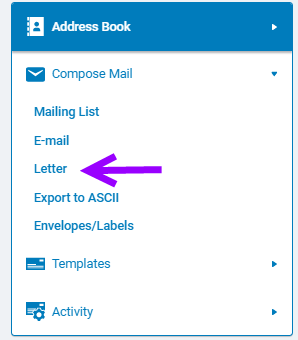
From the Compose Mail dropdown, select "Letter."
Step 3: Limit Contact Search Results
Use the Contact Search on the Navigation Frame to limit your contact search results that displays in the Address Book on the Information Frame.
Step 4: Select a Template or Mailing List
If using a template, select a template. If not, select "(No template)". If using a mailing list, select a mailing list.
Step 5: Select Recipients
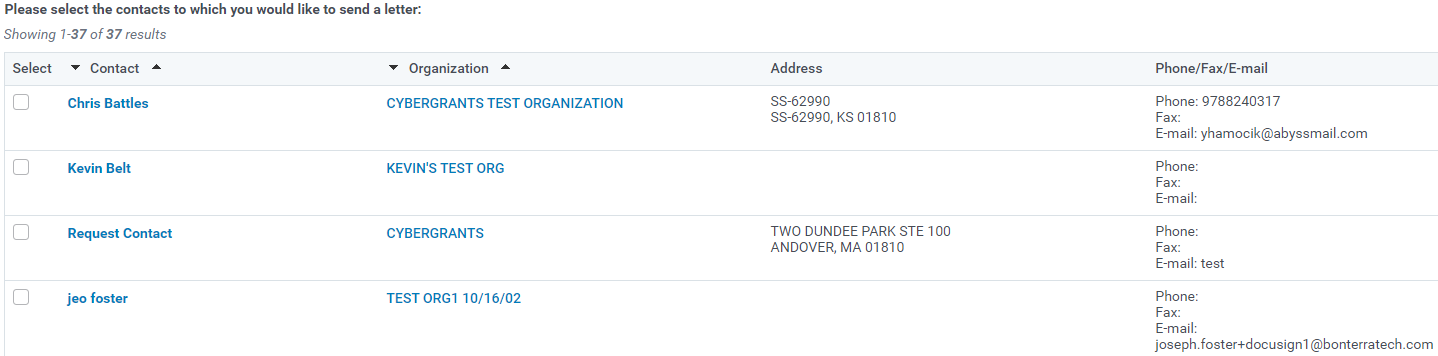
Select the checkbox of each contact to generate a letter. Users may select individual contacts or click the "Select All" link at the bottom of the list to check off all the boxes. (Click the "Select None" link to clear all of the boxes.)
Step 6: Compose or Preview the Letter
Click the “Create/Edit Letter” button to compose or preview the letter(s). The following fields should be completed and reviewed for accuracy:
-
Font Size & Type: Determines the font size and font type of the letter.
-
Margin Sizes: Determines the left and right margins (top margins should be set with carriage returns in the body of the letter)
-
To: A reference to determine the letter recipient.
-
Re: A reference and provides a brief description of the purpose of the letter.
-
Body: The body text of the letter.
Step 7: Select an envelope template
A drop-down list at the bottom of the letter-editing page allows users to choose an envelope template. If a user chooses an envelope template, an envelope is generated simultaneously with the printed letter. If the user does not select an envelope template from the drop-down list, no envelope is generated. If a user doesn’t see an envelope template that meets their needs, please contact the Client Manager.
Step 8: Save or generate a Letter
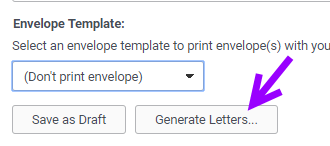
Click the “Save As Draft” button either to save the letter(s) without sending or select the “Generate Letters” button to create the letter(s) in the appropriate program. A user may create letters in the following formats: PDF, Microsoft® Word (RTF), or RTF (RichText Format). All letters saved or generated in CyberGrants are stored in either the “Drafts” or the “Sent Mail” sections of the Mail Tab.
What else do you need help with?
Not what you're looking for? Navigate to Understanding Email Communication Management


