The Insights platform provides users with access to a wide variety of reports and dashboards to help analyze and track their philanthropic efforts. Whether you need to access a personal report, a group-level report, or a standard report implemented by CyberGrants, the process for locating the desired information is straightforward.
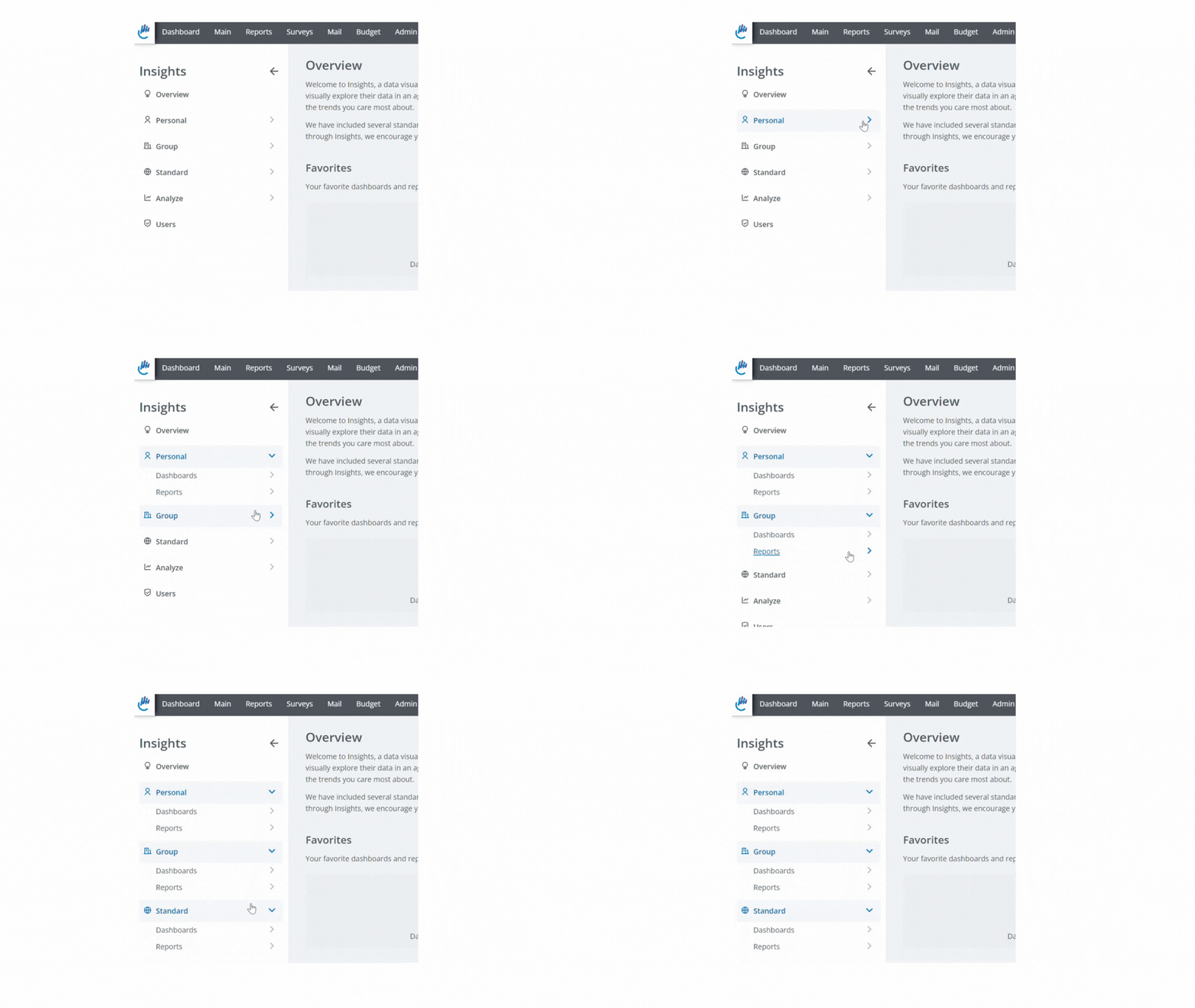
Follow these step-by-step instructions to efficiently navigate the Insights platform to find the report or dashboard you need.
Step 1: Access the Insights tab
Log in to the CyberGrants platform and navigate to the Insights tab.

Step 2: Locate the Left-Hand Menu
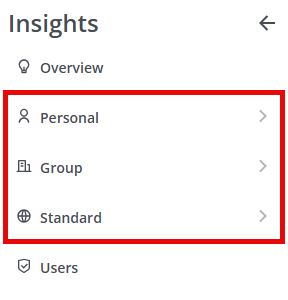
Locate the left-hand menu. This menu contains three main folders where reports and dashboards are organized: Personal, Group, and Standard.
Step 3: Identify the Report Type
Identify the type of report you need to access:
- Personal - Reports only you can access.
- Group - Reports accessible to all licensed Insights users within your company.
- Standard - Reports that have been implemented by CyberGrants and are available to all Insights users.
Step 4: Select the Appropriate Folder
Click on the appropriate folder (Personal, Group, or Standard) to expand the menu and view the available options.
Step 5: Scan the Available Reports
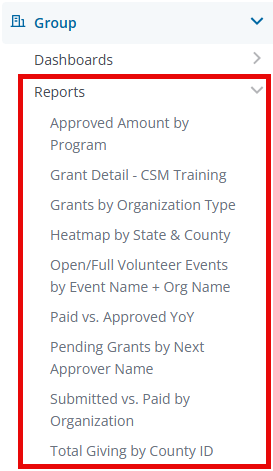
Scan the list of reports or dashboards within the selected folder. Reports are typically named in a way that describes their content or purpose.
Step 6: Open the Desired Report
Once you have identified the report you need, click on the report name to open and view it.
What else do you need help with?
Not what you're looking for? Navigate to Understanding Insights Reports


