The ability to drill into Insights reports is a powerful feature reserved for licensed "Analyst" users. Insights Analysts can proceed through the following steps to effectively drill into the data and uncover valuable information to make informed decisions that drive program success.
Step 1: Access the Insights tab
Log in to the CyberGrants platform and navigate to the Insights tab.
Step 2: Open a Report
From the left-hand menu, choose a report from any of the main folders: Personal, Group, or Standard.
When viewing a report, licensed "Analyst" users can explore the data displayed even further by utilizing any of the following three methods.
Step 3: Explore Data Points on a Visualization
Analysts can click on a specific data point on a visualization revealing an option to "Show All ___". Clicking this will populate an overlay itemized report containing all the records that contribute to this data point. From the overlay report, users can download the data or explore it further as needed.
Step 4: Access the Underlying Data Fields
Another way Analysts can drill into the data is by clicking the gear icon in the top right of any report revealing an option to "Explore from Here." Clicking this will take the user to the underlying data fields that are driving the report. In this view, Analysts can add additional fields, explore the data, save the customized report, and share it as needed.
Step 5: Navigate to Detailed Records
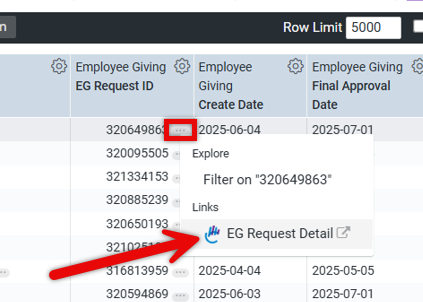
For reports utilizing a table visualization, the presence of a link is indicated by a horizontal ellipsis following the data in a field. Clicking on the horizontal ellipsis will take the Analyst directly to the detail for that value (i.e., Organization Detail or EG Request Detail) within the CyberGrants UI.
What else do you need help with?


