All Insights users have the ability to identify one report (or dashboard) as their "Default Insight", which means this default selection will automatically load whenever accessing Insights. Setting a Default Insight allows you to quickly access the analytics you use most frequently, streamlining your workflow and providing a more personalized experience within the Insights platform.
This feature enables you to efficiently focus on the key metrics and visualizations that are most important to your role and decision-making processes.
To set a dashboard or report as your Default Insight, proceed through the following steps.
Step 1: Access the Insights tab
Log in to the CyberGrants platform and navigate to the Insights tab.
Step 2: Locate the Left-Hand Menu
Locate the left-hand menu. This menu contains three main folders where reports and dashboards are organized: Personal, Group, and Standard.
Step 3: Select the Appropriate Folder
Click on the appropriate folder (Personal, Group, or Standard) to expand the menu and review the available Insights to identify the report or dashboard you would like to set as your default.
Step 4: Hover Over the Insight
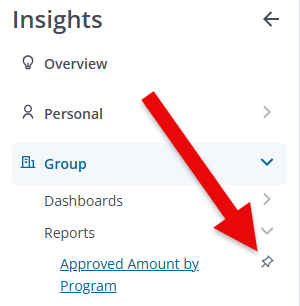
Hover your cursor over the report or dashboard name. You will notice a pushpin icon appear.
Step 5: Click the Pushpin Icon
Click on the pushpin icon to select this insight as your default. The pushpin icon will become filled, indicating it is now set as your default.
What else do you need help with?


