Insights reports provide valuable program data and analytics that can be downloaded and shared with stakeholders as needed. To ensure effective data utilization, it is essential to understand how to access and download the underlying data from these reports.
Proceed as follows to download data from an Insights report in the various formats available through the platform.
Step 1: Access the Insights tab
Log in to the CyberGrants platform and navigate to the Insights tab.
Step 2: Open a Report
In any of the main folders: (Personal, Group, or Standard) on the left-hand menu, choose the Insights report you wish to download data from.
Step 3: Initiate the Download
In the top-right corner of the report, click on the gear icon to reveal the option to “Download.”
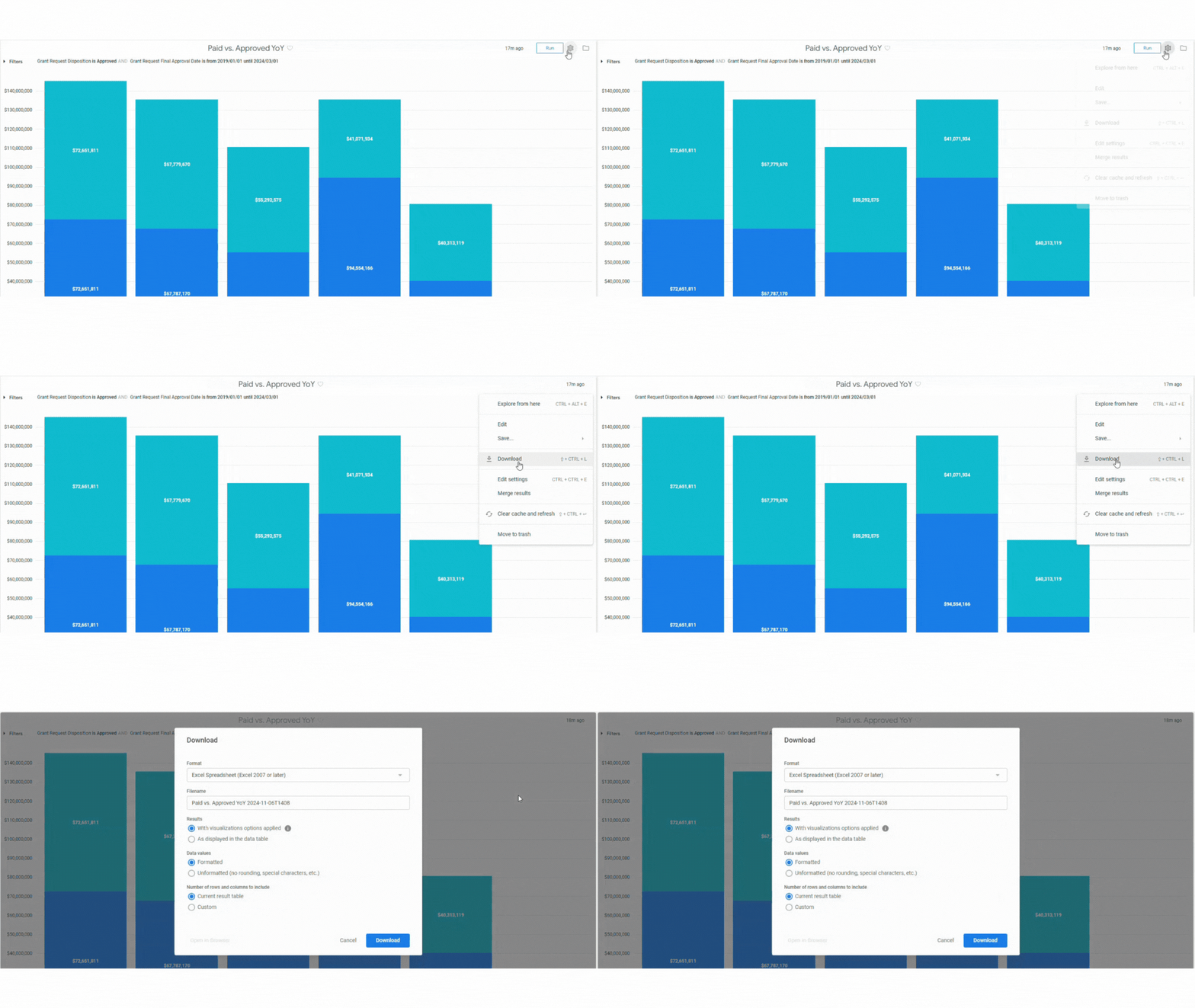 Step 4: Select the Download Format
This will present a modal where you can select one of the following formats for your download:
- TXT (tab-separated values)
- Excel spreadsheet (Excel 2007 or later)
- CSV
- JSON
- HTML
- Markdown
- PNG (Image of Visualization)
Step 5: Customize the Download
You can also choose from a handful of advanced options, preview certain download formats in a separate browser tab, and provide a custom file name for the download.
Step 6: Initiate the Download
Once you have selected the desired format and any additional options, click the "Download" button to initiate the download process. The file will be immediately downloaded to your default 'downloads' location.
What else do you need help with?


