Mapping rules, or domains, are used to set an internal CyberGrants user as the owner of various types of transactional data based on varying predetermined criteria.
Proceed through the following instructions to create an Ownership Routing (Mapping) Rule.
Step 1: Access the Ownership Routing Setup
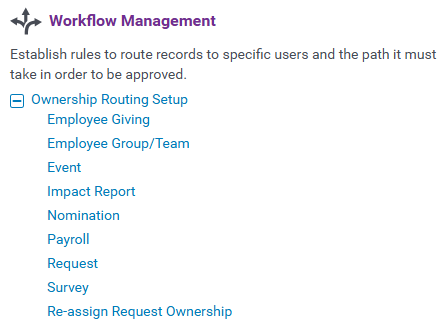
Enter the CyberGrants Sandbox environment, navigate to the Admin tab, and, in the Workflow Management section, select the link for the appropriate type of transaction data under Ownership Routing Setup.
Transaction Data:
- Employee Giving
- Employee Group/Team
- Event
- Impact Report
- Nomination
- Payroll
- Request
- Survey
Step 2: Create a New Mapping Rule
On the mapping screen, click the + New Mapping Rule button at the bottom of the page to proceed.
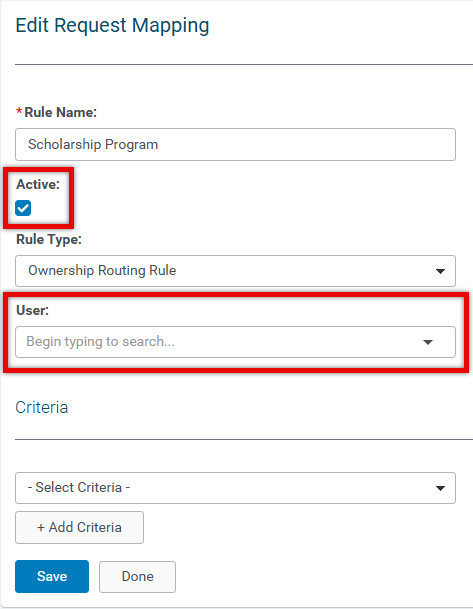
Complete the fields as necessary.
There are two approaches:
- Set up one mapping rule per user
- Set up one mapping rule per "set of criteria"
Step 3: Assign a User
Search and select the name of an authorized internal user.
- NOTE: Only one user can be selected for Ownership Routing.
Remember to select the Active checkbox to make the rule available.
Step 4: Add Criteria
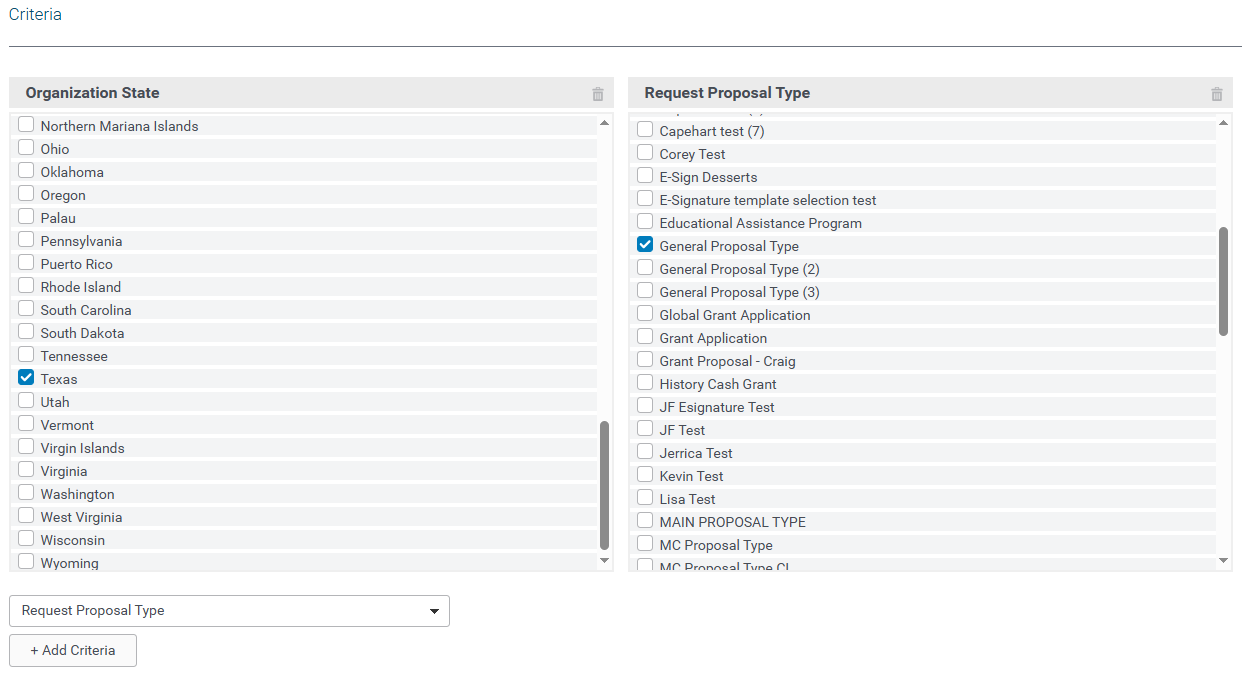
From the Criteria dropdown menu, select the criterion you want to use to map. Click the + Add Criteria button to add the selected criterion. Select one or more criteria.
Examples of Request Mapping Criteria:
- Request Invitation Code
- Request Region
- Country
- Proposal Type
- Request Funding Principle
- State
- Request Type
- Request Strategy
Repeat the process of selecting and adding criteria as necessary to build your desired set of mapping rules.
Step 5: Save and Publish
Once you've completed the setup, click the Save button and Publish the new mapping rule.
What else do you need help with?
Not what you're looking for? Navigate to Workflow Management Overview
Looking for training?
Explore this feature at your own pace - access training video content or watch a recorded webinar by clicking the link below.


