The Approval Type Conditions feature enables administrators to effectively manage user access within the approval process. This tool allows administrators to review and configure the specific criteria that determine user authorization within the approval workflow.
- NOTE: Settings are not included with cloned approval types.
Follow the instructions below to learn about leveraging this valuable functionality.
Step 1: Access the Approval Types
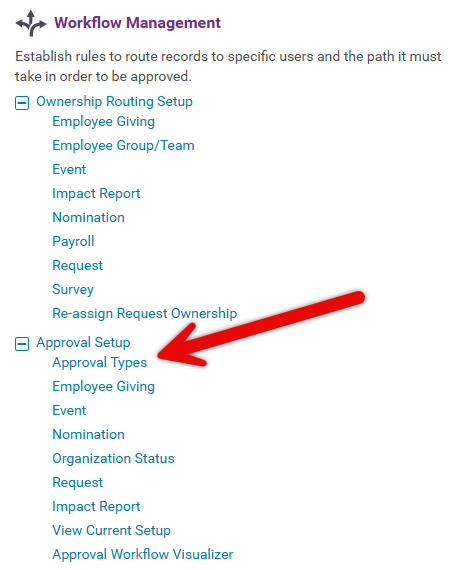
Enter the CyberGrants Sandbox environment and navigate to the Admin tab. Then, locate the Workflow Management section and click on Approval Types.
Step 2: Choose an Approval Type
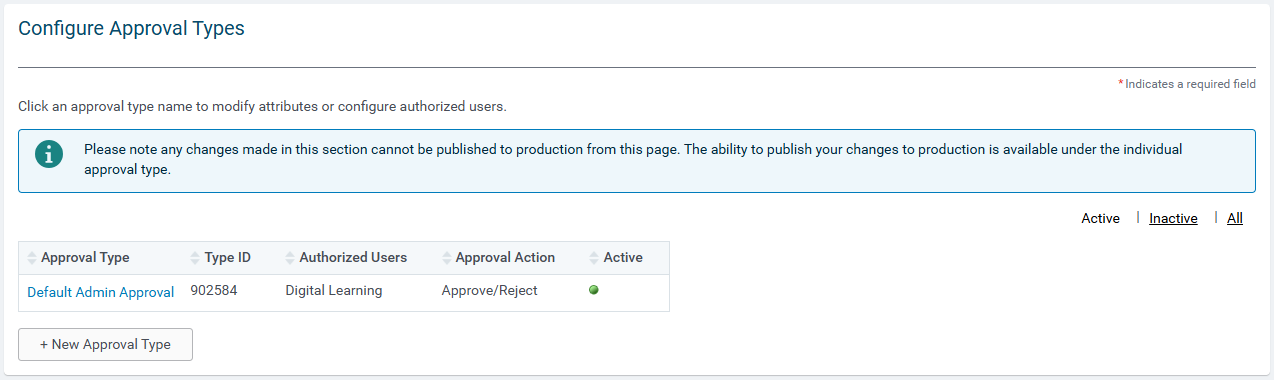
From the Approval Types listed, select the name of the specific approval type you wish to review or configure.
Step 3: View the Approval Type Conditions
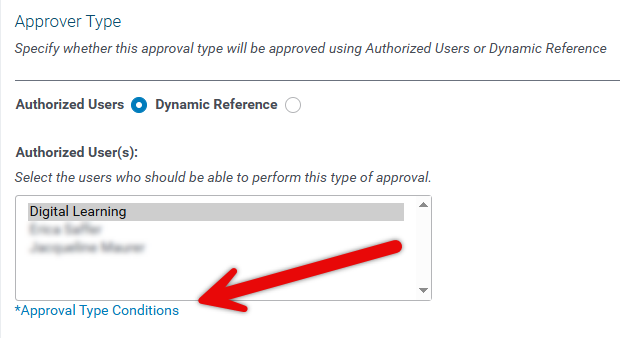
Under the Approver Type section, below Authorized User(s), select the link to view the Approval Type Conditions. This will enable you to define additional criteria for authorized users.
Step 4: Apply Approval Type Conditions
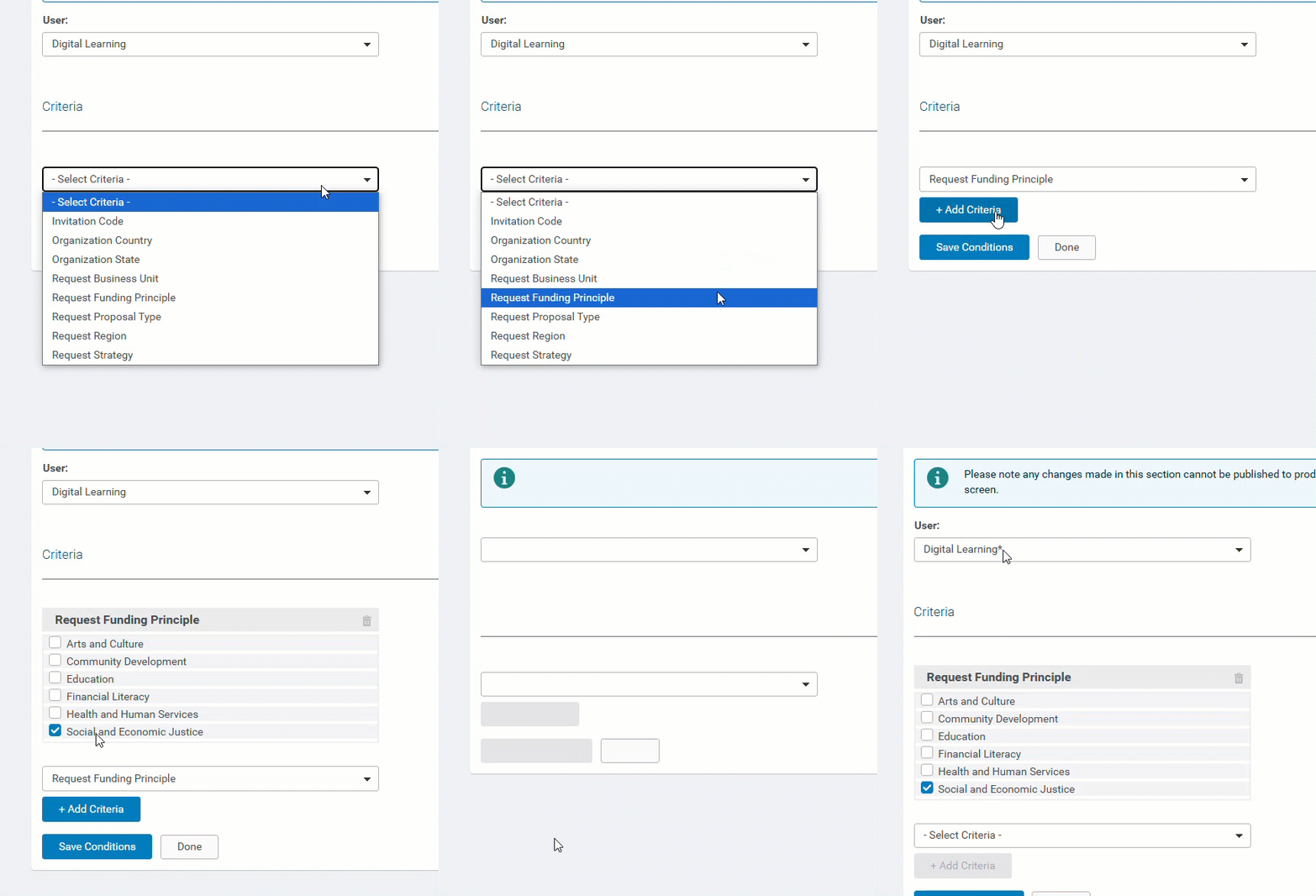
Select the User name to apply the Criteria.
- If the list of users exceeds 250, the field will be presented as a type-ahead option, allowing you to search for the relevant users and add multiple users to the selection. If criteria conditions are met, a user will be authorized.
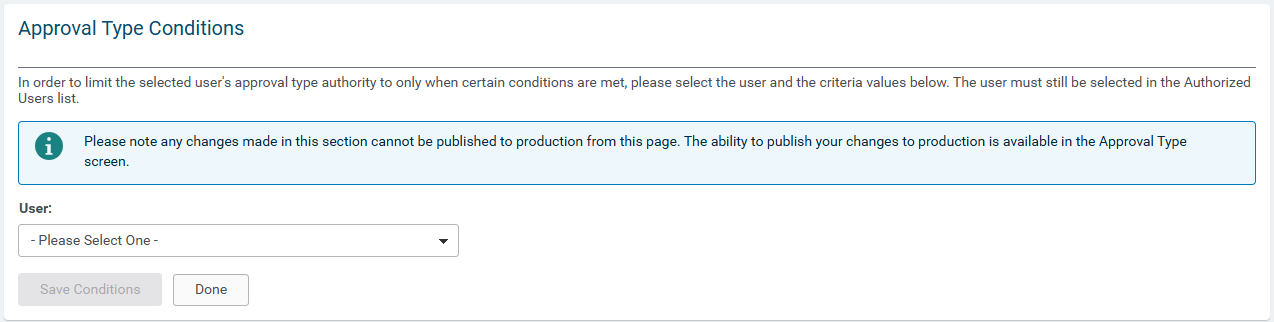
Use the dropdown that appears to apply criteria and save the conditions.
- Users with defined Approval Type conditions will appear with an asterisk beside their name.
NOTE: Access is reviewed by the system every night. Access is revoked if the assigned user is not authorized, as determined by the set criteria. If a user is added manually to the process by another user, their authorization status will not change.
What else do you need help with?
Not what you're looking for? Navigate to Workflow Management Overview


