Approval Rules enable administrators to define specific criteria and configure custom approval processes.
- This feature provides administrators the flexibility and control to tailor the approval workflow to their specific needs.
Review the information below to learn how to configure an Approval Rule and leverage this functionality.
Step 1: Access the Approval Setup
Before proceeding, ensure that you have the necessary Approval Types setup to apply them to your approval workflow.
Then, to configure an Approval Rule, enter the CyberGrants Sandbox environment and navigate to the Admin tab.
- Locate the Workflow Management section and click on the appropriate hyperlink under the Approval Setup menu to access the Approval Rule configuration.
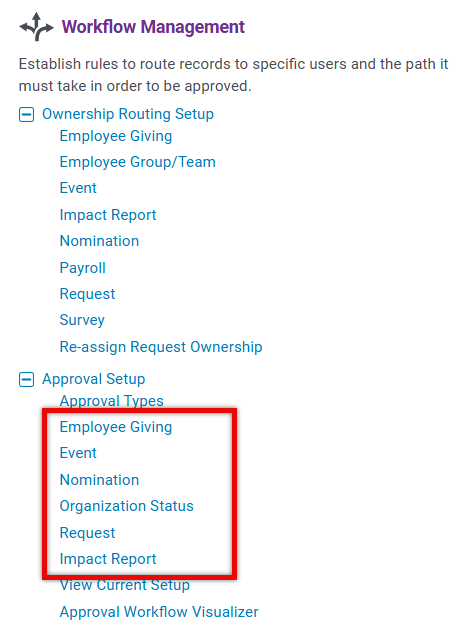
Step 2: Create a New Approval Rule
On the following page, click the "+ New Approval Rule" button to initiate the process of creating a new Approval Rule.
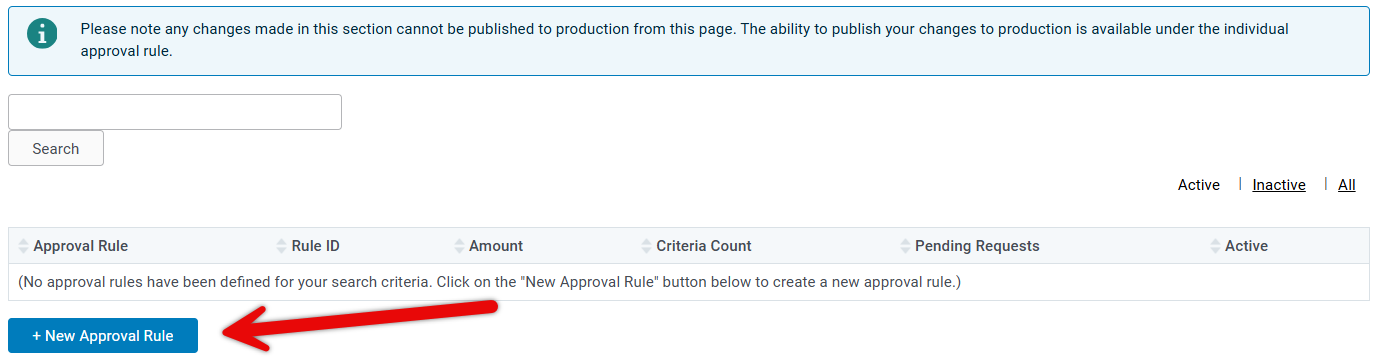
Step 3: Configure the Approval Rule Details
In the Approval Rule configuration, fill out the applicable fields, such as the Rule Name, Description, Active Status, Auto-Disposition status, and any other relevant settings.
- Ensure that the information accurately reflects the purpose and parameters of the Approval Rule you are creating.
(i.e.) Request Approval Rule Configuration Details:
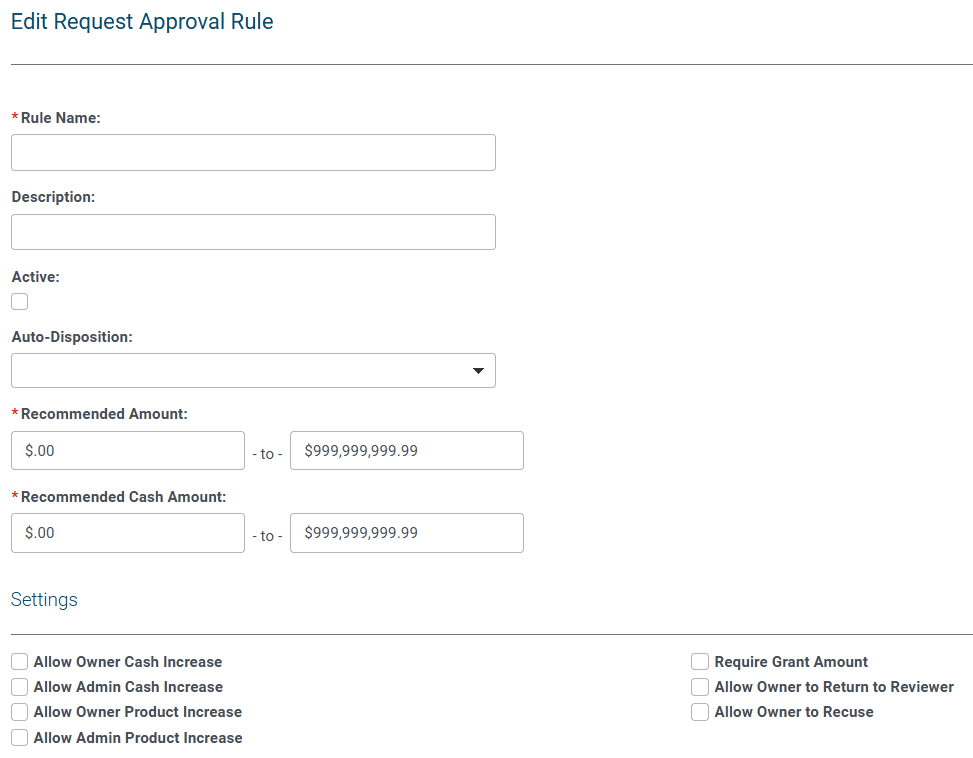
Step 4: Define the Approval Criteria
Select from the dropdown and click "+Add Criteria" to apply the criteria to the Approval Rule you are creating.
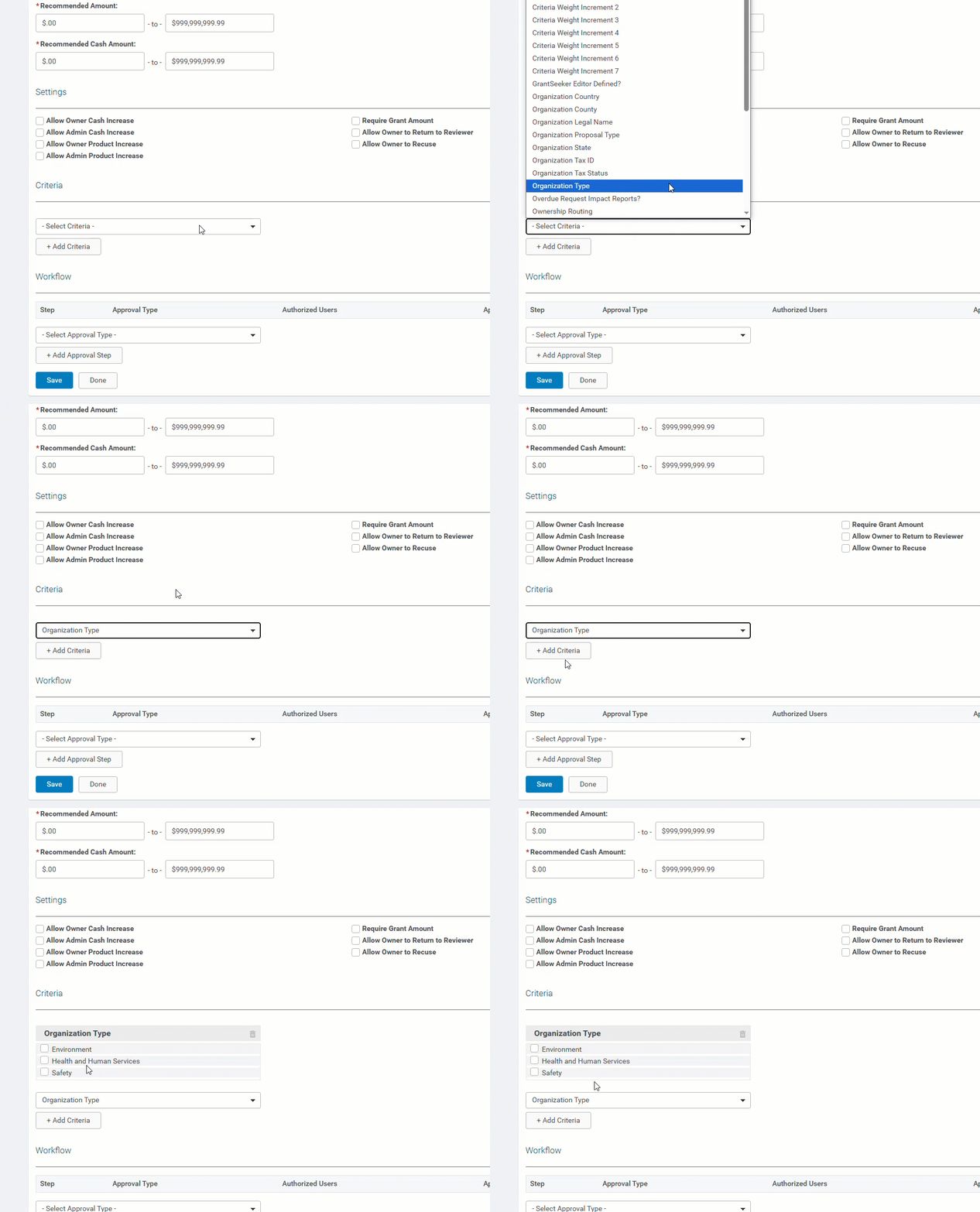
Step 5: Update the Approval Workflow
Select from the available Approval Types and click the "+ Add Approval Step" button to apply the Approval Type(s) to the Approval Rule.

Step 6: Save the Approval Rule
Once you have completed the Approval Rule configuration, click the "Save" button to ensure that the Approval Workflow is properly established and ready for use.
What else do you need help with?
Not what you're looking for? Navigate to Workflow Management Overview
Looking for training?
Explore this feature at your own pace - access training video content or watch a recorded webinar by clicking the link below.


